Blender's own system requirements list 2 GB of VRAM as the minimum and 8 GB as recommended. That is a floor, not an answer: how much VRAM you need for Blender is decided by the heaviest scene you render, its textures, geometry, hair and volumes. You can estimate most of it before you buy and measure the rest with one test frame.
How much VRAM you need for Blender: measure, then add headroom
Tier lists that say 8 GB for beginners and 16 GB for professionals are guessing about scenes they have never seen. The card has to hold the heaviest scene you render, so the useful answer is a method: count what you can on paper, measure the rest with a test frame, add headroom, and buy the next size up.
This is mostly a Cycles GPU question. Cycles has to fit the scene into the card's memory or borrow system RAM and slow down, and the manual names a lack of GPU memory as the most common reason a scene that renders on the CPU fails on the GPU. EEVEE leaves memory to the graphics driver, covered below.
What uses VRAM in a Cycles render
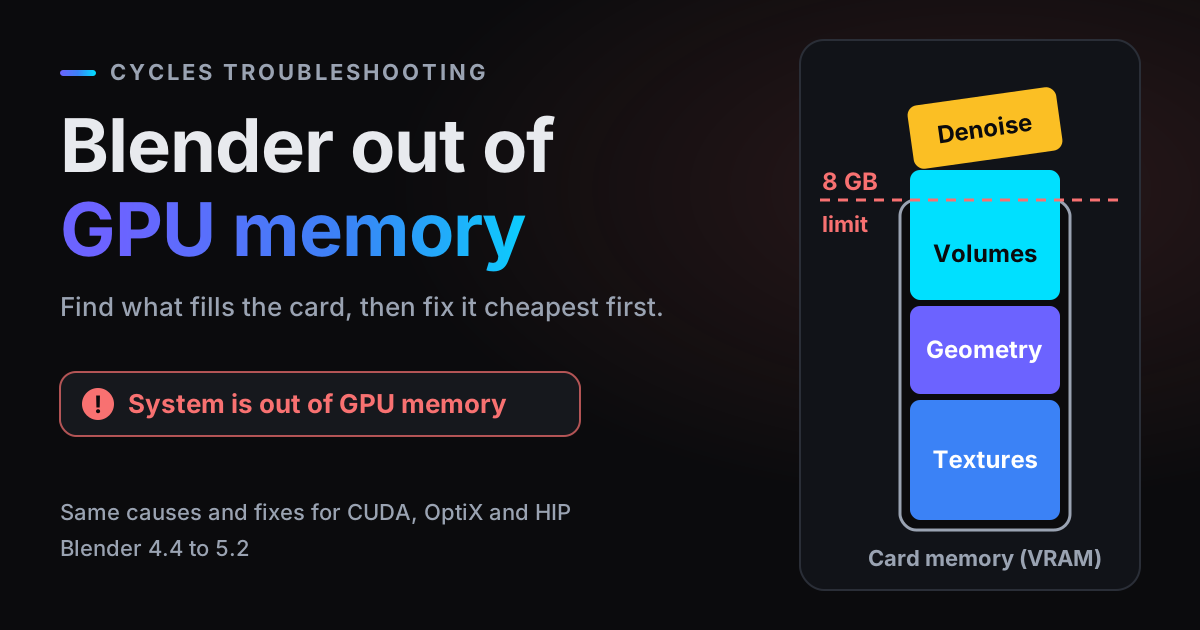
While Cycles renders on the GPU, everything it needs sits in the card's memory. These are the parts that add up:
- Image textures, HDRIs included. Usually the largest part, and the one you can count on paper. Each image loads once, however many materials use it.
- Geometry and subdivision. Every triangle after modifiers, plus the acceleration structure built over them. Each Subdivision Surface level multiplies the face count by about four.
- Hair and particles. Hair and fur are curves, and child hairs multiply them.
- Volumes. Smoke, fire and clouds are 3D grids, so memory grows with resolution in all three directions. Why volumetrics are slow covers their speed side.
- The image itself. The render result and every enabled pass stay in memory while rendering. Render Properties > Performance > Memory > Tile Size limits this at high resolutions.
- GPU denoising. Much faster than on the CPU, but the manual says it requires additional GPU memory and can be switched off when a large scene needs the room (Render Properties > Sampling > Render > Denoise > Use GPU).
- Persistent Data (Render Properties > Performance > Final Render) keeps render data in memory after rendering, for faster re-renders, at the cost of extra memory while you keep working in Blender.
On top come the GPU runtime and driver, and, if the card drives your monitor, the desktop and your other apps.
Estimate your texture budget before you buy
Textures are the part you can work out with a calculator. The manual gives the figures: an 8k image texture takes 256 MB, 4k takes 64 MB, 2k takes 16 MB and 1k takes 4 MB. Each step doubles the width and the height, so the memory grows four times.
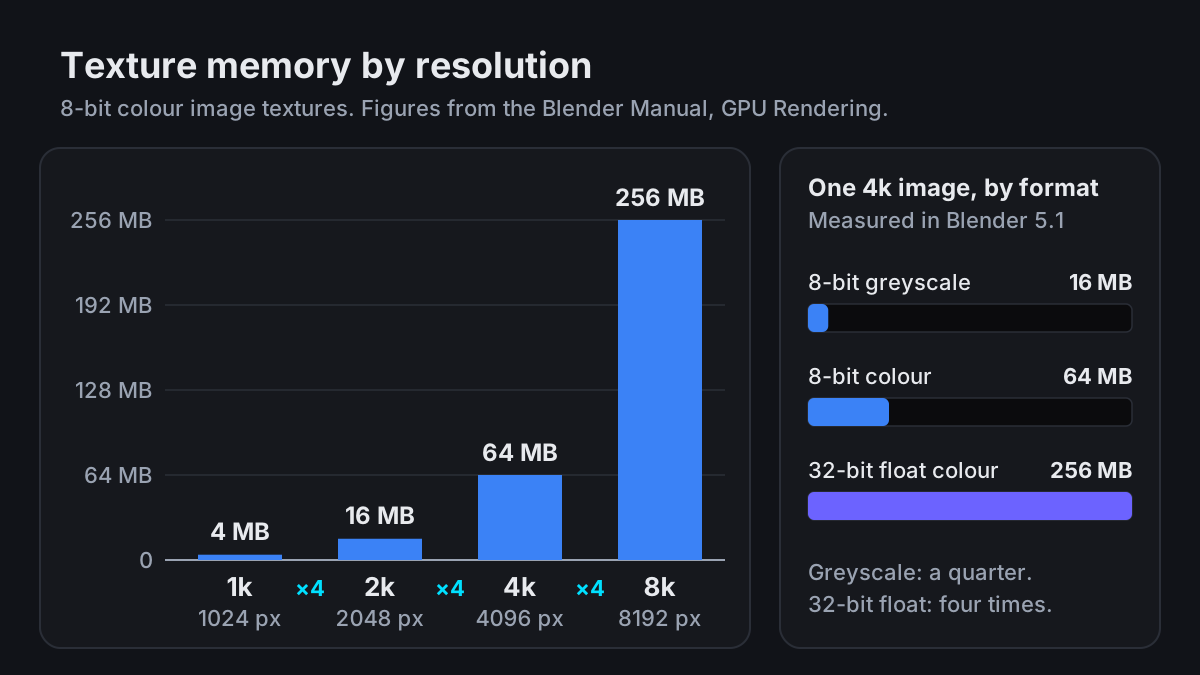
Those figures are for ordinary 8-bit colour images: width × height × 4 channels × 1 byte, so 4096 × 4096 × 4 bytes is 64 MB. Bit depth and channels change the answer. We checked in Blender 5.1.1 (Cycles, 8 GB NVIDIA card) by rendering the same frame with and without textures and reading the Memory stamp from the next section:
| One 4096 × 4096 image | Memory added in Cycles |
|---|---|
| 8-bit colour | 64 MB |
| 8-bit greyscale, saved as a single channel | 16 MB |
| 32-bit float colour | 256 MB |
| One 8-bit colour image used by 20 materials | 64 MB in total |
A worked example
Say a scene has ten materials with three 4k maps each: base colour, roughness and normal. That is 30 textures, and 30 × 64 MB = 1,920 MB, just under 1.9 GB (1 GB = 1024 MB here). If the ten roughness maps are single-channel greyscale files, they take 160 MB instead of 640 MB. Move the same 30 maps to 8k and they take 30 × 256 MB = 7,680 MB, which is 7.5 GB: almost all of an 8 GB card before a single triangle.
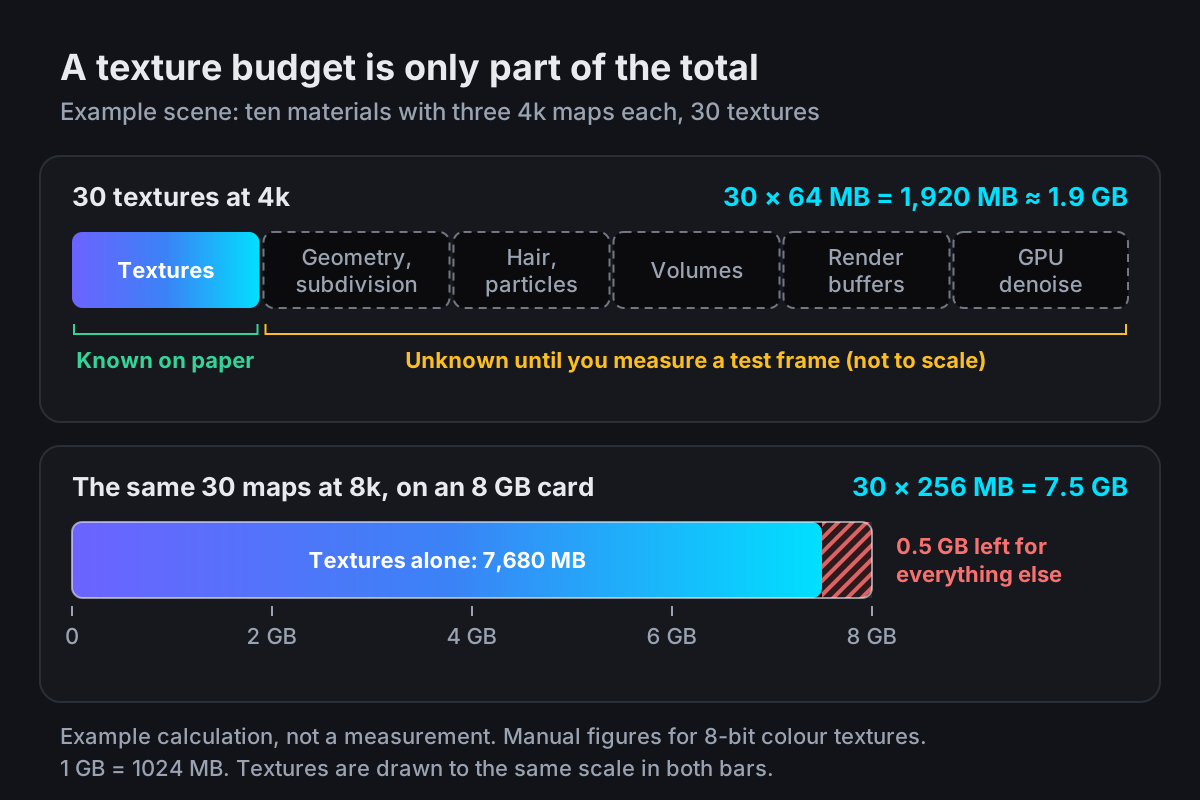
That leaves the parts you cannot count on paper: geometry after subdivision, hair, volumes, render buffers and the denoiser. Some scenes are mostly textures; a dense groom or a smoke simulation can be mostly the rest. A test frame fills in the gap.
Check VRAM usage with a test frame
- 1Turn on the Memory stampIn Output Properties > Metadata, tick Memory. Blender writes the peak memory into the image's metadata, in formats that support it such as PNG and OpenEXR. Tick Burn into Image too for the test and it is printed on the frame, as a line like
Peak Memory 1672M. - 2Pick the heaviest frameMemory follows the heaviest frame, not the average one: the peak of the smoke simulation, the most particles, every character on set. Cycles loads everything that renders, not only what the camera sees, unless you set up camera culling in Simplify.
- 3Render at final settingsFinal resolution, the passes you will output, and denoising set as for the real render, on the GPU. A half-resolution test, or one with GPU denoising off, understates the number.
- 4Cross-check with a GPU monitorWatch the card while the frame renders:
nvidia-smion NVIDIA, or Task Manager > Performance > GPU > Dedicated GPU memory on Windows. Read it once with Blender closed as well. The difference between the two is what the render needs.
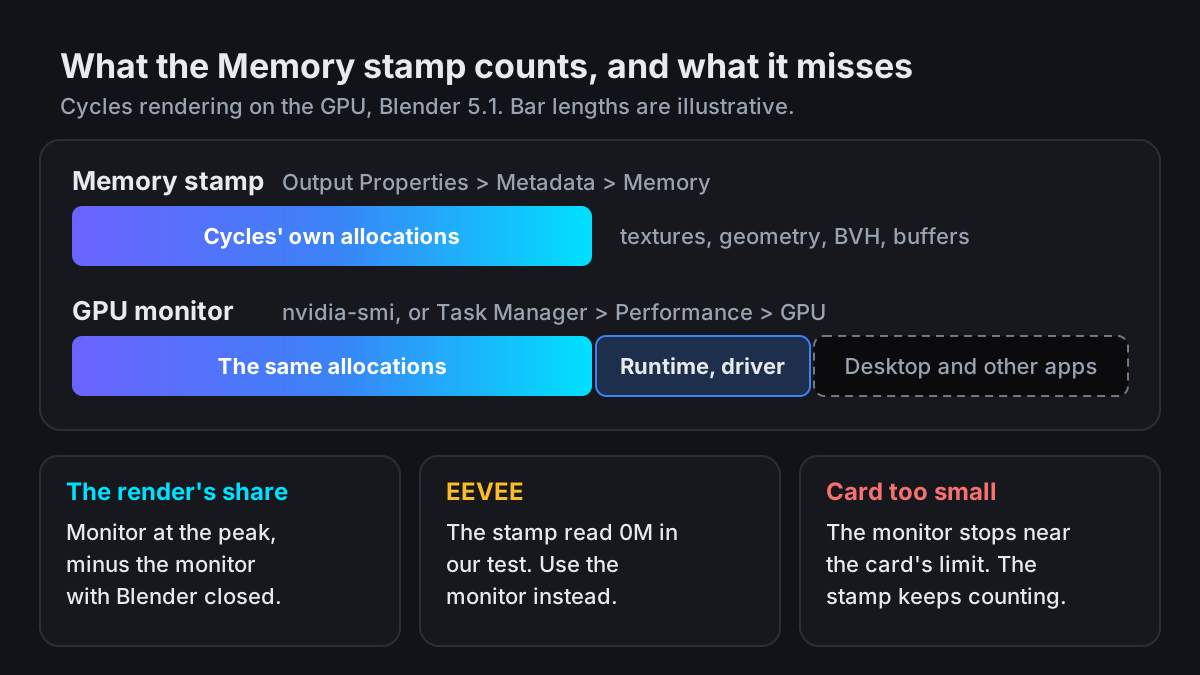
The two numbers will not match, and that is expected. In our test the stamp counted the textures exactly as the manual predicts, but the card's memory in nvidia-smi rose several hundred MB more than the stamp: the stamp counts what Cycles allocates, not the GPU runtime and driver. With EEVEE the stamp read 0M, so there the monitoring tool is the only number. And on a scene too big for the card, the monitor stopped near the card's limit while the stamp kept counting: it read 6,537M, the full scene, more than our 8 GB card had free next to the desktop and the runtime.
What happens when a scene does not fit
Cycles does not stop at the first byte over. With CUDA, OptiX, HIP and Metal, when GPU memory is full Blender automatically tries to use system memory. The manual says this has a performance impact but usually still renders faster than the CPU would. What you see is a render far slower than it should be, with the VRAM reading pinned at the card's limit. If even that is not enough, the render fails with an out of memory error.
EEVEE works differently. Its GPU memory is managed by the driver, which swaps textures and meshes in and out so that each object can be drawn. That sounds forgiving, but the manual warns that using too much GPU memory can make the driver crash, freeze or kill Blender, and that there is no standard way to estimate whether a scene will fit. For EEVEE, leave more headroom than you would for Cycles.
Why two GPUs do not double your VRAM
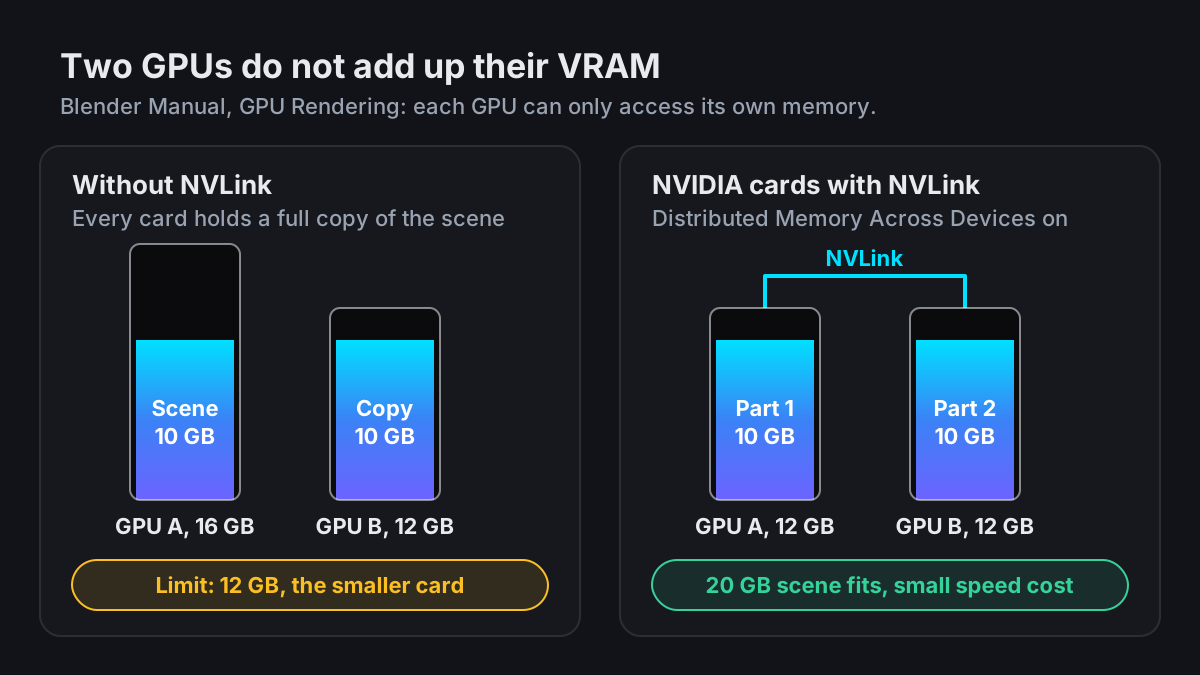
A second card adds speed, not memory. The manual is plain about it: each GPU can only access its own memory, so the scene is loaded onto every card that renders, and the smaller card is the one that runs out first. Two 12 GB cards give you room for a 12 GB scene, not a 24 GB one.
The exception is NVIDIA cards joined with NVLink: they can share memory at a small performance cost once Distributed Memory Across Devices is enabled in Preferences > System. Check the card before counting on it. NVIDIA's own specification page for the RTX 5090 lists NVLink as No.
From your number to a card: 8, 12, 16, 24 or 32 GB
With a measured number, 12 GB versus 16 GB stops being a matter of taste:
- 1Start from the render's shareThe monitor reading at the peak of your heaviest test frame, minus the reading with Blender closed. Final settings, GPU denoising on.
- 2Add the desktop if the card will drive your monitorWhatever the monitor reads with Blender closed stays in use by the desktop and other apps while you render. A separate card for the display avoids this.
- 3Add your next projectsThe next job may want 8k textures or a denser groom. Redo the texture maths for what you expect to render next and add the difference.
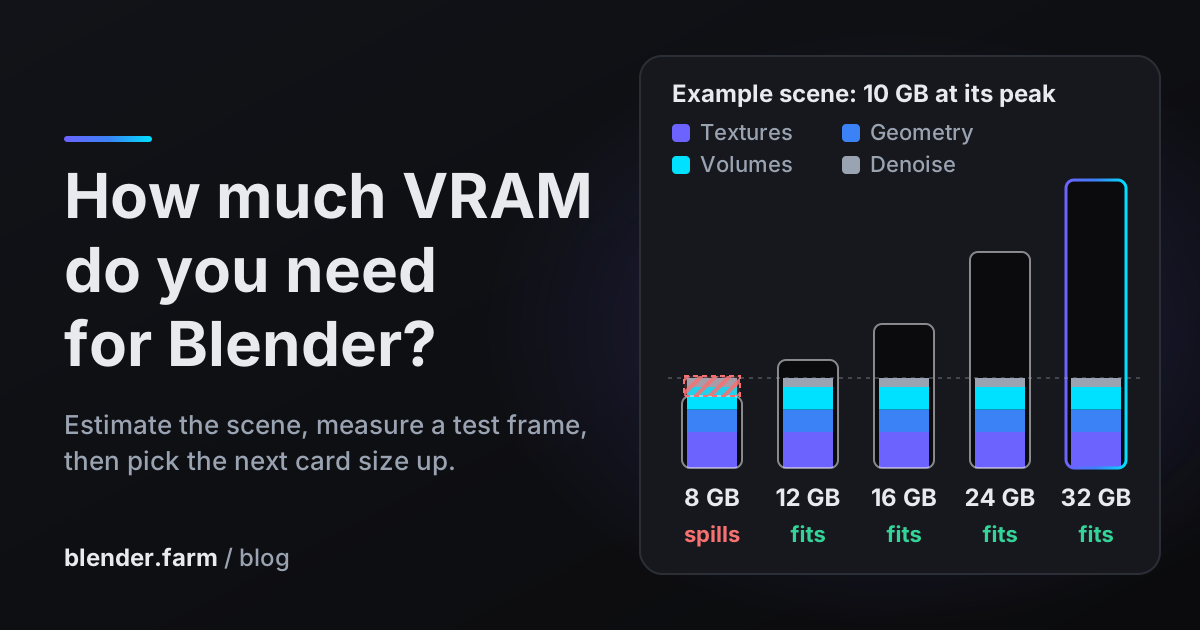
- 4Take the next size upPick the first size above the total: 8, 12, 16, 24 or 32 GB. If the total lands just under a size, take the one after it. A scene that only just fits is one texture away from the slow system memory fallback.
An example with made-up numbers, to show the arithmetic: the monitor reads 1 GB with Blender closed and 10.5 GB at the peak of the heaviest frame, so the render needs 9.5 GB. The card will drive the monitor, so add the 1 GB back: 10.5 GB, and 12 GB is the next size up. If the next project doubles the 4k maps from 30 to 60, that adds another 1,920 MB, about 12.4 GB in total, and the answer becomes 16 GB.
Shrink the scene instead of buying
A scene that is just over your card can often be brought under it. In Blender 5.2, Render Properties > Performance > Texture Cache with Auto Generate turns each image into a tiled, mipmapped .tx file, so Cycles loads only the tiles and resolutions it needs. The release notes say it significantly reduces memory on scenes with many image textures, at a small cost in render speed and extra disk space. On any version, Render Properties > Simplify can cap texture size (Texture Limit under Render, which the 5.2 manual calls Texture Size Limit; 5.2 adds a Texture Resolution percentage) and rein in subdivision and child particles. Blender out of GPU memory covers each of these step by step.
Rent 32 GB when one project needs it
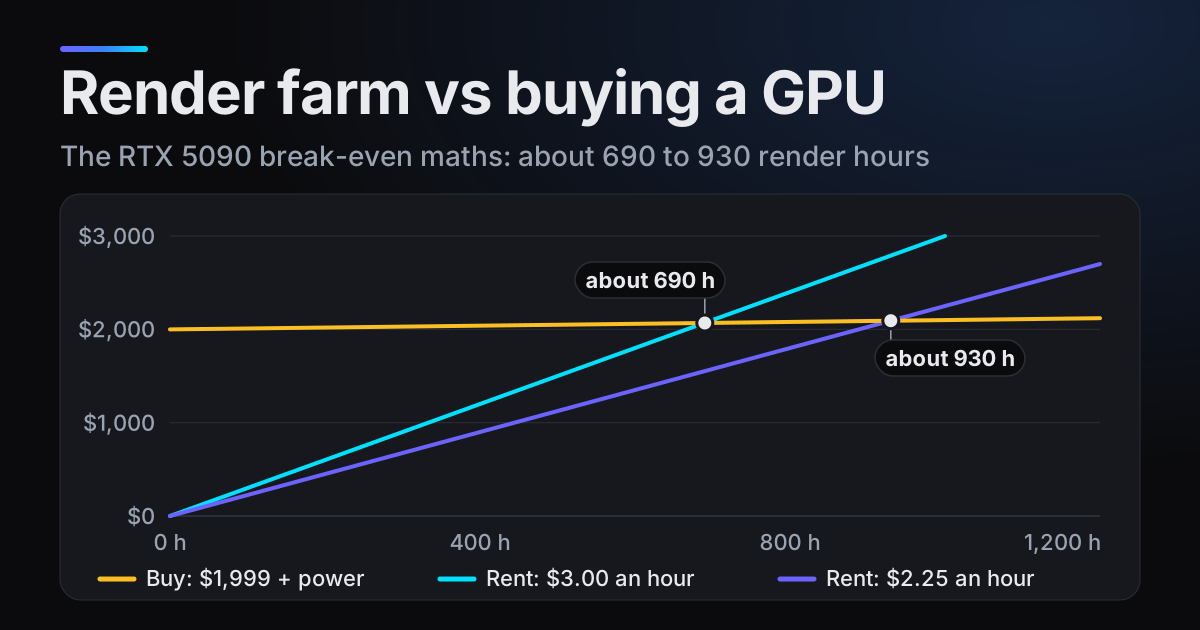
If your card fits everything except one heavy project, buying a bigger card for it is the expensive answer. blender.farm renders each job on one dedicated NVIDIA RTX 5090 with 32 GB of VRAM, at about $3.00 per render hour on the 10-credit pack ($9.99) and about $2.25 on the 200-credit pack ($149.99), with no subscription. New accounts get 10 free credits (3h 20m of render time) to test with.
Before launch, the free add-on's estimate checks the scene against the card's memory, and the live view shows VRAM graphs while it renders. If your scene denoises, it does so on the GPU there, so measure your test frame with GPU denoising on. And 32 GB is a lot, but a very heavy volume scene can still exceed it. The limits page has the hardware details, and render farm vs buying a GPU works through the cost side.
Questions
- Is 8 GB of VRAM enough for Blender?
- It is what blender.org recommends, and it is enough when your heaviest scene's measured peak, plus the desktop's share, stays clearly under 8 GB. Heavy textures fill it fast: thirty 8k textures alone take 7.5 GB.
- Is 12 GB or 16 GB better for Blender?
- 16 GB holds more, so it is better only if your scenes need it. Measure your heaviest frame, add the desktop and your next project's growth, and buy the next size up; if that total is close to 12 GB, take 16 GB.
- Does Blender use system RAM when VRAM is full?
- In Cycles, yes: with CUDA, OptiX, HIP and Metal, Blender tries system memory when the GPU is full, which is slower but usually still faster than the CPU. In EEVEE, running out can crash or freeze the driver instead.
- Do two GPUs add up their VRAM?
- No. Each GPU can only access its own memory, so the scene has to fit on each card. The exception is NVIDIA cards joined with NVLink, using Distributed Memory Across Devices in the preferences.
- How do I check VRAM usage in Blender?
- Tick Memory in Output Properties > Metadata and render a test frame: Cycles writes its peak memory into the image. Cross-check with a GPU monitor such as nvidia-smi or Task Manager, because the stamp leaves out the driver and runtime.
Sources
- blender.org, Requirements (minimum and recommended VRAM), read 29 October 2026
- Blender Manual, GPU Rendering (texture sizes, system memory fallback, multiple GPUs and NVLink), read 29 October 2026
- Blender Manual, Metadata (Memory, Burn into Image), read 29 October 2026
- Blender Manual, Cycles Sampling (denoising on the GPU needs additional GPU memory), read 29 October 2026
- Blender Manual, Cycles Performance (Tile Size, Texture Cache, Persistent Data), read 29 October 2026
- Blender Manual, Simplify (Texture Limit, Max Subdivision, Child Particles, Camera Cull), read 29 October 2026
- Blender Manual, EEVEE Limitations (Memory Management), read 29 October 2026
- Blender 5.2 release notes, Cycles (Texture Cache, Texture Resolution), read 29 October 2026
- NVIDIA, GeForce RTX 5090 specifications (32 GB GDDR7, NVLink: No), read 29 October 2026