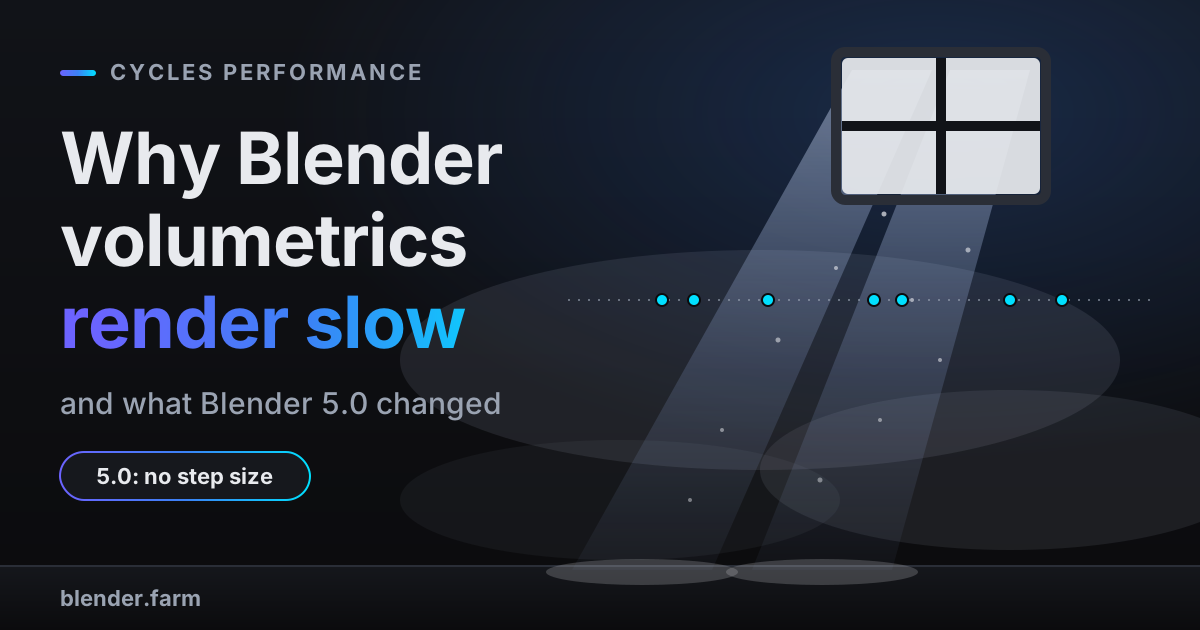
Blender volumetrics render slow for a reason: fog, light shafts, smoke and fire are some of the most expensive things Cycles draws. Most answers you will find say the same thing: raise the step rate. That advice was written for Blender 4.x. Since 5.0, Cycles uses a different volume method by default, one with no step size at all, and the old slider only appears after you tick a checkbox called Biased.
Below: why volumes cost so much, what 5.0 changed, a one-frame test to pick a method, and the settings that matter in every version. Menu paths are checked in Blender 4.5, 5.0 and 5.1.
Why Blender volumetrics render slow in Cycles
A surface is cheap for a path tracer: a ray hits it, the shader runs once, and the path carries on. A volume has no single hit point. Light can be absorbed or scattered anywhere inside the medium, so Cycles evaluates the volume shader at many points along the ray and looks for light from each scattering point. One sample through fog does far more work than one sample on a wall.
Four things multiply that work:
- Coverage. Fog in the World shader, or a fog cube around the set, sits in front of every pixel along the full length of every camera ray.
- Detail. A noise texture driving the density, or a high-resolution VDB grid, gives the shader more to evaluate.
- Overlap. Where two volumes overlap, a ray inside both has to account for both media at once.
- Light. Each scattering point samples the lights. More lights and more bounces inside the medium mean more work.
Volumes are also slow to clean up: noise in thin, softly lit fog fades slowly, so foggy pixels keep sampling after solid ones have stopped. A frame can be slow because each sample is expensive, because it needs many samples, or both.
What changed in Blender 5.0
Up to Blender 4.5, Cycles rendered volumes by ray marching: it walks along each ray in steps, evaluating the shader at every step. Cycles estimates the step size (from the voxel size, for VDBs and smoke), and Step Rate multiplies it. Bigger steps render faster, but detail smaller than a step gets smeared or lost. The result is biased: more samples make it less noisy, not more correct.
A new volume rendering algorithm based on null scattering has been added as the default. It is unbiased, removes blocky artifacts in overlapping volumes, and eliminates the need for step size, max steps, and homogeneous volume settings.
Blender 5.0 release notes, Cycles
Null scattering does not walk in fixed steps. It places sample points at random distances along the ray, so there is no step size to tune and more samples converge on the correct image. Where the old method traded detail for speed, the new one leaves its error as noise. The Biased tooltip says it plainly: the default is unbiased and has fewer artifacts, but could be noisier.
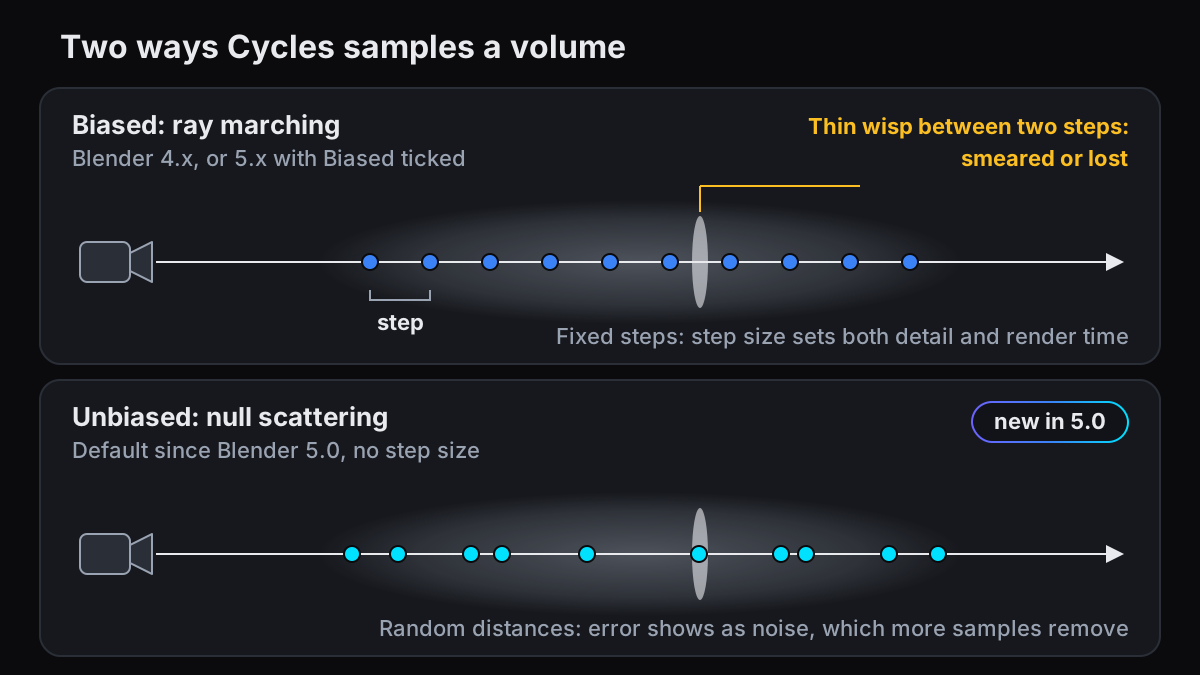
So which is faster? The release notes give no general answer: "The performance and noise level can be different than before and is scene-dependent." They do say that simple scenes and heavily tuned volume shaders may be faster with Biased, while the unbiased default needs no manual tuning and handles mixed dense and thin volumes better. If an old file renders slower in 5.x and looks different, the notes say the usual reason is a step rate so large that the old result was biased.
The per-material Homogeneous checkbox is gone too, and a material's own Step Rate (Material Properties > Settings > Volume) now appears only when Biased is ticked.
Where Step Rate went in Blender 5
Open Render Properties > Volumes (the panel starts folded). In 5.0, 5.1 and 5.2 it holds a single checkbox, Biased, unticked by default. Tick it and the old controls come back: Step Rate Render and Viewport, both at 1.00, and Max Steps at 1024.
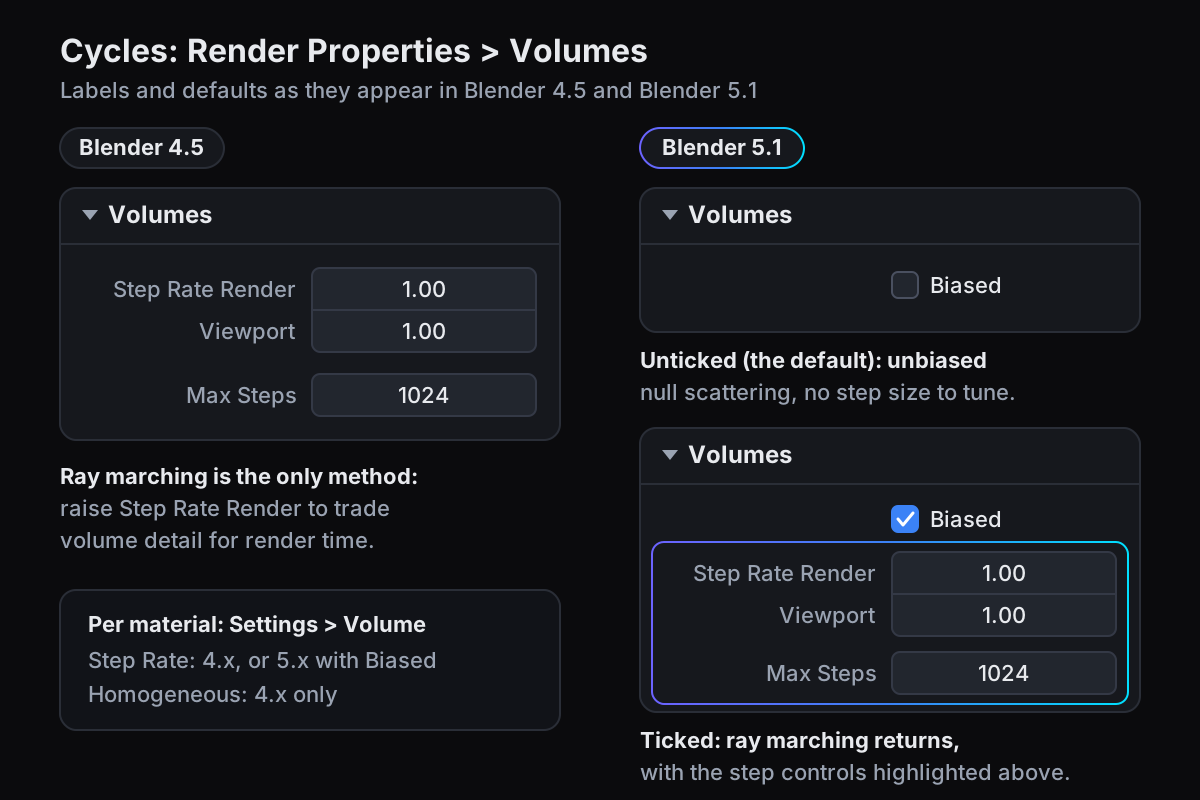
In the manual's words, Step Rate Render is a global multiplier on the step size for all volumes: "Increase to reduce render time, at the cost of losing detail." Viewport does the same for the viewport. Max Steps caps the steps through a volume to protect against extremely long render times.
So the old advice still works, but only in Biased mode. A step rate you tuned in a 4.x file is ignored in 5.x until you tick Biased, because the new default has no steps to scale.
Biased or unbiased: test it on one frame
Because the answer depends on the scene, measure it on yours. One frame is enough.
- 1Pick the worst frameThe frame with the most volume on screen: the camera inside the smoke, the densest fog, or where two volumes overlap. Keep the final resolution, samples and denoising.
- 2Render the defaultWith Biased unticked, press F12. Note the time printed at the top of the render window.
- 3Render Biased into a second slotIn the render window, switch the slot menu from Slot 1 to Slot 2. Tick Render Properties > Volumes > Biased, start with Step Rate Render at 1.00, and render again.
- 4Compare like for likePress
Jto flip between the filled slots. Look at noise in thin and dense parts, blocky edges where volumes overlap, wisps that went soft, and the two times. - 5Keep the winner, then tune itIf Biased wins, raise Step Rate Render a little at a time and test again. If the default wins, tune samples or the noise threshold. Save the file: the choice is stored in the .blend.
Volume bounces: why the default is 0
Render Properties > Light Paths > Max Bounces > Volume is 0 by default in 4.5, 5.0 and 5.1. At 0, each point in the medium is lit directly by the lamps and the world and scatters that light once towards the camera: single scattering. Light does not travel on from one part of the fog to another.
Each extra bounce lets a path scatter again inside the medium and look for light again, so the work per sample grows with the bounce count. The Total limit above caps everything, and the manual's advice on it applies here: lower values render faster.
Raising it is worth the time in dense, bright media: white clouds, thick pale smoke, a fog bank glowing from a light inside it. There, light bouncing around inside the medium is the look, and at 0 the volume can read darker and flatter than it should. In thin haze most light passes straight through, so extra bounces often change little. Test 0 against 2 on your worst frame.
Smoke and fire: memory before samples
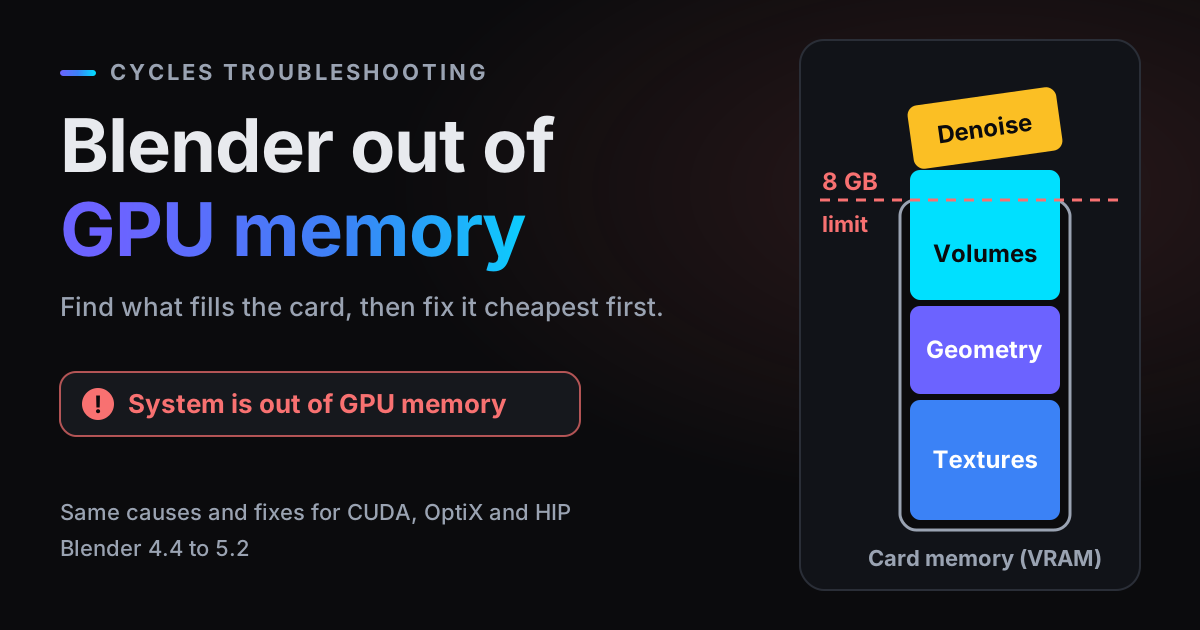
Simulations and imported VDB files add a cost that sampling settings do not touch: the grids have to fit in GPU memory. When the scene does not fit, the manual says that with CUDA, OptiX, HIP and Metal, Blender tries system memory instead, which "has a performance impact". A mysteriously slow smoke frame can be a memory problem, not a sampling one. Blender out of GPU memory covers how to tell.
Blender 5.0 helped here. Smoke and fire simulations are now rendered with NanoVDB, which "reduces memory usage at the cost of some performance". Linear and cubic interpolation now use stochastic sampling where possible, for speed, adding a typically very small amount of noise, so a sim can look slightly different from 4.x.
Settings that make volumes lighter in every version:
- Domain resolution. Physics Properties > Fluid > Settings > Resolution Divisions sets the voxel count of a smoke or fire domain. A plume that is small on screen rarely needs close-up resolution. Changing it means baking again.
- Precision of VDB objects (Cycles). Object Data Properties > Render > Precision: Full is 32-bit, Half (the default) 16-bit, Variable uses less in less noticeable areas. Lower values use less memory at the cost of detail.
- Clipping (Cycles). In the same panel, voxels below the Clipping value count as empty space, so Cycles can skip them.
- The rest of the scene. Render Properties > Simplify > Render > Texture Limit caps image texture size for the final render.
The EEVEE option for atmosphere
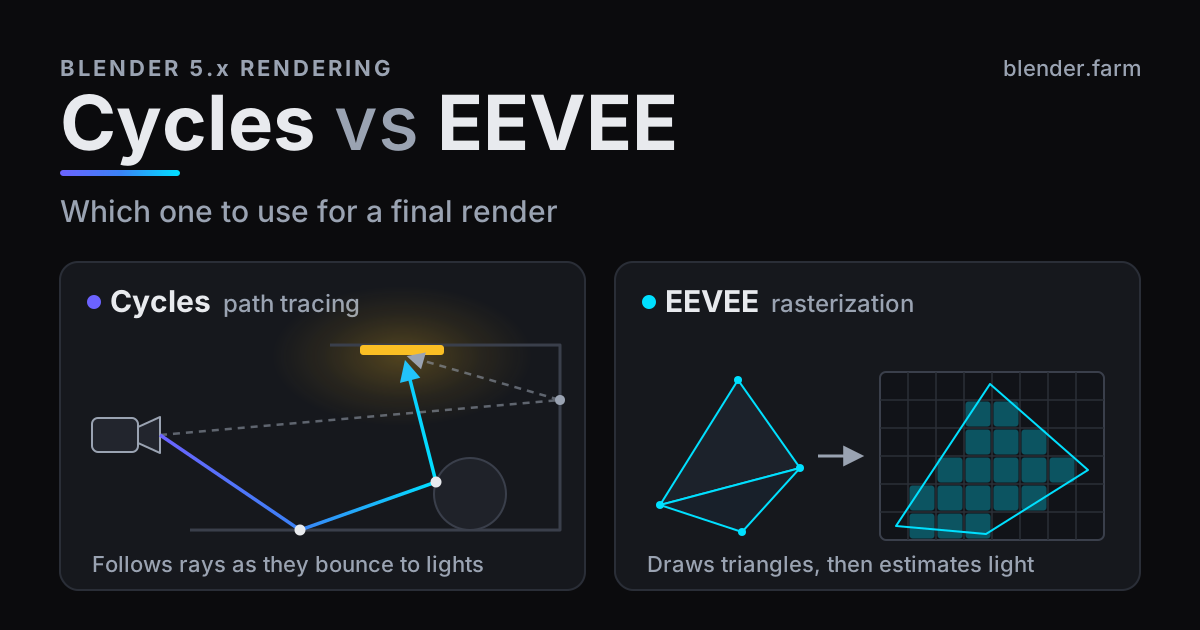
EEVEE renders volumes differently. It evaluates every volume in view inside a grid of 3D textures, sized by Render Properties > Volumes > Resolution and Steps. Its cost follows those settings, not how far a path wanders through the fog, which is why a haze shot can be cheap in EEVEE. The 3D textures do use a lot of video memory: a finer Resolution and more Steps raise quality and memory together.
The trade-offs are listed on the manual's EEVEE limitations page:
- Only single scattering, so dense bright clouds miss the soft glow of light bouncing inside them.
- Volumes are rendered only for camera rays, not in reflections, refractions or light probes, so fog seen in a mirror, on water or through refractive glass is missing.
- Volumetric shadows only work within volumes. A smoke column will not cast its shadow onto the ground.
That makes EEVEE a good fit for a foggy forest seen straight through the lens, light shafts into a dusty room, or a hazy background, and a poor fit for clouds, smoke that must shadow the set, or fog behind glass. Cycles vs EEVEE covers the wider choice.
When the volume frame is still heavy
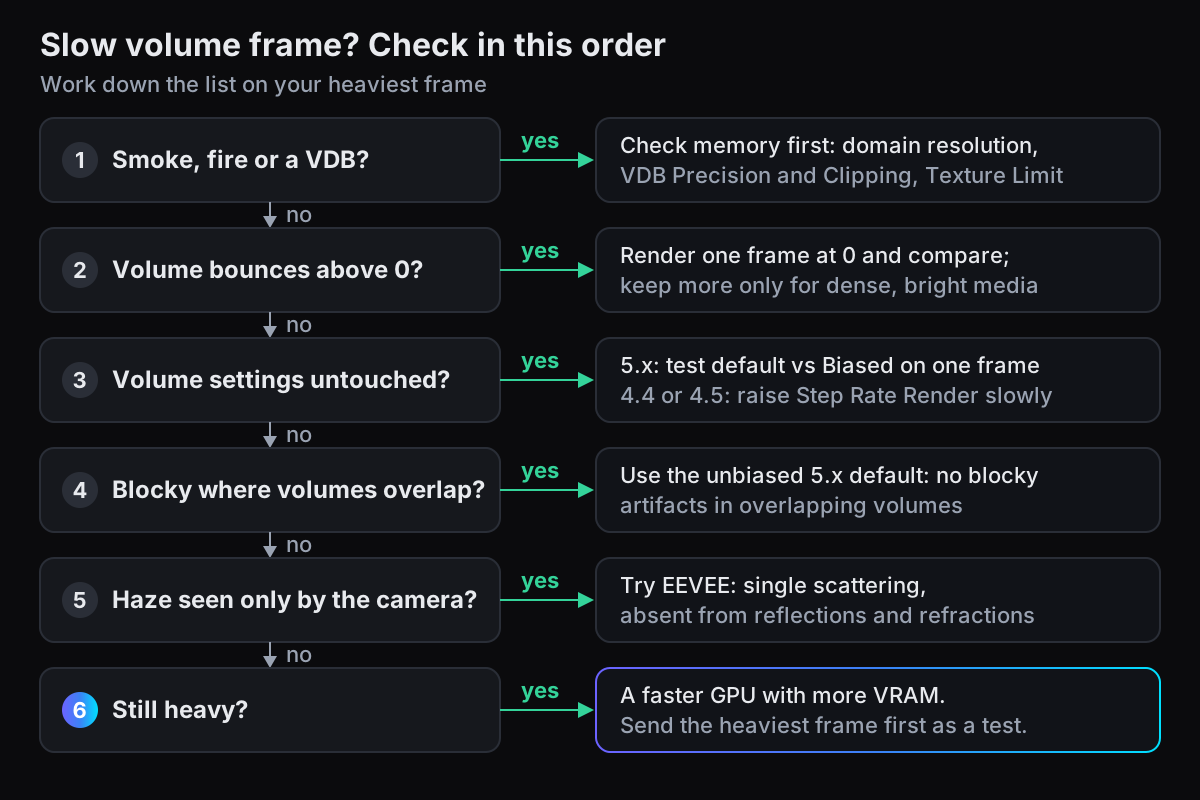
Once the settings are right, some frames are simply heavy: a camera flying through clouds, dense smoke filling the frame, high-resolution fire. They are among the slowest and most memory-hungry frames Cycles renders, and then the honest fix is a faster GPU with more memory. For other causes, see why Blender renders slow.
blender.farm renders each job on one dedicated NVIDIA RTX 5090 with 32 GB of VRAM, Cycles on OptiX, at about $3.00 per render hour on the smallest pack (pricing). Each render uses the Blender version your file was saved in, 4.4 to 5.2, so a 4.5 file renders with the ray marching you tuned and a 5.x file with the volume method you saved. The live view shows a VRAM graph, and the free add-on finds VDB sequences and uploads every frame, not just the first.
Two caveats. First, 32 GB is a lot, but our own troubleshooting guide says a heavy volume scene can still exceed it: a VRAM graph that climbs to the card's limit and then stops is the out-of-memory signature, so do the memory steps above first. Second, volumes are hard to estimate. The add-on's Estimate checks the scene against the card's memory and warns about volumetrics; plan for the top of its range.
Questions
- Where did Step Rate go in Blender 5?
- Behind a checkbox. Tick Render Properties > Volumes > Biased and Step Rate Render, Viewport and Max Steps come back. Without it, Cycles 5.x uses unbiased null scattering, which has no step size.
- Why is my fog so noisy in Cycles?
- Thin, softly lit volumes converge slowly, and on some scenes the 5.x default is noisier than biased ray marching. Compare both on one frame, then raise samples or lower the noise threshold on the winner and let the denoiser finish.
- Should I increase volume bounces?
- Only for dense, bright media such as clouds or thick white smoke. For thin fog and light shafts the default of 0 often looks the same and renders faster; test 0 against 2 on one frame.
- Is EEVEE fog faster than Cycles fog?
- It can be, because EEVEE's volume cost is set by its Resolution and Steps rather than by path length, but it depends on the shot. EEVEE volumes are single scattering and missing from reflections and refractions, so render one frame in each and compare the look as well as the time.
- Does the step rate advice still apply in Blender 4.5?
- Yes. In 4.4 and 4.5 ray marching is the only volume method, so raising Step Rate Render still trades detail for render time, as the older guides describe.
Sources
- Blender 5.0 release notes, Cycles (volumes, NanoVDB, interpolation), read 29 October 2026
- Blender Manual (5.2), Cycles render settings, Volumes, read 29 October 2026
- Blender 4.5 Manual, Cycles render settings, Volumes, read 29 October 2026
- Blender 4.5 Manual, Cycles material settings (Homogeneous, Step Rate), read 29 October 2026
- Blender Manual (5.2), Cycles material settings, read 29 October 2026
- Blender Manual (5.2), Cycles Light Paths, read 29 October 2026
- Blender Manual (5.2), Volume object properties (Clipping, Precision), read 29 October 2026
- Blender Manual (5.2), Fluid domain settings (Resolution Divisions), read 29 October 2026
- Blender Manual (5.2), GPU rendering (system memory fallback), read 29 October 2026
- Blender Manual (5.2), EEVEE Volumes, read 29 October 2026
- Blender Manual (5.2), EEVEE limitations (volumetrics), read 29 October 2026