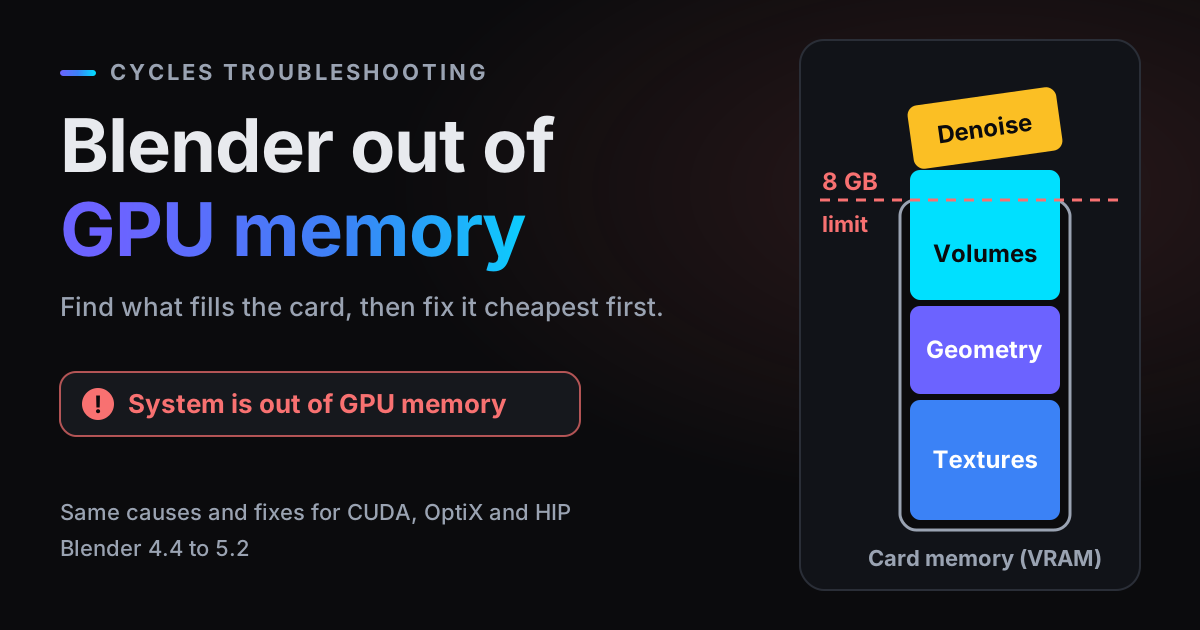
A Blender out of GPU memory error means Cycles could not fit your scene into the graphics card's memory (VRAM). It shows up as System is out of GPU memory, as System is out of GPU and shared host memory, or more quietly as a render that suddenly takes far longer than it should. This guide finds what is filling the card first, then applies the fixes from cheapest to most drastic, with the tools in Blender 4.4 to 5.2.
Blender out of GPU memory: what the error means
To render on the GPU, Cycles uploads the scene to the card: geometry after modifiers, image textures, hair, volume grids, plus its own render buffers and working memory. The manual's explanation is short: the error "usually means there is not enough memory to store the scene for use by the GPU". It is the same problem with CUDA, OptiX or HIP.
Blender tries to cope first. With CUDA, OptiX, HIP and Metal, when the card is full it borrows system memory. That costs performance, though the manual notes it is usually still faster than CPU rendering. In Blender's source, image textures are the first thing pushed out, and the borrowing stops so that half your RAM or 4 GB stays free, whichever is smaller. So a scene that barely overflows does not fail: it crawls.
Hence two messages. System is out of GPU memory means Cycles needed memory that must sit on the card itself and none was left. System is out of GPU and shared host memory means the borrowed system memory ran out too. Some failures surface differently, for example as a CUDA error that reads Out of memory; the cause and the fixes are the same.
Find what is eating the memory
Image textures: the manual's maths
The manual gives the figures: an 8k image texture takes 256 MB, 4k 64 MB, 2k 16 MB and 1k 4 MB. Each step costs four times the memory, because width and height both double. That is 4 bytes per pixel (8192 x 8192 x 4 bytes = 256 MB), an ordinary 8-bit colour image; 16-bit and float images such as EXR and HDR cost more.
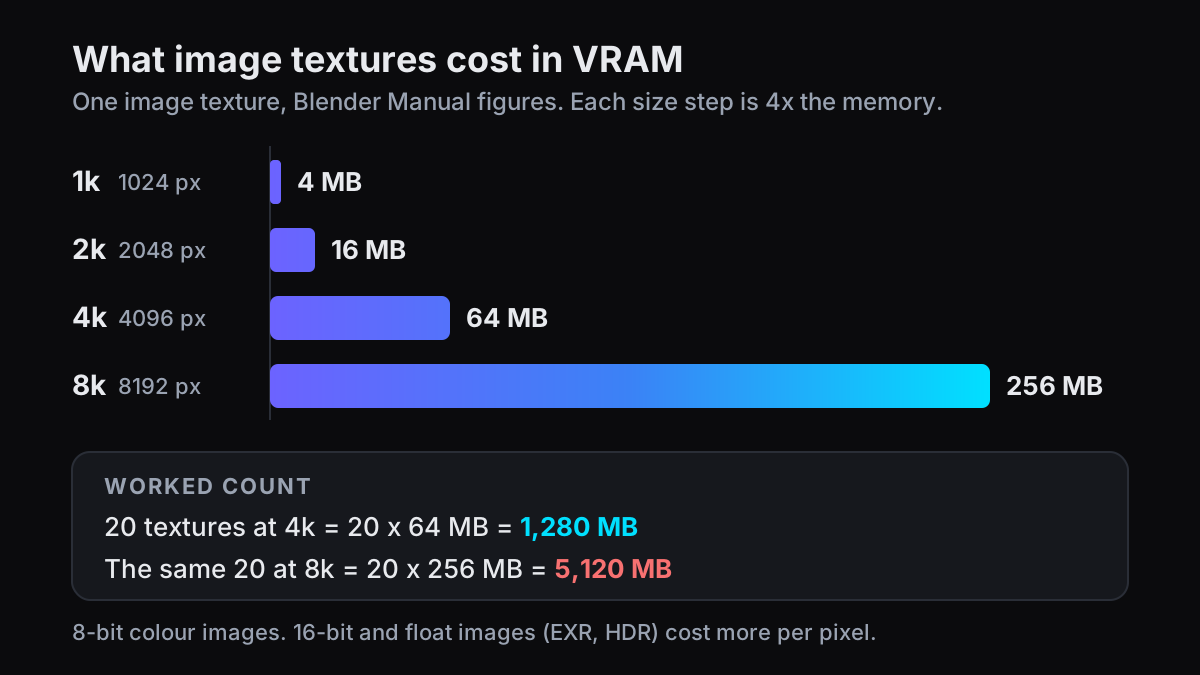
Now count yours. 20 texture maps at 4k need about 20 x 64 = 1,280 MB. The same 20 at 8k need 20 x 256 = 5,120 MB, most of an 8 GB card before a single polygon. Count the world HDRI too, and maps on distant objects: without the 5.2 Texture Cache, Cycles loads every image at full size.
The other big consumers
- Subdivision. Each Render level of a Subdivision Surface modifier turns every quad into four, so one extra level is roughly four times that object's geometry.
- Hair and particles. Child particles multiply the strand count, and every strand is geometry.
- Volumes. Smoke, fire and VDB files are 3D grids: doubling a domain's Resolution Divisions means eight times the voxels.
- GPU denoising. Per the manual, denoising with Use GPU "requires additional GPU memory".
- Render buffers. Resolution and the number of passes set how much the card holds for the image itself.
Measure a test frame
- 1Turn on the Memory stampIn Output Properties > Metadata, tick Memory. Blender writes the render's peak memory into each saved image that carries metadata, such as PNG or OpenEXR. When a render finishes, the stats line at the top of the render window also shows Mem and Peak.
- 2Render your heaviest frameRender the frame with the most on screen and note the peak. Compare it with your card's VRAM minus what is in use before Blender starts (on Windows, Task Manager > Performance > GPU shows Dedicated GPU memory).
- 3Change one thing at a timeChange one setting, render the same frame and compare. Whatever moves the number most is where your effort goes.
We tried the method on Blender 5.1.1 with OptiX on an 8 GB RTX 3070, default cube scene, one sample. Ten 4096 x 4096 textures added exactly the 640 MB the manual predicts (10 x 64 MB), and a Texture Limit of 1024 cut that to 40 MB. The tile and denoise rows come up in Fix 1.
| Test frame | Peak Memory |
|---|---|
| 960 x 540, no image textures | 392 MB |
| Same, plus ten 4096 x 4096 textures | 1,032 MB |
| Same ten, Simplify Texture Limit 1024 | 432 MB |
| 7680 x 4320, Tile Size 2048 | 520 MB |
| 7680 x 4320, Tile Size 512 | 384 MB |
| 3840 x 2160, no denoising | 519 MB |
| 3840 x 2160, OpenImageDenoise on the CPU | 988 MB |
| 3840 x 2160, OpenImageDenoise with Use GPU | 1,589 MB |
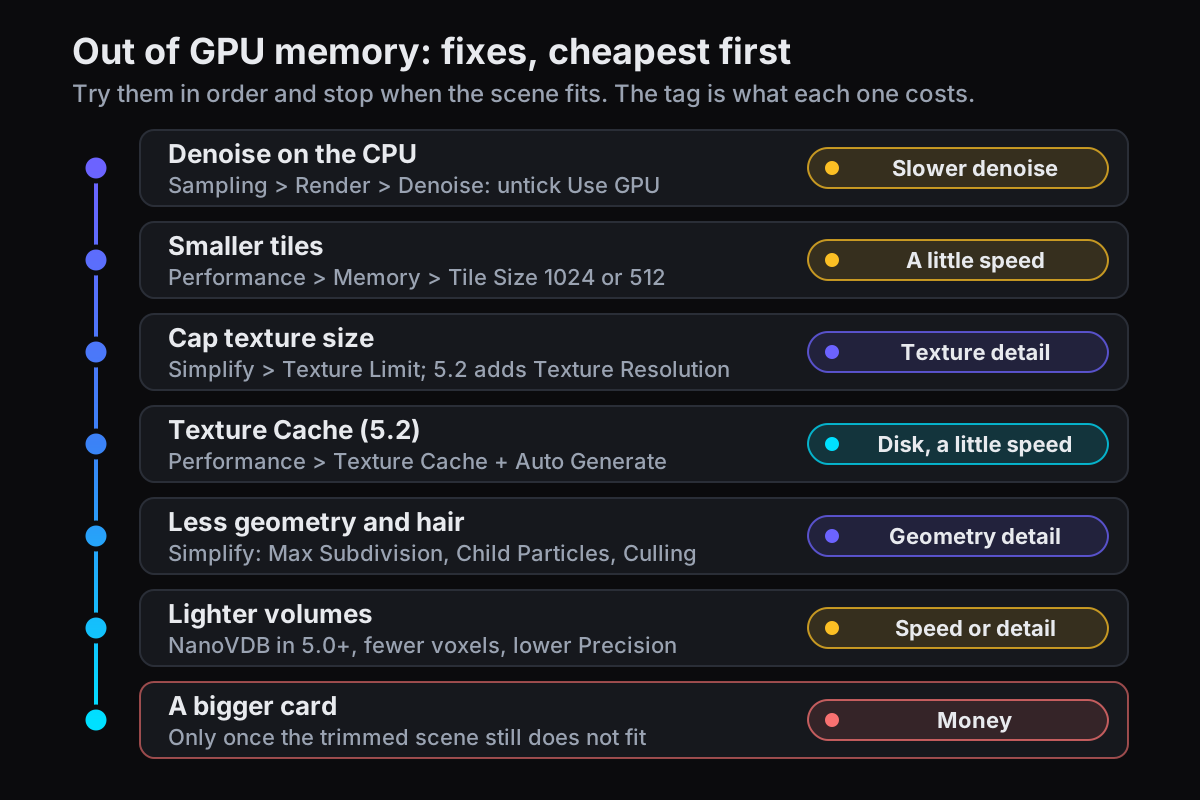
Fix 1: settings that cost no detail
Denoise on the CPU
In Render Properties > Sampling > Render > Denoise, with the Denoiser on OpenImageDenoise, untick Use GPU for the final render. Denoising then runs on the CPU: slower, but without the additional GPU memory that Use GPU needs, which is what the manual suggests for large scenes. The OptiX denoiser always runs on the GPU, so switch away from it. Use GPU is off by default, so check whether your file has it on. In our 3840 x 2160 test, Use GPU raised the peak from 988 MB to 1,589 MB. Denoising on the CPU is not free either: the same frame peaked at 519 MB with denoising off.
Smaller tiles
In Render Properties > Performance > Memory, lower Tile Size from the default 2048 to 1024 or 512. Cycles renders tiles of that size and caches finished ones to disk, so only one tile's buffers sit on the card, at what the manual calls "typically a small performance cost". In 4.4 and 4.5, the Use Tiling checkbox must also be on; 5.0 removed it and always tiles.
This saves render buffer memory, plus texture memory when the 5.2 Texture Cache is on. It does not shrink geometry. A 1920 x 1080 frame is a single tile at 2048, so it only splits once you go lower. In our test, a 7680 x 4320 frame peaked at 520 MB with 2048 tiles and 384 MB with 512.
Fix 2: smaller textures
Texture Limit
Tick Simplify in Render Properties, open its Render subpanel and set Texture Limit (labelled Texture Size Limit in 5.2). Any image larger than that is scaled down at render time; your files are untouched. At 4096, each 8k map drops from 256 MB to 64 MB; at 2048, to 16 MB. The cost is detail, first visible on textures that fill the frame, so check close-ups.
Texture Resolution (5.2)
Blender 5.2 adds Texture Resolution to the same panel, a scale factor for image textures: at 0.5 (50%), each image is half as wide and half as tall, a quarter of its memory. The release notes aim it mainly at viewport rendering with the Texture Cache.
Texture Cache (5.2)
The biggest new tool for texture-heavy scenes. In Render Properties > Performance > Texture Cache, enable it and tick Auto Generate. Blender writes a tiled, mipmapped .tx file for each image into a blender_tx folder next to it, and Cycles loads only the tiles and resolutions a render needs. The release notes report less memory and faster startup on scenes with many images, for a small render-speed cost and more disk space. The saving depends on how much of your memory was textures. Generate builds every .tx file at once, Clear deletes them, and the command line works too:
blender scene.blend --command maketx
Fix 3: less geometry, hair and particles
Still too big? These live under Render Properties > Simplify.
- Max Subdivision (Render subpanel) caps every Subdivision Surface modifier. One below your highest Render level leaves the heaviest objects with roughly a quarter of their geometry.
- Child Particles (Render subpanel) is the fraction of child hairs and particles rendered, from 0 to 1. At 0.5, half render.
- Culling removes objects outside the camera view (Camera Culling, with a margin) or beyond a distance (Distance Culling, 50 m by default). It only acts on objects whose Use Camera Cull or Use Distance Cull is ticked under Object Properties > Visibility > Culling, so tick those on scattered trees, rocks and props. Culled objects vanish from reflections too; the manual suggests combining both so nearby objects outside the frame survive.
Adaptive subdivision in object space (5.0)
If you displace with adaptive subdivision, 5.0 made it a regular Subdivision Surface option (4.4 and 4.5 need the Experimental feature set). Its new Adaptive Space: Object setting subdivides to an Edge Length in object space instead of a pixel size, so a mesh is subdivided once and instanced many times; the release notes say this lets instanced objects use little memory. A larger Pixel Size or Edge Length also means fewer polygons.
Fix 4: smoke, fire and fog
Volumes are the scenes most likely to outgrow any card. Since 5.0, Cycles renders smoke and fire simulations with NanoVDB, which reduces memory at some performance cost. Nothing to switch on: render in 5.0 or newer.
For imported OpenVDB volume objects, Object Data Properties > Render > Precision sets Full (32-bit), Half (16-bit, the default) or Variable, which uses less precision where it is less noticeable. Per the manual, lower values save memory at the cost of detail, so make sure Full is not set and try Variable. For a smoke or fire domain, halving Resolution Divisions leaves an eighth of the voxels, at the price of a re-bake. Simplify's Volume Resolution only affects the viewport. For render speed in volumes, see why volumetrics render slowly.
Why a second GPU does not give you more memory
Two 12 GB cards do not make 24 GB. The manual is direct: each GPU can only access its own memory. Every card gets a full copy of the scene, so the scene has to fit on each one. A second card can make renders faster; it does not give a scene more room.
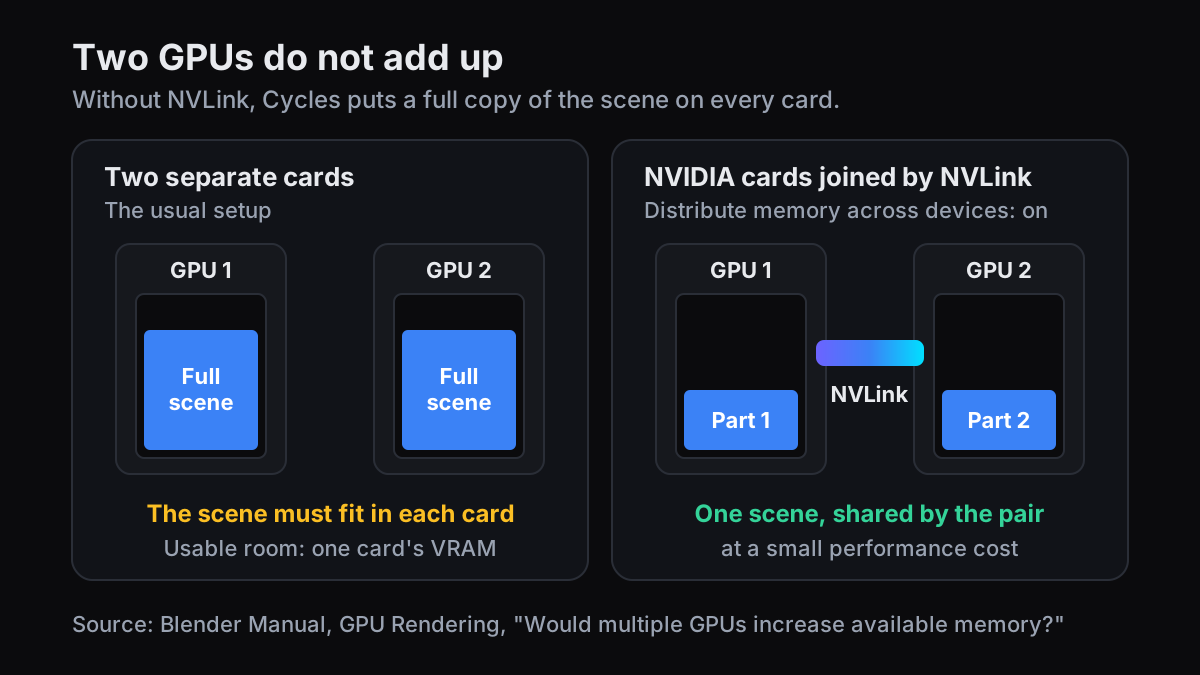
The exception is NVIDIA cards joined by NVLink: tick Distribute memory across devices in Preferences > System > Cycles Render Devices (the manual's "Distributed Memory Across Devices") and they share memory at a small performance cost. Blender only shows the checkbox when it detects enabled cards that support it.
When the scene really needs a bigger card
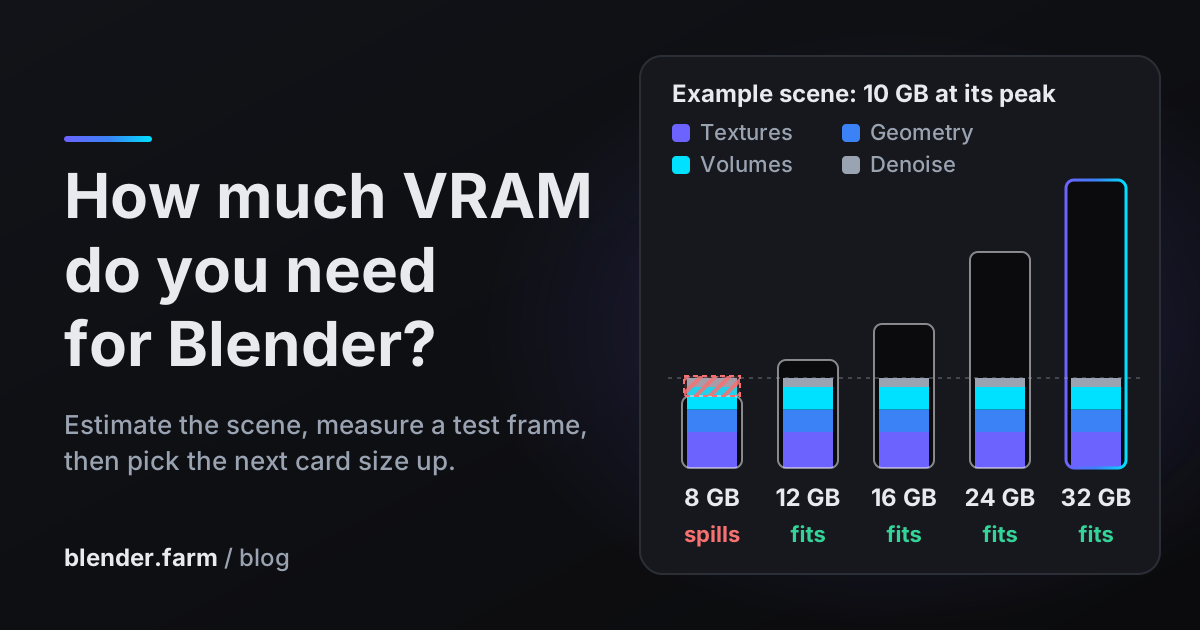
If your test frame still peaks above what your card holds after all of this, the honest fix is more memory. Whether to buy, and how much VRAM to aim for, is in how much VRAM you need for Blender.
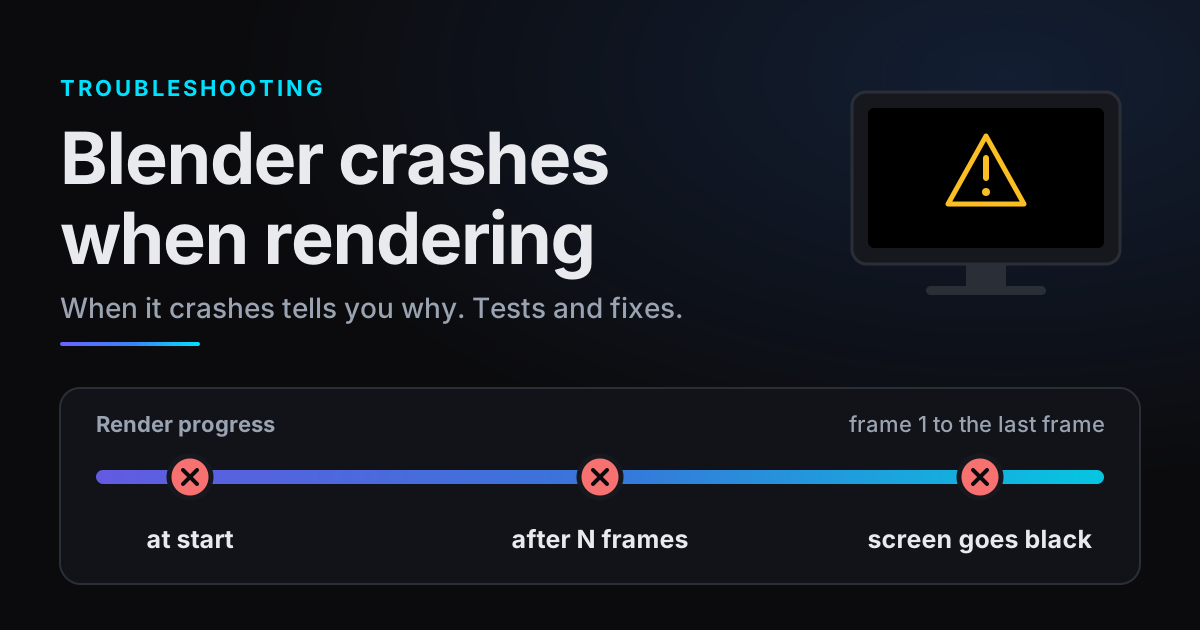
Or use a bigger card per render. blender.farm renders each job on one dedicated NVIDIA RTX 5090 with 32 GB of VRAM, in Cycles with OptiX, for about $3.00 per render hour, or about $2.25 with the largest pack (pricing). The live view shows GPU, VRAM and RAM graphs (watching a render), and our troubleshooting guide names the out-of-memory signature: VRAM climbs to the card's limit, then the render stops. The free add-on's Estimate checks the scene against the card's memory before you launch.
Two caveats. 32 GB of VRAM is a lot, but a heavy volume scene can still exceed it, so trimming still pays. And denoising on blender.farm always runs on the GPU, so Fix 1's CPU denoise trick does not apply there.
Questions
- Why is my render suddenly very slow instead of failing?
- Your scene has probably outgrown the card. With CUDA, OptiX, HIP and Metal, Blender moves data into system memory when VRAM is full, which keeps the render going but slows it down. Measure a frame's peak memory and trim textures first.
- Do two GPUs double my VRAM in Blender?
- No. Each GPU holds its own full copy of the scene, so the scene has to fit on each card. The exception is NVIDIA cards joined by NVLink with Distribute memory across devices enabled in Preferences.
- How many 4k textures fit on an 8 GB card?
- Work it out: the manual puts a 4k texture at 64 MB, which is an 8-bit colour image. From 8 GB, subtract your test frame's peak without textures and what the desktop already uses, then divide by 64 MB; with a 2 GB peak and 1 GB in use, 5,120 MB / 64 MB is at most 80 maps. Float textures fit fewer.
- Does EEVEE run out of memory the same way?
- Not quite. In EEVEE the GPU driver manages memory and swaps resources in and out, and the manual warns that using too much can crash or freeze the driver or kill Blender. There is no standard way to estimate whether an EEVEE scene will fit.
Sources
- Blender Manual, GPU Rendering (out of memory, system memory fallback, multiple GPUs), read 29 October 2026
- Blender Manual, Cycles Performance (Tile Size, Texture Cache), read 29 October 2026
- Blender Manual 4.5, Cycles Performance (Use Tiling), read 29 October 2026
- Blender Manual, Simplify, read 29 October 2026
- Blender Manual, Sampling (Denoising, Use GPU), read 29 October 2026
- Blender Manual, Metadata (Memory), read 29 October 2026
- Blender Manual, Cycles Object Settings (Culling), read 29 October 2026
- Blender Manual, Subdivision Surface Modifier (Adaptive Subdivision), read 29 October 2026
- Blender Manual, Volume Properties (Precision), read 29 October 2026
- Blender Manual, EEVEE Limitations (Memory Management), read 29 October 2026
- Blender 5.0 Release Notes, Cycles (NanoVDB, adaptive subdivision, Use Tiling removed), read 29 October 2026
- Blender 5.2 LTS Release Notes, Cycles (Texture Cache, Texture Resolution), read 29 October 2026
- Blender source, Cycles GPU memory allocation (error messages, system memory limit), read 29 October 2026