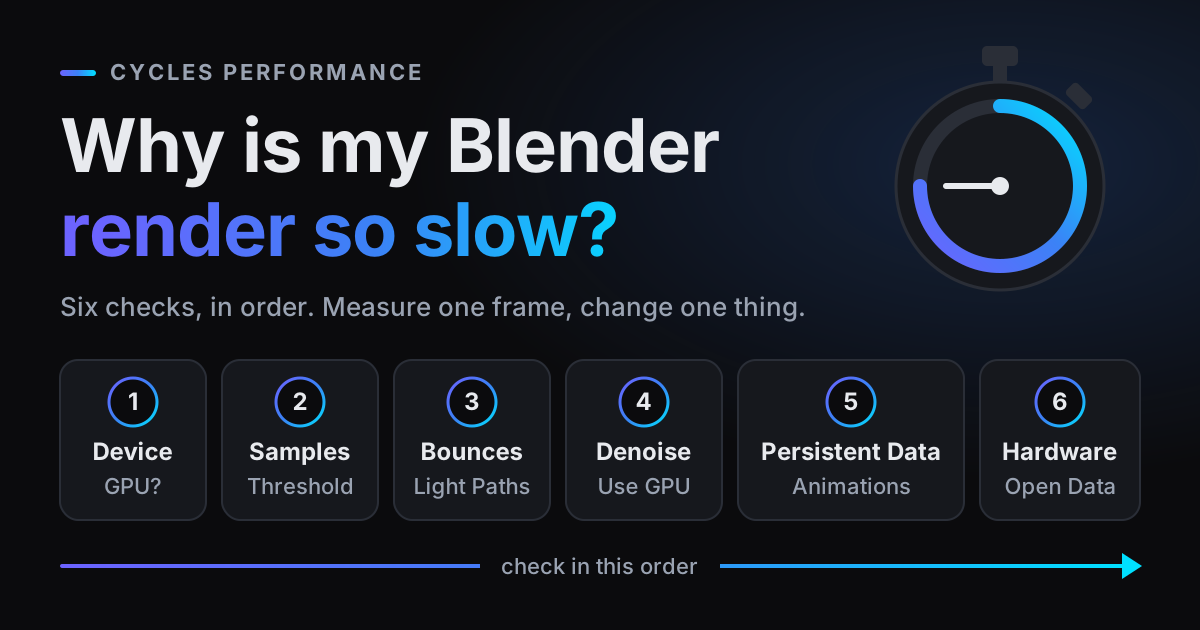
Why is my Blender render so slow? Often because of a handful of Cycles settings that a new file starts with: the device on CPU, a sample cap of 4096, denoising on the CPU and Persistent Data off. They are safe defaults, not mistakes, but together they cost a lot of time.
Below are the checks in the order worth doing them, with the defaults of a fresh Blender 5.1.1 file read out of Blender itself. The menu paths are the same from Blender 4.4 to 5.2, and newer settings are marked. It starts with measuring and ends with a hardware check, so you know whether what is left is your settings or your card.
First check: is Cycles rendering on the GPU at all?
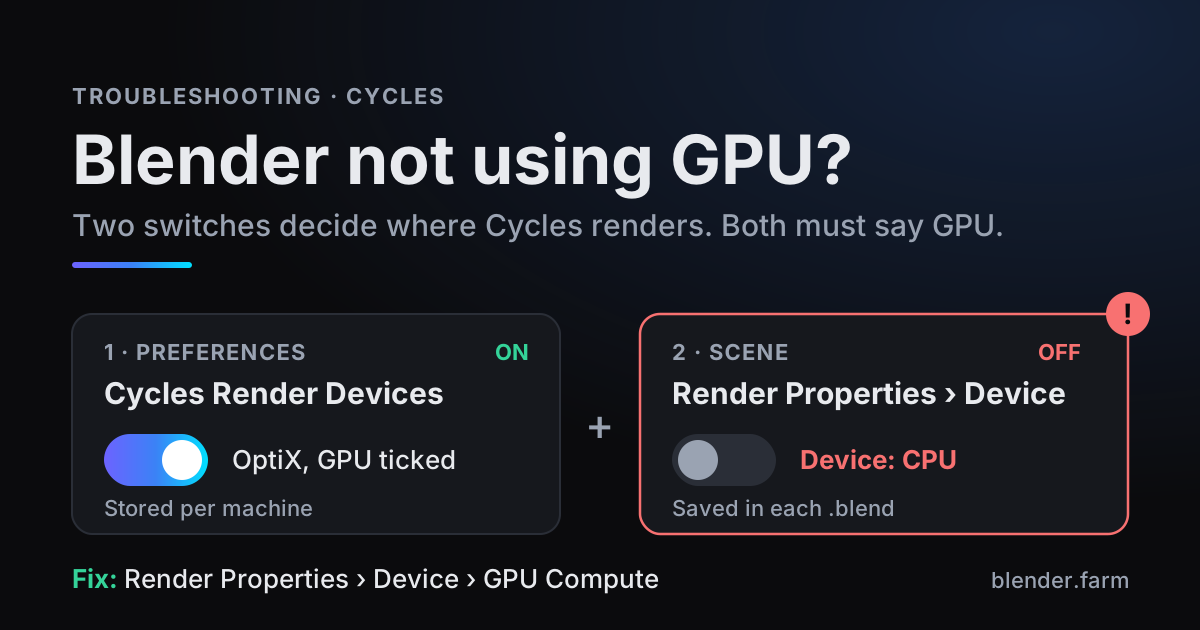
GPU rendering needs two switches. First, Edit > Preferences > System > Cycles Render Devices: choose OptiX on an NVIDIA RTX card (CUDA, HIP, oneAPI or Metal on other hardware) and tick your card. Second, in Render Properties, set Render Engine to Cycles and Device to GPU Compute. A new 5.1.1 file opens on EEVEE, and once you switch it to Cycles the Device reads CPU.
The preference belongs to your Blender install, while the Device is saved in the .blend, so a file someone saved on CPU stays on CPU. If GPU Compute is greyed out, or the GPU is set and the render still crawls, our post on Blender not using the GPU goes through drivers and card support. Everything below assumes the GPU is doing the work.
Why is my Blender render so slow? Measure before you change anything
Pick one representative frame: the heaviest camera angle, at final resolution and final settings. Render it twice with F12 and note the time shown at the top of the render window. Use the second time: the first render in a session can include one-off work, and on a GPU Blender may show Loading render kernels (may take a few minutes the first time). Then change one thing, render the same frame again, and keep only the changes that clearly help.
Stamp the time into every frame
For animations, Output Properties > Metadata already has Render Time ticked in a new file; tick Memory too, for peak memory. PNG, JPEG and OpenEXR then store both in every frame, and Burn Into Image prints them onto the picture, so the slow stretch of a sequence stands out when you scrub through it. Untick Burn Into Image before the final render.
See where the samples went with the Sample Count pass
View Layer Properties > Passes > Data > Debug > Sample Count stores, for each pixel, the samples Cycles took divided by Max Samples. After rendering, pick it from the pass menu in the render window. White (a value of 1) means the pixel ran all the way to the cap; darker means adaptive sampling stopped early because the pixel was clean enough. Large white areas are where the time goes, typically glass, volumes and corners lit only by bounced light. This pass works on GPU renders.
The Render Time pass beside it stores milliseconds per pixel, but the manual says it is not supported on GPU rendering, and in 5.1 its checkbox is greyed out unless the Device is CPU. A small CPU test at reduced resolution gives a rough map of the expensive areas, not a GPU timing.
Samples and noise threshold: the biggest lever
Open Render Properties > Sampling > Render. A new 5.1.1 file has Noise Threshold ticked at 0.01, Max Samples 4096, Min Samples 0 (Cycles then picks a minimum from the threshold) and Time Limit 0, which means no limit. Denoise is on, with OpenImageDenoise, Albedo and Normal passes, Prefilter Accurate and Quality High.
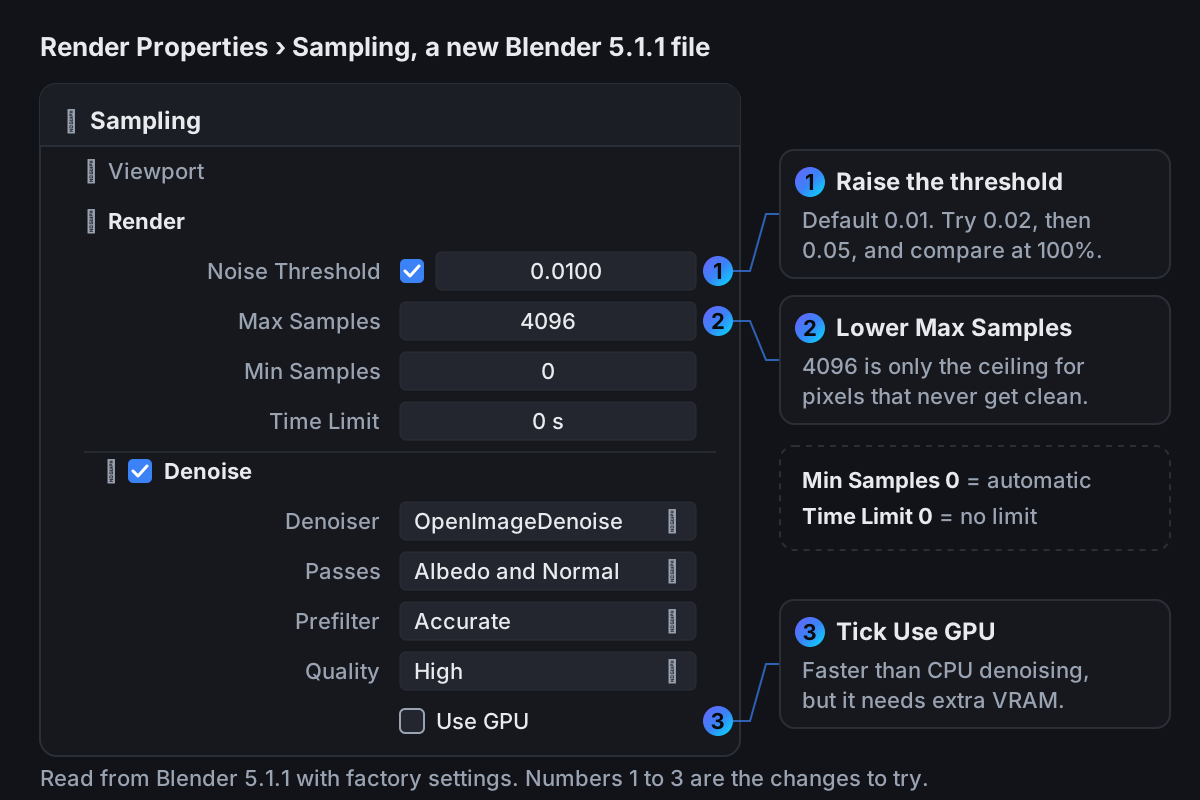
With the threshold ticked, Cycles stops sampling a pixel once its noise falls below the threshold; Max Samples is only the ceiling for pixels that never get there. The manual gives 0.1 to 0.001 as the typical range, lower values being cleaner and slower. Render time grows roughly with the number of samples taken, so these two numbers decide most of what a frame costs.
- 1Raise the threshold firstTry 0.02, then 0.05, on the test frame. Compare the denoised results at 100 percent zoom in the parts of the image a viewer will look at.
- 2Then lower Max SamplesIf the Sample Count pass still shows large white areas, lower Max Samples until the denoised result starts to break up there, then go back one step.
- 3Let the denoiser finish the jobOpenImageDenoise is made for images that still carry some noise. A frame that already looks clean before denoising probably took more samples than it needed.
- 4Check a few frames in motionLow-sample denoised frames can shimmer in playback. Render a short stretch before the whole range; our post on animation flicker covers the fixes.
Time Limit: a ceiling per frame
Time Limit stops rendering when the time runs out, even before the sample count is reached. Pre-render processing such as syncing the scene does not count toward it, so a frame that hits the limit takes longer than the limit in total. It guards against one runaway frame, but frames that hit it stop at different sample counts, so check that the noise looks even across the sequence.
Light paths: fewer bounces where nobody sees them
Render Properties > Light Paths > Max Bounces limits how many times a ray may bounce before Cycles stops following it. The 5.1.1 defaults are Total 12, Diffuse 4, Glossy 4, Transmission 12, Volume 0 and Transparent 8. The manual is plain about the trade: lower values render faster, and 0 bounces means direct light only.
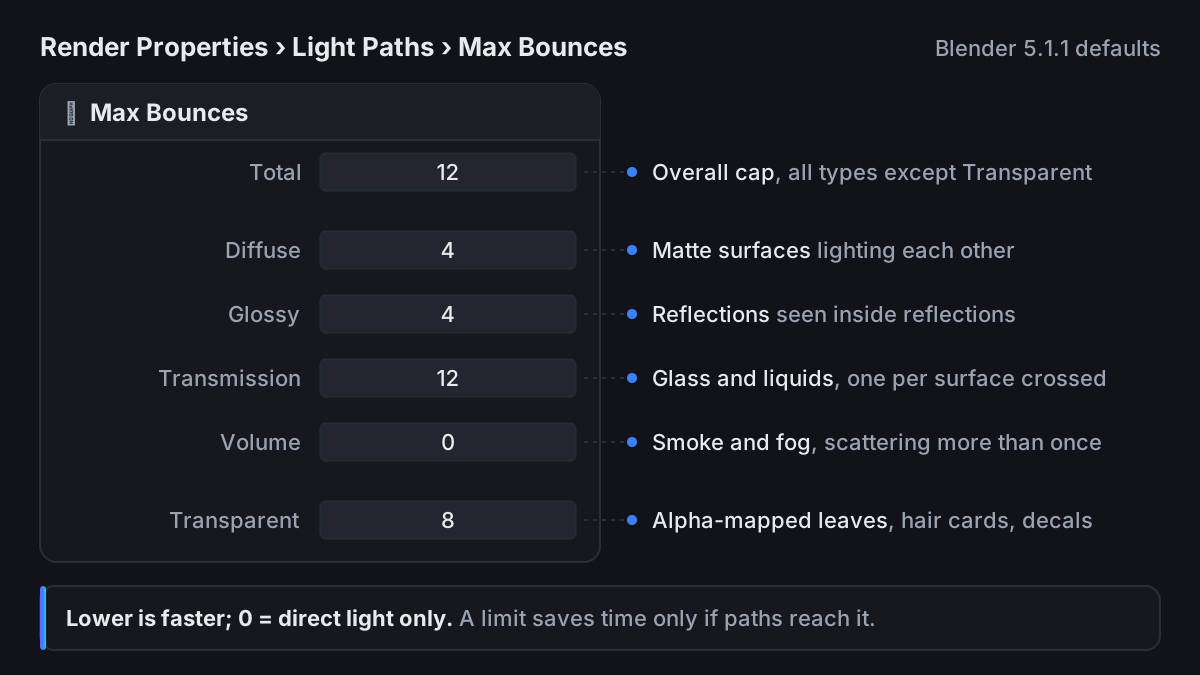
| Bounce limit | Default | Set too low, it shows as |
|---|---|---|
| Total | 12 | Bounced light dimming everywhere |
| Diffuse | 4 | Interiors and shadowed corners going darker |
| Glossy | 4 | Facing mirrors and chrome losing depth |
| Transmission | 12 | Glass going dark where rays run out |
| Volume | 0 | Already the minimum in a new file |
| Transparent | 8 | Dark patches in stacked leaves or hair cards |
A limit only saves time when paths actually reach it: lowering Transmission in a scene without glass changes nothing. Lower the bounce type your scene is full of, render the test frame, and compare. An exterior lit by sun and sky usually tolerates fewer diffuse bounces than an interior lit through a window, where most of the light arrives after several bounces.
Two more switches in this panel trade accuracy for less noise, which then lets you lower samples. Under Caustics, Reflective and Refractive are both ticked in a new file, and the manual calls caustics a common source of noise: unticking them removes that noise along with the caustics. Filter Glossy (1.0 by default) blurs glossy reflections after blurry bounces. Both change the look, so judge them on the test frame.
Denoising on the GPU, and what does not run there
In the Denoise subpanel, Use GPU is unticked in a new 5.1.1 file. The manual says GPU denoising is significantly faster than on the CPU but needs extra GPU memory, and can be switched off when a large scene needs that memory. On NVIDIA it needs compute capability 7.0 or newer, which covers every RTX card. Tick it unless the scene is already close to filling your VRAM.
A Denoise node in the compositor has its own setting, new in Blender 4.5: Render Properties > Performance > Compositor > Denoise Nodes > Denoising Device. Its default, Auto, follows the compositor's Device, which is CPU in a new 5.1.1 file. If your compositor has a Denoise node, set it to GPU.
Path Guiding never helps a GPU render: the manual says it is only available when rendering on a CPU, and Blender hides its panel when you render on the GPU.
Animations: Persistent Data and the Performance presets
Every frame starts with work that is not sampling: handing the scene to Cycles, building the acceleration structure (the BVH) and loading textures. Persistent Data, in Render Properties > Performance > Final Render, keeps that render data in memory between frames, so later frames reuse what has not changed. It is off in a new 5.1.1 file, and the price is extra memory while you keep working in Blender. The first frame still pays for all of that work, so judge it on three or four frames of the animation and time the later ones.
The Performance panel header has a presets menu with Default, Faster Render (more memory for a faster render) and Lower Memory (less memory, slower render). In 5.1.1, Faster Render switches Persistent Data on, enables spatial splits and sets BVH Time Steps to 2; Lower Memory uses a compact BVH and drops Tile Size from 2048 to 512. The panel those BVH options live in, Acceleration Structure, is hidden when the device is OptiX.
When the scene itself is the problem
Volumes are the usual suspect when a scene is slow whatever the settings. Smoke, fire and fog are sampled through their whole depth, not just at a surface, so a world volume over a large scene can take over a frame. Our post on slow volumetrics in Blender covers the settings that matter for them.
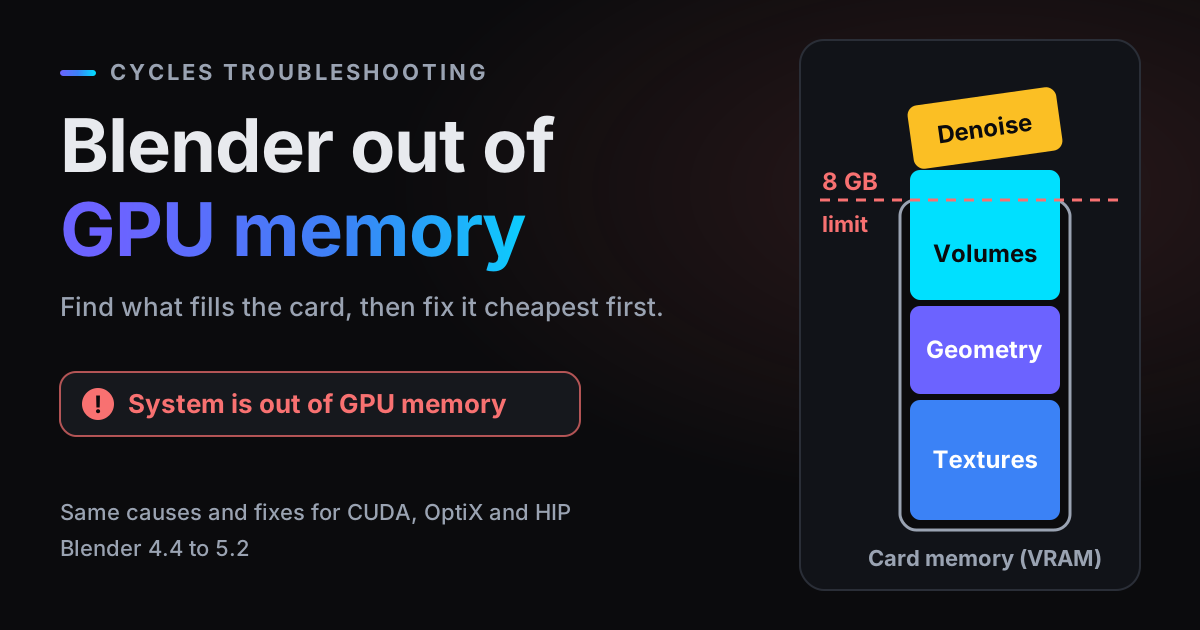
Running out of video memory may not look like an error at all. With CUDA, OptiX, HIP and Metal, Blender tries system memory when the card's memory is full: the render keeps going, but slower, which is easy to mistake for a settings problem. Watch dedicated GPU memory in Task Manager or nvidia-smi during the test frame. If it sits at the card's limit, fix memory first, starting with our post on Blender running out of GPU memory.
Textures are usually the cheapest memory to win back. By the manual's figures, 8K, 4K, 2K and 1K image textures take 256, 64, 16 and 4 MB, and a background prop rarely needs 8K. Tick Render Properties > Simplify and set Texture Limit under Render to cap texture resolution for final renders without touching the files.
Blender 5.2 adds Performance > Texture Cache. With it and Auto Generate ticked, Cycles writes a tiled, mipmapped .tx file for each image (in a blender_tx folder next to it) and loads only the tiles and resolutions a render needs. The release notes describe significantly lower memory use and startup time on scenes with many image textures, at the cost of a small rendering performance impact and extra disk space.
Settings or hardware? Check your card against Blender Open Data
Once the settings are sane, the remaining question is the card. Blender Open Data collects results from Blender's own benchmark. Its score is the estimated number of samples per minute summed over the benchmark scenes, so twice the score means roughly half the time on those scenes. These are the Blender 5.2.0 OptiX medians:
| Card | Median score | Results | Benchmark time vs the RTX 5090 |
|---|---|---|---|
| RTX 5090 | 16,066 | 205 | reference |
| RTX 4090 | 11,553 | 106 | about 1.4x as long |
| RTX 4060 Laptop GPU | 2,934 | 111 | about 5.5x as long |
| RTX 3060 | 1,989 | 107 | about 8.1x as long |
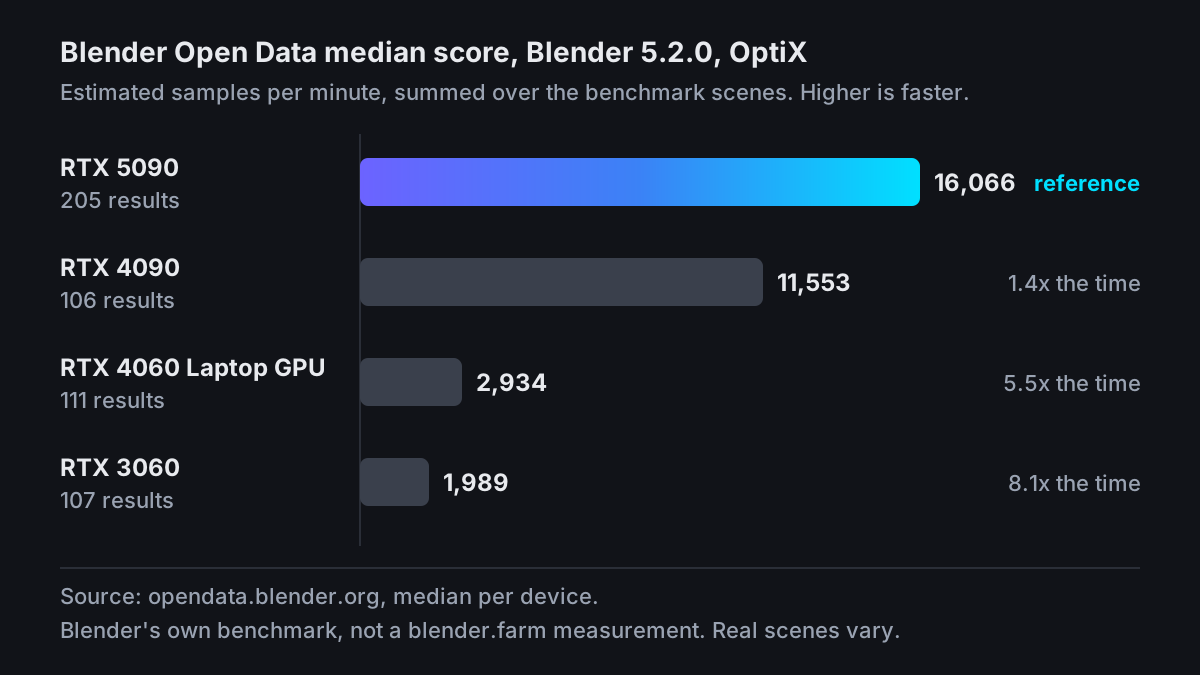
These are Blender's benchmark medians, and real scenes vary: a scene that spills out of VRAM on a smaller card can fall further behind than its score suggests. To place your own machine, run the free Blender Benchmark from opendata.blender.org. If you score well below the median for your card, look at drivers, cooling and power settings before you look at the scene.
Renting a faster card for the final render
If the settings are right and the card is the limit, the last lever is a faster GPU. blender.farm renders each job on one dedicated NVIDIA RTX 5090 with 32 GB of VRAM, the top card in the chart above. On the render machine, Cycles is pushed onto OptiX (falling back to CUDA), denoising runs on the GPU and Persistent Data is switched on for scenes without volumes: the settings this post recommends, without you editing the file for them.
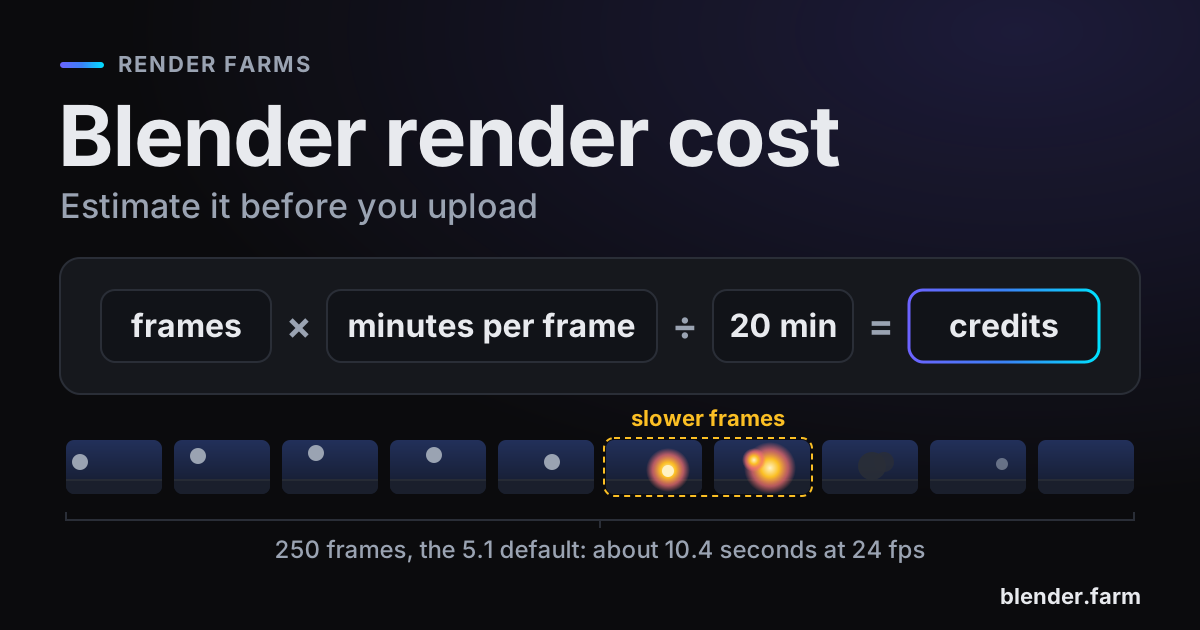
Your samples, noise threshold and bounces travel with the .blend, so the tuning above cuts the bill as well as the wait. Render time costs about $3.00 per hour on the 10-credit pack, down to about $2.25 on the 200-credit pack, billed in 5-minute blocks with no subscription (see pricing).
Questions
- Why is the first frame of my animation slower than the rest?
- The first frame pays for handing the scene to Cycles, building the BVH and loading textures, and in a new session the GPU may also load its render kernels. With Persistent Data on (Render Properties > Performance > Final Render), later frames reuse that data, so time a later frame when you compare settings.
- What noise threshold should I use?
- Blender's default is 0.01, and the manual gives 0.1 to 0.001 as the typical range, lower being cleaner and slower. With denoising on, try 0.02 and 0.05 on a test frame and keep the highest value you cannot tell apart from 0.01 at 100 percent zoom.
- Can I see which parts of the image are slowest on a GPU render?
- Not directly: the Render Time pass is not supported on GPU rendering. The Sample Count pass does work on GPU and shows, per pixel, how much of Max Samples was used, which marks the areas where most of the time goes.
- Does updating Blender make renders faster?
- Often a little. Blender 5.1 improved GPU rendering performance by 5 to 10 percent on various benchmark scenes, and 5.2 added a Texture Cache that cuts memory use and startup time on scenes with many image textures.
Sources
- Blender Manual, Cycles Sampling, read 29 October 2026
- Blender Manual, Cycles Light Paths, read 29 October 2026
- Blender Manual, Cycles Performance, read 29 October 2026
- Blender 4.5 LTS Manual, Cycles Performance (Denoising Device, absent from the 4.4 manual), read 29 October 2026
- Blender Manual, GPU Rendering, read 29 October 2026
- Blender Manual, Render Passes, read 29 October 2026
- Blender Manual, Metadata, read 29 October 2026
- Blender Manual, Supported Image Formats, read 29 October 2026
- Blender 5.2 LTS release notes, Cycles, read 29 October 2026
- Blender 5.1 release notes, Cycles, read 29 October 2026
- Blender Open Data, Blender 5.2.0, OptiX, median by device, read 29 October 2026
- Blender Open Data, About (benchmark score), read 29 October 2026