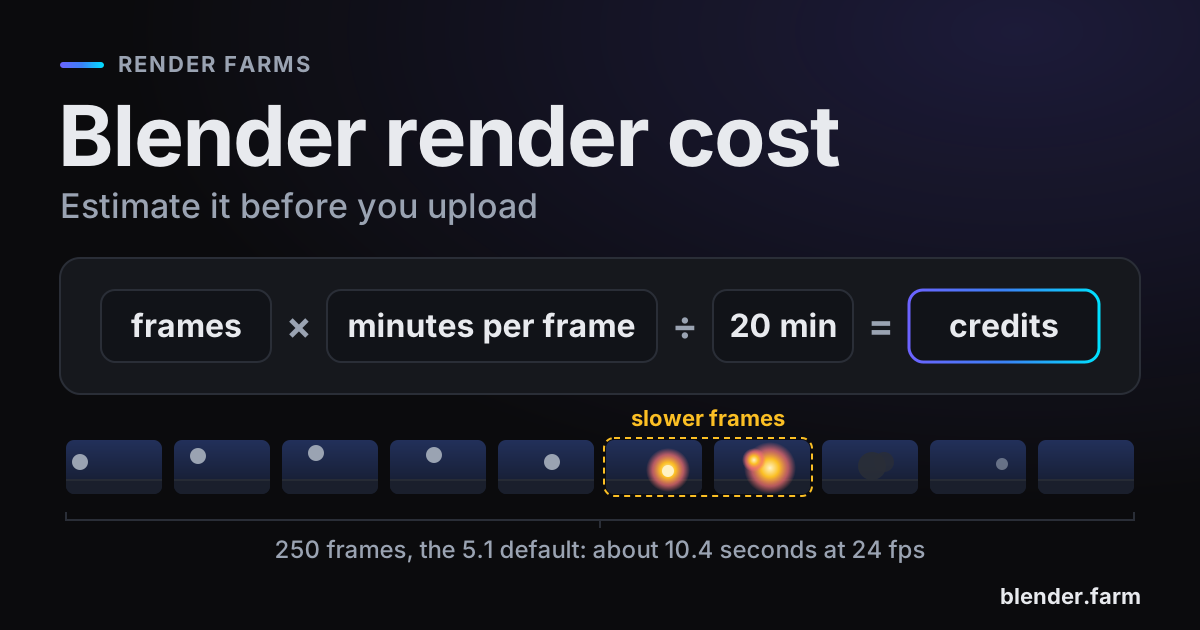
Your Blender render cost comes down to one multiplication: frames times minutes per frame gives render minutes, and render hours times the hourly price of a named GPU gives money. The hard part is the minutes per frame. Render time calculators ask you for that number, or for a benchmark score, and then take it on trust. Below: how to measure that time with Blender's own tools, translate it to another GPU and turn it into dollars before you upload anything.
Start with the frame count, because it is easy to think in seconds instead. A new Blender 5.1.1 file is frames 1 to 250 at 24 fps, which is about 10.4 seconds of animation. One minute at 24 fps is 1,440 frames, and every one of them is a separate render.
The formula behind every Blender render cost
render minutes = frames × minutes per frame
render hours   = render minutes ÷ 60
cost           = render hours × price per hour on a named GPU
Two of the three inputs are easy. You know your frame count, and a farm publishes its price. The price only means something with the GPU named next to it: an hour on an old card and an hour on an RTX 5090 are different amounts of work. The third input, minutes per frame, is where estimates go wrong, usually because it was measured on one easy frame.
Get a per-frame time you can trust
The frame you test is usually the one you were looking at, and it is rarely typical: a calm wide view and a smoke-filled close-up in the same shot can differ several times over. Blender can sample the whole shot and record every frame's time for you.
- 1Render a sample from across the shotIn Output Properties > Frame Range, set Step to 10, then use Render > Render Animation. A value above 1 skips frames, so on a 250-frame shot it renders frames 1, 11, 21 and so on up to 241: 25 frames spread from start to end. Set Step back to 1 afterwards.
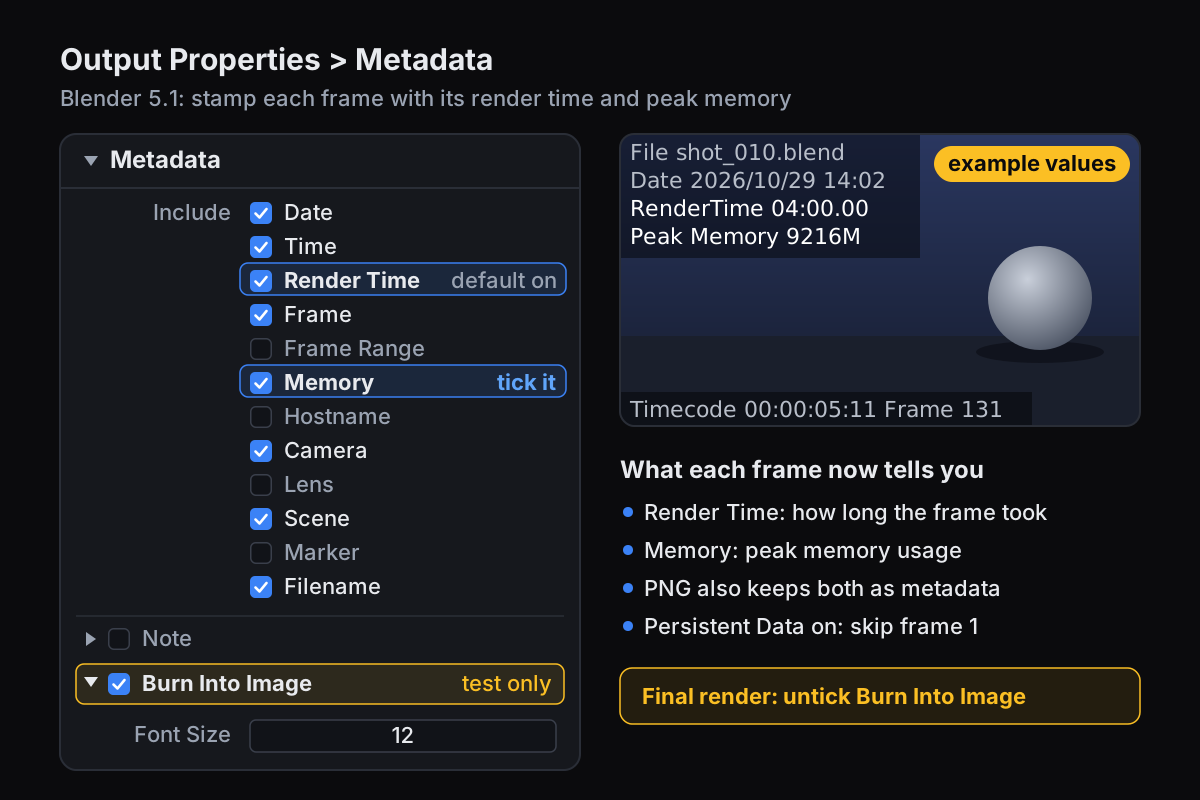
- 2Stamp the time into every frameOpen Output Properties > Metadata. Render Time is already ticked in a new 5.1 file; tick Memory too, which records peak memory usage. Tick the checkbox on the Burn Into Image subpanel to print them onto the frame, along with the fields ticked by default, so you can read them in any image viewer. PNG also keeps them as metadata inside the file.
- 3Leave out frame 1 when Persistent Data is onRender Properties > Performance > Final Render > Persistent Data keeps render data in memory for faster animation renders. The first frame prepares the scene data that later frames reuse, so it reads slow. Average the other frames.
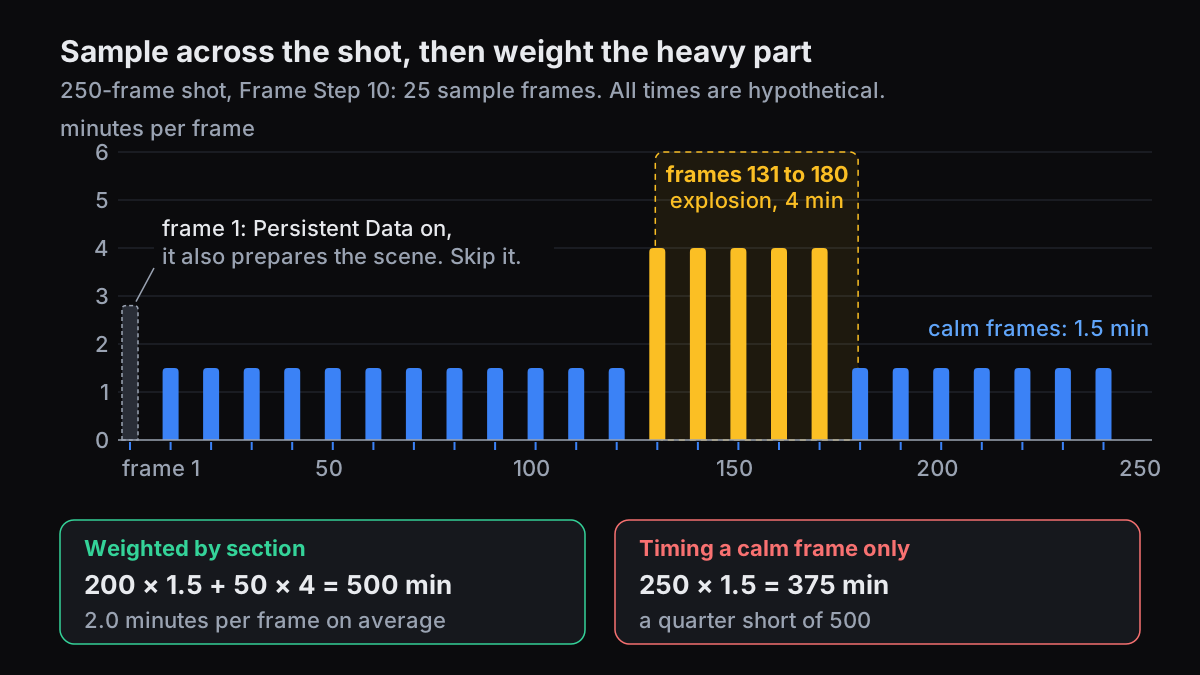
- 4Time heavy sections separatelyExplosions, volumes, close-ups on hair or glass, and fast motion blur are the usual suspects. A short burst can fall between two samples at Step 10, so render a few of its frames on their own and weight them by how many frames they cover.
- 5Test at 100% resolutionThe % slider under Format > Resolution is for quick test renders with the same proportions as the final image. A 50% render has a quarter of the pixels, so its time is a poor guide to the full frame. Time the size you will deliver, with the samples you will deliver.
Weighting a heavy section
Here is a hypothetical shot, to show the arithmetic. The calm frames take 1.5 minutes each and an explosion from frame 131 to 180 takes 4 minutes per frame. That is 200 calm frames and 50 heavy ones: 200 × 1.5 + 50 × 4 = 500 minutes, an average of 2.0 minutes per frame. If you had timed only a calm frame, you would have budgeted 250 × 1.5 = 375 minutes, a quarter short.
Translate a local frame time to another GPU
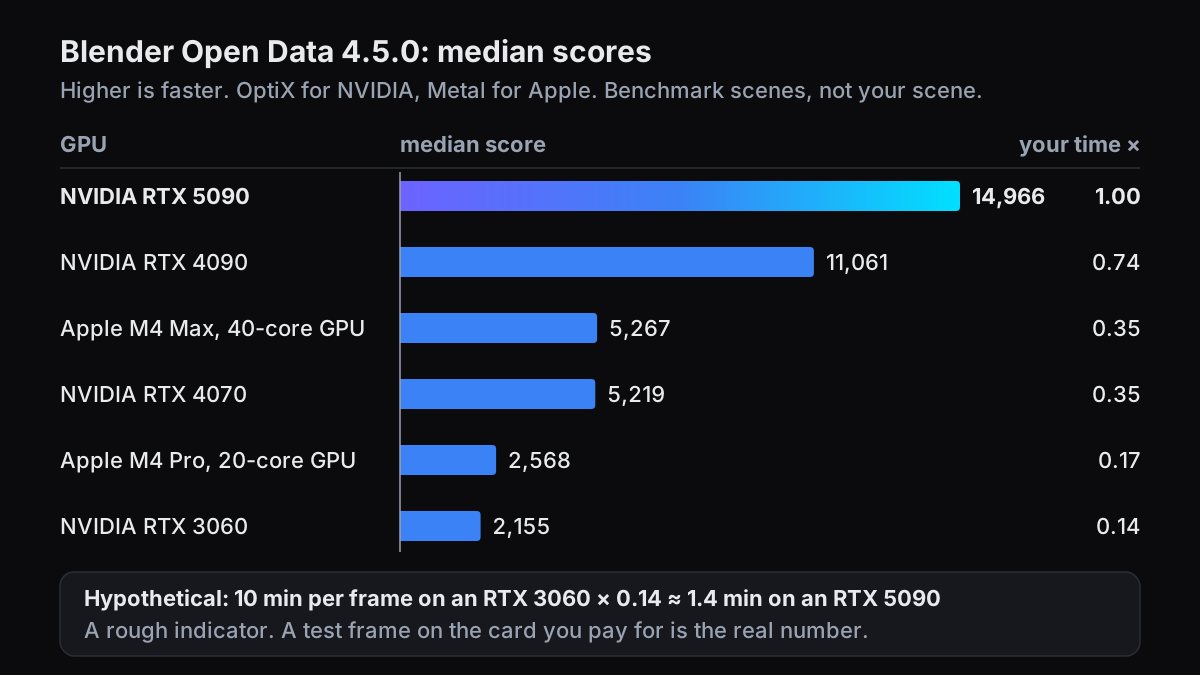
Your sample was rendered on your own card, and the farm's card is a different one. Blender Open Data publishes median benchmark scores per device, and the ratio of two scores gives a rough multiplier. Compare scores from the same Blender version only; every figure here is from Blender 4.5.0, OptiX for NVIDIA and Metal for Apple.
| GPU | Median score, Blender 4.5.0 | Multiply your frame time by |
|---|---|---|
| NVIDIA RTX 5090 | 14,966 | 1.00 |
| NVIDIA RTX 4090 | 11,061 | 0.74 |
| Apple M4 Max, 40-core GPU | 5,267 | 0.35 |
| NVIDIA RTX 4070 | 5,219 | 0.35 |
| Apple M4 Pro, 20-core GPU | 2,568 | 0.17 |
| NVIDIA RTX 3060 | 2,155 | 0.14 |
A hypothetical example: 10 minutes per frame on an RTX 3060, times 2,155 ÷ 14,966, is roughly 1.4 minutes per frame on an RTX 5090 by the median ratio.
Settings that move the number
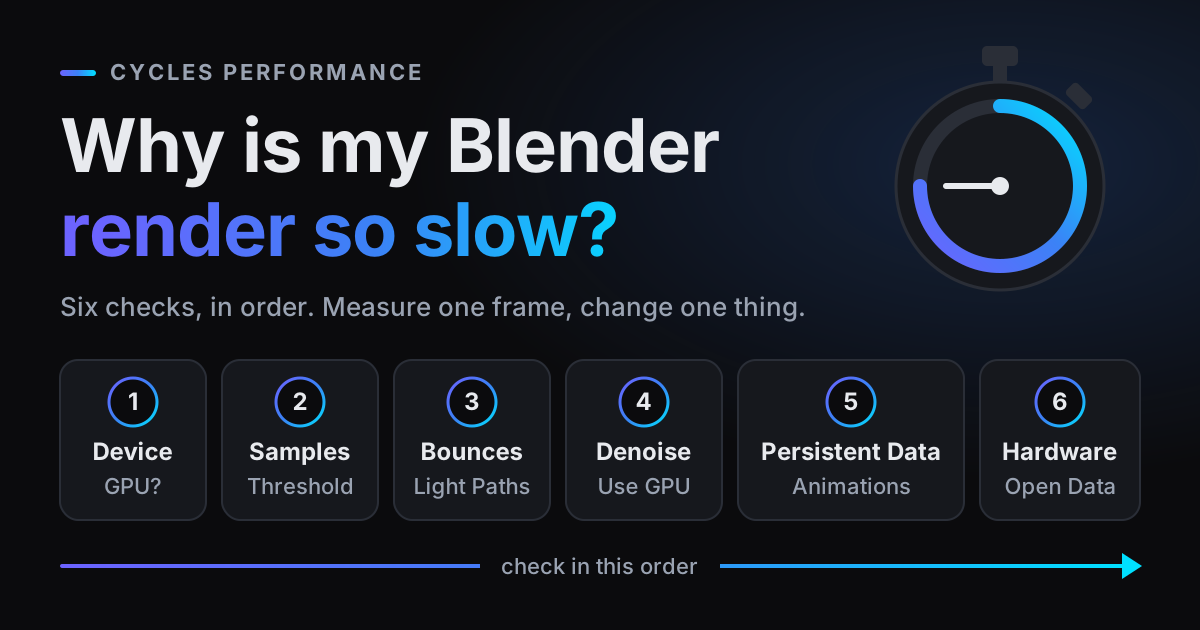
If the estimate is higher than you hoped, these are the settings that change it. Each one is a trade against quality, so test the change on your heaviest frame.
- Max Samples and Noise Threshold (Render Properties > Sampling): the manual says lower threshold values mean better quality but longer render times, with typical values from 0.1 to 0.001.
- Time Limit (same panel): stops sampling at the limit even if the sample count has not been reached, at the cost of noise on frames that hit it. It does not count pre-render processing, so a frame can run past it.
- Resolution: 3840 × 2160 is four times the pixels of 1920 × 1080, and render time grows roughly with the pixel count.
- Light Paths > Max Bounces: the manual notes lower values render faster; interiors and glass are where you see what was cut.
- Denoising: lets you stop at fewer samples for a clean image, and the denoise itself adds a step to every frame.
- Motion Blur: moving geometry is traced across the shutter time, so time a fast-moving frame rather than a still one.
- Volumes: smoke, fire and fog are often the slowest frames in a shot. See why volumetrics are slow.
For the full list of causes and fixes, see why your Blender render is slow and the Cycles sampling page of the manual.
Blender render cost on blender.farm, worked
On blender.farm every render runs on one NVIDIA RTX 5090 with 32 GB of VRAM. The guide puts the rate in one line: "One credit is 20 minutes of render time, billed in 5 minute blocks of 0.25 credits." Blocks are counted on the total render time of the job, not per frame. In the guide's words: "A 4 minute render costs 0.25 credits. A 6 minute render costs 0.5. A 61 minute render costs 3.25."
- 1Render minutes250 frames × 2 minutes per frame (hypothetical) = 500 minutes.
- 2Blocks500 ÷ 5 = 100 blocks of 5 minutes.
- 3Credits100 × 0.25 = 25 credits. The shortcut gives the same answer: 500 ÷ 20 = 25, rounded up to the next quarter.
- 4DollarsAt the 10-pack rate ($9.99 for 10 credits) that is about $24.98. At the 200-pack rate ($149.99 for 200, $0.75 a credit) it is $18.75.
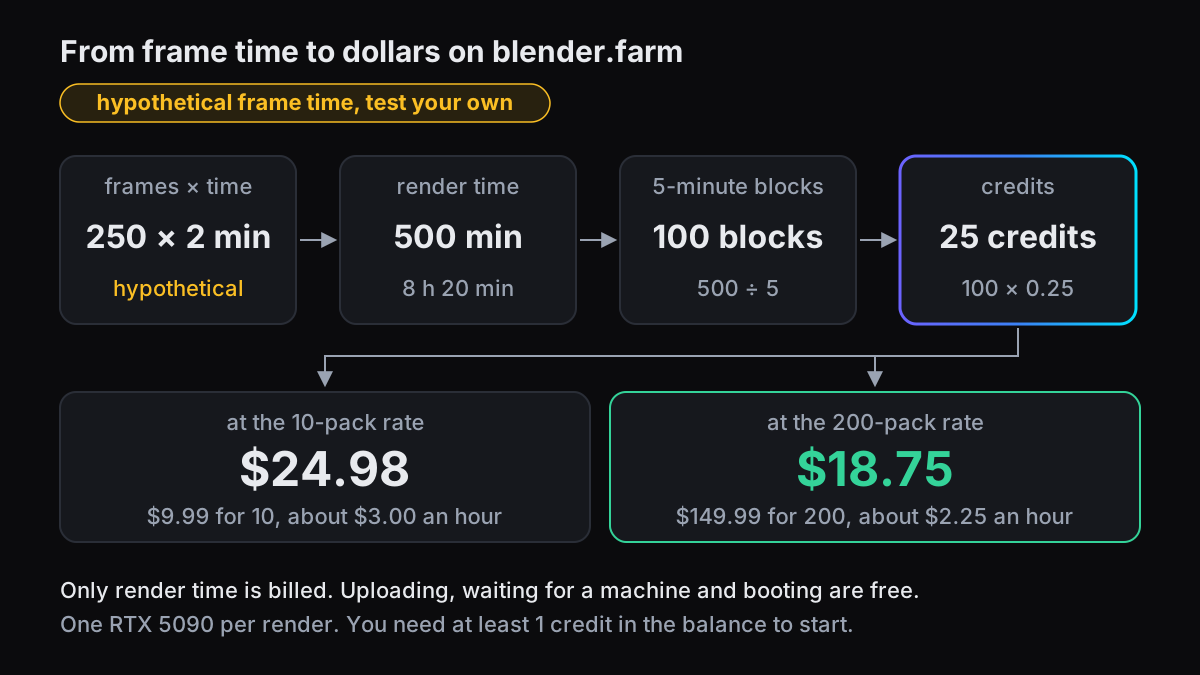
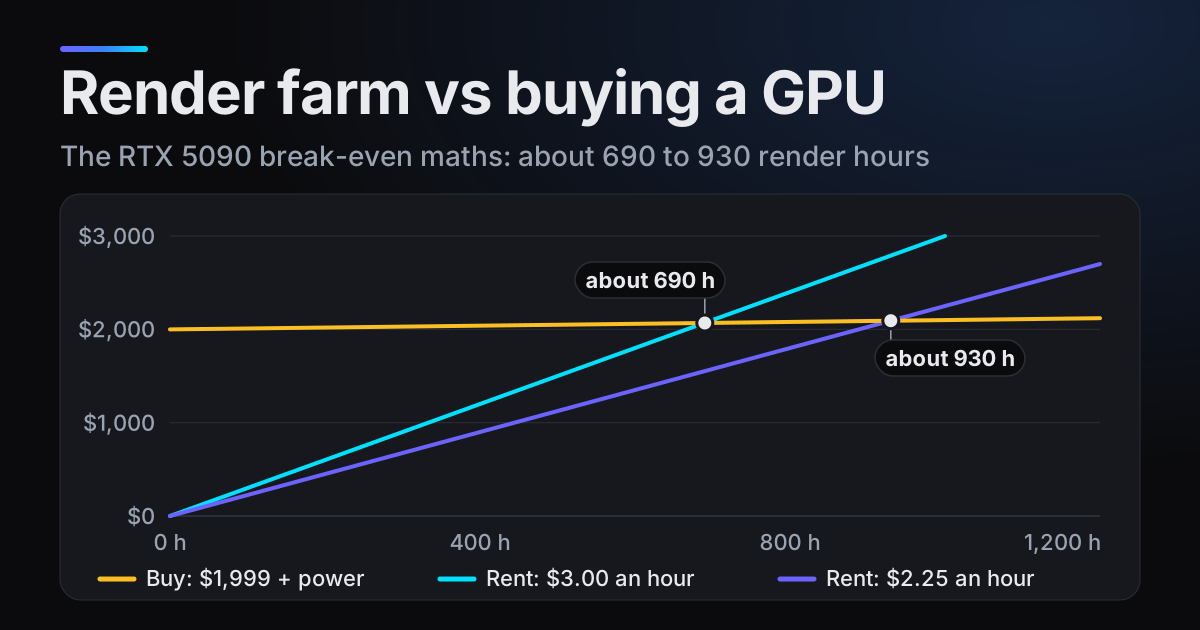
Only rendering is billed. Uploading, waiting for a machine, booting, downloading the scene, installing add-ons, remapping paths and uploading finished frames are free, as the credits and billing guide lists. Packs are 10 credits for $9.99 (about $3.00 per render hour), 50 for $44.99 (about $2.70) and 200 for $149.99 (about $2.25). Credits do not expire, there is no subscription, and you need at least 1 credit in the balance to start a render. Current prices are on /pricing.
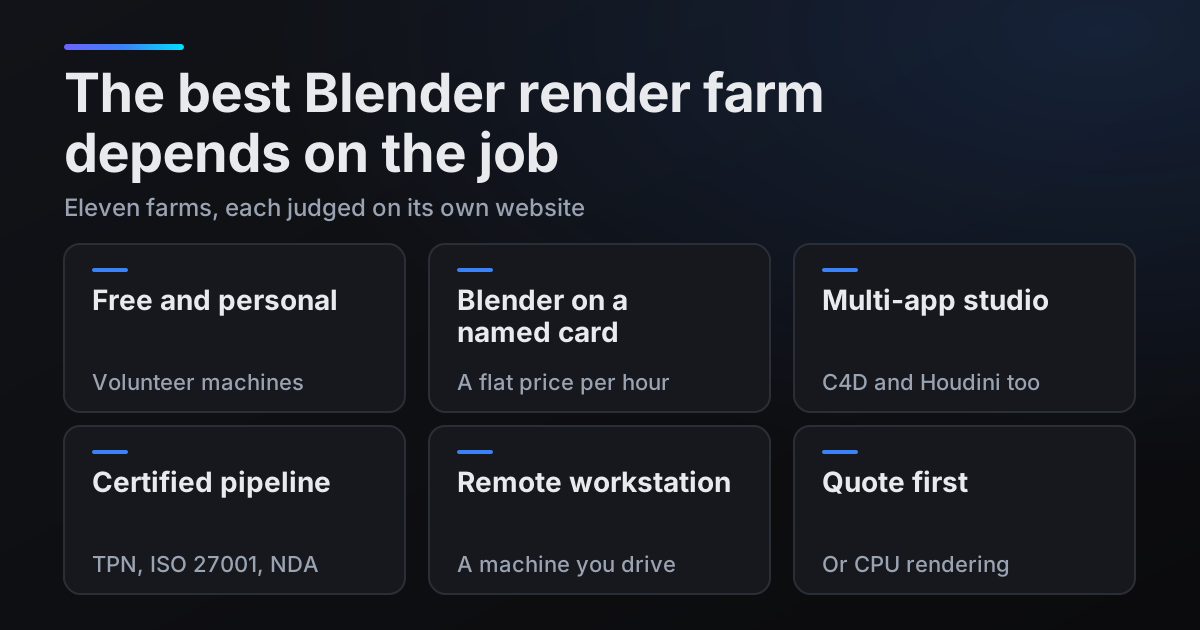
The same maths on other farms
The cleanest comparison is the same card. Super Renders Farm's pricing page says "One RTX 5090 (32 GB VRAM) costs $5.17 per hour of rendering" and "Billed per second". If the hypothetical frames took the same 2 minutes on their card, 500 minutes is 8 hours 20 minutes, or about $43.08. Their page also notes that estimates are a starting point and billing follows actual render time, as it does here. Per-second billing rounds more finely; 5-minute blocks add at most 5 minutes to a job, and nothing in this example. On the same card and the same frames, that is roughly $3.00 an hour against $5.17.
How other farms estimate, in their own words
- Blendergrid: "Before you start rendering, we always give you a free sample render and let you know the exact price of your project." An exact price before you commit is a real strength.
- GarageFarm.NET: "if you have 400 frames in your sequence and set the frame range to 1to400s20, you will get 20 frames rendered in total. Our system will then calculate the cost estimate for the full range based on those frames rendered." The Frame Step method on their machines, and they note the test frames are not rendered again for the full range.
- Drop & Render: "submit one or two test frames first. This gives you a real per-frame cost on our hardware, which you can then multiply by your total frame count for an accurate estimate."
Why short frames can cost more on some farms
Each frame requires a brief startup period to load your project and any pre-calculations. If your frames only take a few minutes each, that startup time becomes a bigger proportion of your total cost.
Drop & Render, pricing page
So on a farm that loads the project for each frame, a per-frame test should include that startup. On blender.farm the guide lists downloading the scene, installing add-ons and remapping paths as free, and the meter starts when Blender begins rendering frames.
Test one frame before the whole run
The reliable number comes from the card you will pay for. On blender.farm there are two ways to get one.
- 1Read the add-on's EstimateIn the free add-on, Estimate "works out roughly what the job will cost before you send anything. It reads your scene settings and geometry; it does not render, upload, or spend a credit to do it." You get a likely figure and a range. For Cycles, plan for the top of the range. It is a guardrail, not a quote: you are billed for the time the render actually takes. See the add-on panel.
- 2Render one frameSet the frame range to a single frame, ideally one from the heaviest section, and launch it. A frame that renders in under 5 minutes costs 0.25 credits.
- 3Read the per-frame timeEach finished frame appears on the live view with the time it took.
- 4Do the mathsMultiply by your frame count, divide by 20 minutes, and round up to the next quarter credit.
New accounts get 10 free credits, which is 3 hours 20 minutes of render time on one RTX 5090. That covers the test with most of it left over.
Questions
- How long does it take to render a Blender animation?
- It is your per-frame time times the number of frames. Render every 10th frame with Frame Step 10, average them (leave out frame 1 if Persistent Data is on), and multiply: 250 frames at a hypothetical 2 minutes each is 500 minutes.
- Why do some frames take much longer than others?
- What is on screen changes. Volumes, explosions, close-ups of hair or glass and fast motion blur cost more than a calm wide shot, and with Persistent Data on, the first frame also prepares the scene data that later frames reuse.
- How much does one minute of animation cost to render?
- One minute at 24 fps is 1,440 frames, so multiply 1,440 by your per-frame time. At a hypothetical 1 minute per frame that is 1,440 minutes, or 72 credits on blender.farm: about $71.93 at the 10-pack rate or $54.00 at the 200-pack rate.
- Am I billed for uploading or waiting for a machine?
- Not on blender.farm. Uploading, waiting for a machine, booting, downloading the scene, installing add-ons and uploading finished frames are free; only the time Blender spends rendering is billed.
- How accurate is a Blender render time calculator?
- Only as accurate as the per-frame time you give it. Measure that time across the whole shot at full resolution, weight the heavy sections, and confirm it with one test frame on the GPU you will pay for.
Sources
- Blender Manual, Frame Range, read 29 October 2026
- Blender Manual, Metadata, read 29 October 2026
- Blender Manual, Format (Resolution %), read 29 October 2026
- Blender Manual, Cycles Performance (Persistent Data), read 29 October 2026
- Blender Manual, Cycles Sampling, read 29 October 2026
- Blender Manual, Light Paths, read 29 October 2026
- Blender Manual, Motion Blur, read 29 October 2026
- Blender Open Data, Blender 4.5.0 medians, NVIDIA (OptiX), read 29 October 2026
- Blender Open Data, Blender 4.5.0 medians, Apple (Metal), read 29 October 2026
- Super Renders Farm, pricing, read 29 October 2026
- Blendergrid, pricing, read 29 October 2026
- GarageFarm.NET, pricing, read 29 October 2026
- Drop & Render, pricing, read 29 October 2026