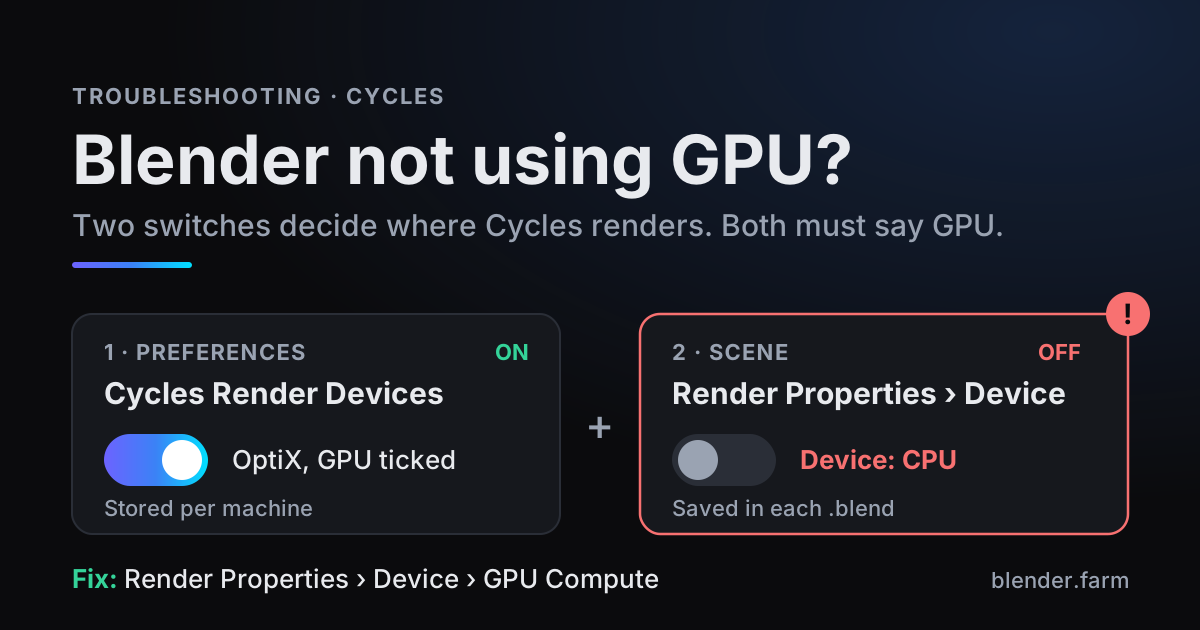
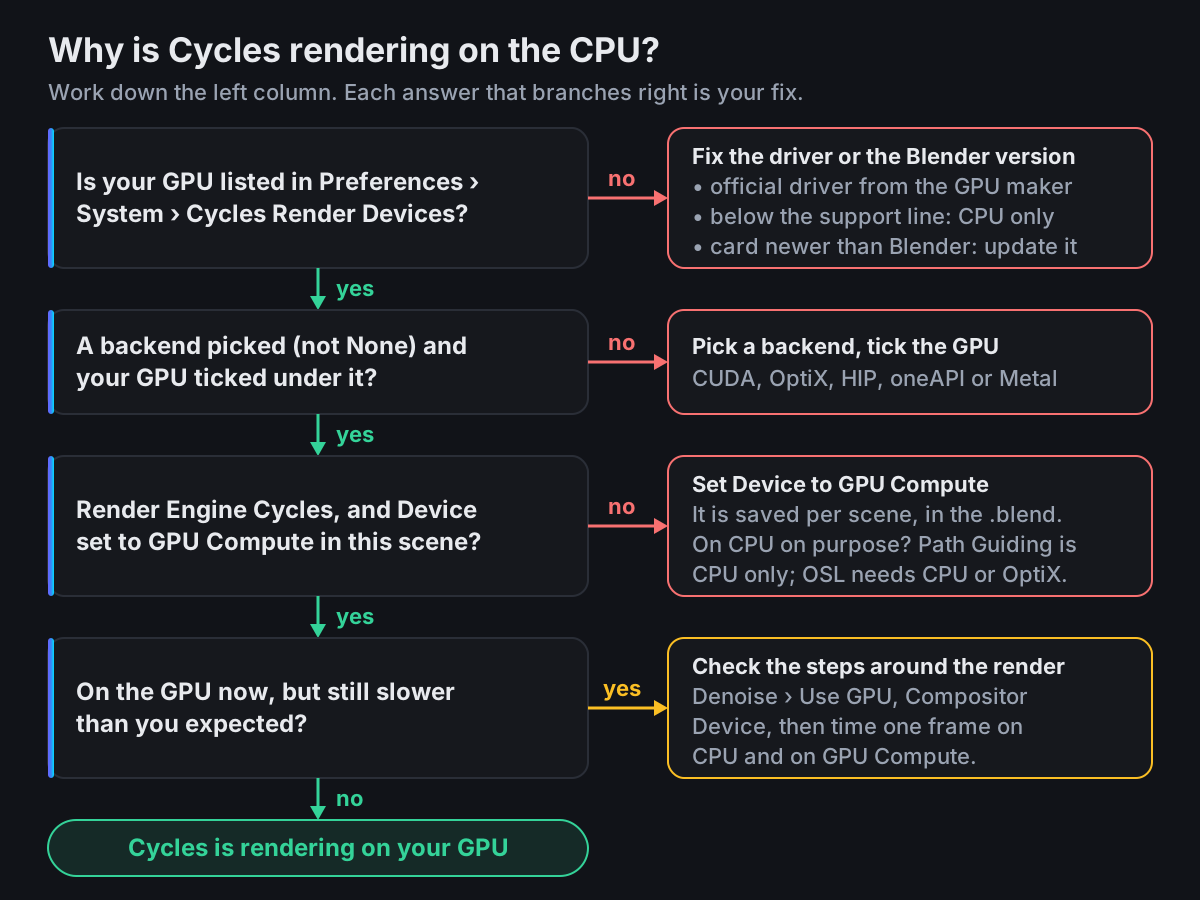
If Blender is not using your GPU, the cause is almost always one of two switches. Cycles renders on the graphics card only when the Cycles Render Devices preference names a backend with your GPU ticked, and the scene's own Device setting says GPU Compute. Set one without the other and Cycles renders on the CPU without an error message, just slowly.
If both are right, check your card against Blender 5's support lines, which moved in 5.0 and 5.2, then Macs, drivers and the features that only run on the CPU. Menu names are from Blender 5.1.
Blender not using GPU? Check the two switches first
The first switch is a preference, saved with Blender on your machine. The second is a scene setting, saved inside the .blend file.
- 1Open the System preferencesGo to Edit > Preferences > System. Cycles Render Devices is the first panel.
- 2Pick the backend for your cardClick CUDA or OptiX for NVIDIA, HIP for AMD, oneAPI for Intel Arc, or Metal on an Apple Silicon Mac. None means Cycles uses the CPU, and it is what a fresh install on Windows or Linux starts with.
- 3Tick the GPUYour card appears in the box under the tabs; make sure it is ticked. Your CPU is listed too, and ticking it as well makes Cycles use both, which is worth testing rather than assuming.
- 4Switch the scene to CyclesIn Properties > Render, set Render Engine to Cycles. A new file in Blender 5.1 starts on EEVEE, and the Device setting only appears for Cycles.
- 5Set Device to GPU ComputeDirectly under the engine, change Device from CPU to GPU Compute. A new file in 5.1.1 starts on CPU.
- 6Save, and repeat per sceneDevice is saved in the
.blend, per scene. If the file holds several scenes, set each one you render.
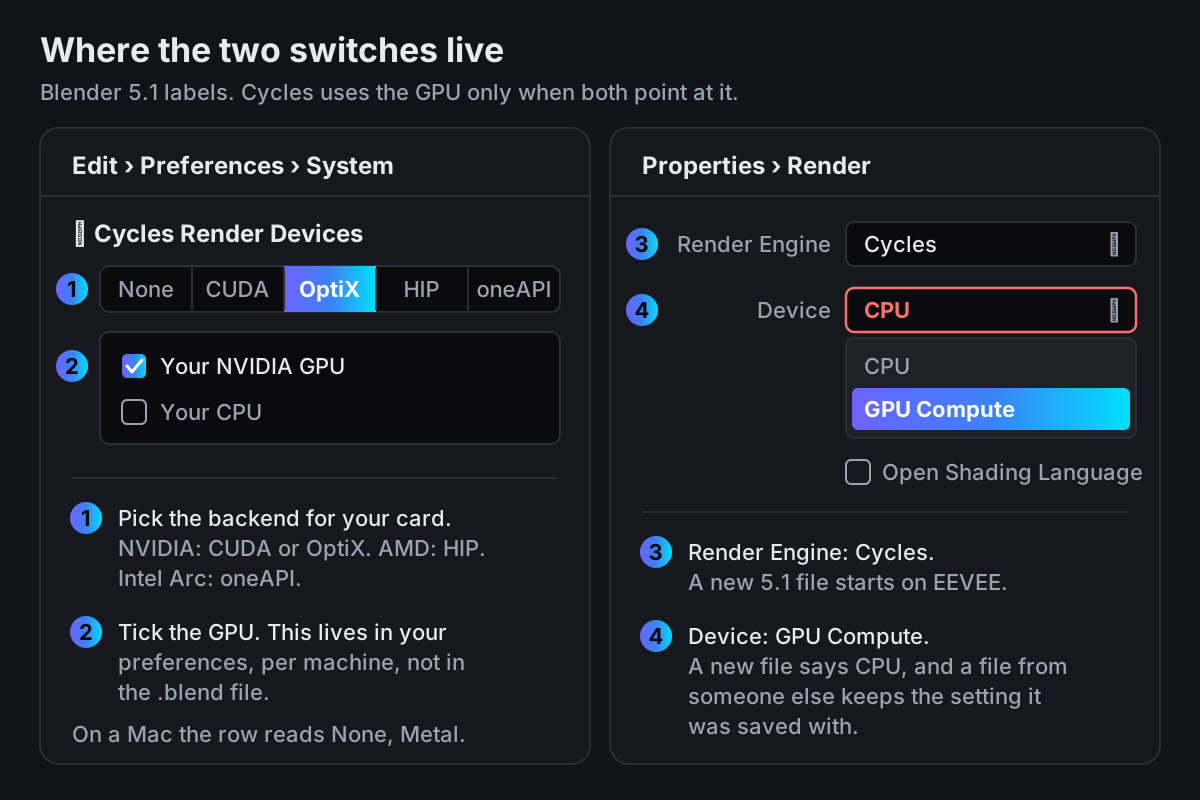
That split explains most confusing cases. A file from someone else carries the Device it was saved with, so it can land on your CPU even when your preferences are right. And preferences never travel with a file, so a scene that used the GPU on a friend's machine may not on yours.
Preferences save automatically by default (Auto-Save Preferences), so the first switch is a one-time job per machine. Each Blender version keeps its own preferences, so check it again after an upgrade.
Two clues in the interface
- The Device field greys out when it says GPU Compute but Preferences are set to None or have no GPU ticked under the selected backend. Blender keeps the setting and renders on the CPU anyway.
- The Path Guiding subpanel under Sampling only shows when Cycles will render on the CPU. If you can still see it after choosing GPU Compute, the preferences side is not set.
Is your GPU still supported in Blender 5?
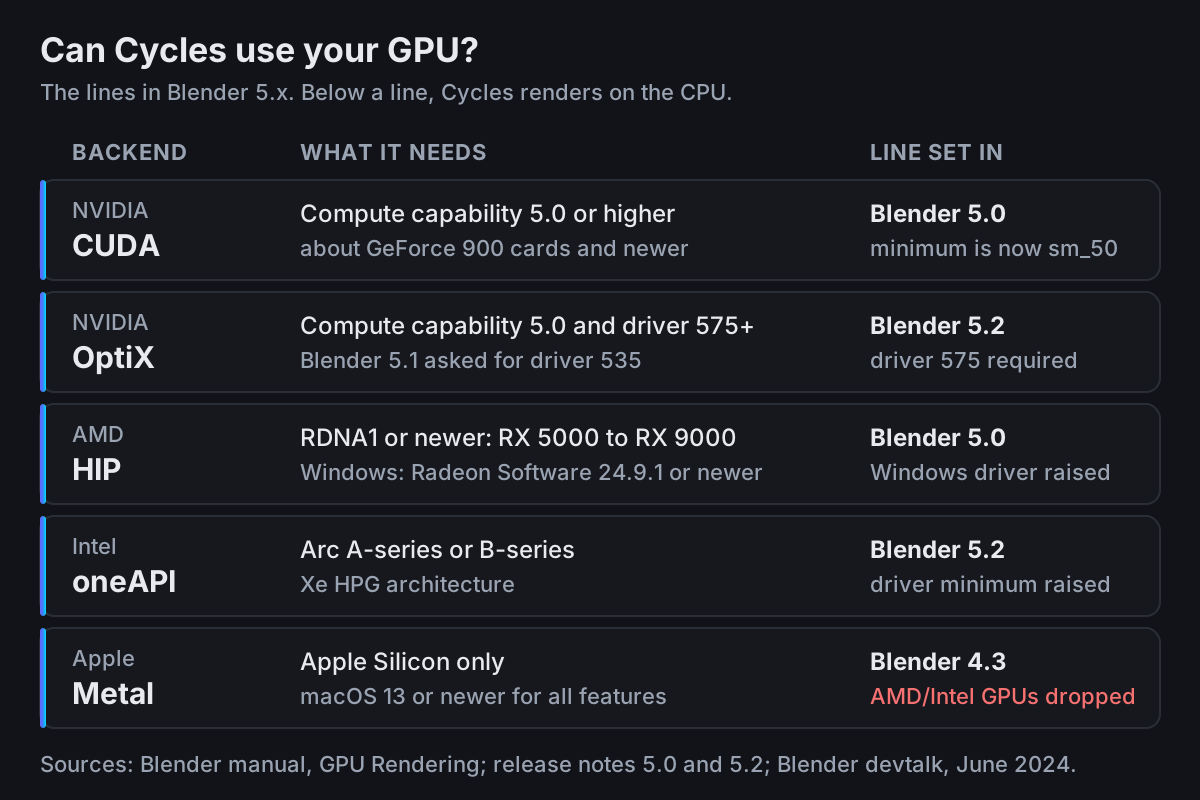
Many answers online still say an NVIDIA card needs compute capability 3.0. That was true up to Blender 4.5. Blender 5.0 raised the minimum to 5.0, which Blender describes as about GeForce 900 cards and newer. These are the current lines:
| GPU maker | Backend | What Cycles needs | Changed in |
|---|---|---|---|
| NVIDIA | CUDA | Compute capability 5.0 or higher (about GeForce 900 and newer) | 5.0 raised the minimum to sm_50 |
| NVIDIA | OptiX | Compute capability 5.0 or higher and driver 575 or newer | 5.2 set the driver minimum to 575 (5.1 asked for 535) |
| AMD | HIP | RDNA1 or newer: Radeon RX 5000, 6000, 7000 and 9000 series, Radeon Pro W6000 and W7000. Windows: Radeon Software 24.9.1 or Radeon PRO 24.Q4. Linux: Radeon Software 24.30 or ROCm HIP Runtime 6.3 | 5.0 raised the Windows driver minimum |
| Intel | oneAPI | Arc A-series or B-series (Xe HPG architecture) | 5.2 raised the driver minimum |
| Apple | Metal | Apple Silicon, macOS 13 or newer for all features | 4.3 ended Metal rendering on AMD and Intel GPUs |
Blender tells you when a card falls short. Pick a backend, and if the box underneath reads No compatible GPUs found for Cycles, the lines below it state what that backend requires. To look up an NVIDIA card's compute capability, follow the link to NVIDIA's list on the manual's GPU Rendering page.
If your NVIDIA card is below the 5.0 line, Blender 4.5 LTS still supports it: its manual asks for compute capability 3.0 for CUDA, and the developers support 4.5 until 2027.
OptiX is not limited to RTX cards: it needs the same compute capability as CUDA plus the newer driver. Which backend renders a scene faster depends, the manual says, on the hardware and on the scene.
Blender not using the GPU on a Mac
On a Mac the only GPU backend is Metal, and since Blender 4.3 it runs only on Apple Silicon. In June 2024 the Blender developers announced that 4.2 would be the last release with Metal GPU rendering on AMD and Intel GPUs, and that CPU rendering on those Macs stays supported.
Intel Macs then lost official Blender builds altogether: 4.5 LTS is the last version with official Intel Mac support, and the 5.0 release notes list that support as removed. So on an Intel Mac running 4.3 to 4.5, Cycles renders on the CPU, whatever the settings say.
On Apple Silicon, Blender selects Metal in Cycles Render Devices by itself, so the switch that is usually wrong is the scene's Device. The manual asks for macOS 13 or newer for all features.
The device list is empty or greyed out
If no GPU shows up under any backend, the problem sits outside the file. Work through these in order:
- Install the driver from the GPU maker. The manual says to use the official driver from NVIDIA, AMD or Intel (or your Linux package manager), because drivers from the computer manufacturer can be outdated or incomplete. Then compare the version with the table above, and restart Blender.
- Check the right tab. Each backend has its own list. An NVIDIA card appears under CUDA and OptiX, never under HIP or oneAPI.
- Check the card against the line. No driver brings back a card below it; the last section covers what to do then.
- Update Blender if the card is newer than the build. The manual lists
CUDA Error: Kernel compilation failedas what can happen when a new NVIDIA card is not yet supported by your Blender version. Install the latest Blender (official or daily build). You do not need the CUDA toolkit: Blender ships precompiled kernels.
Once the GPU is listed, a scene that renders on the CPU but fails on the GPU is a different problem. The manual's FAQ names memory as the most common cause; see Blender out of GPU memory and, for crashes, Blender crashes when rendering.
Features that only run on the CPU
Some Cycles features are CPU only, so a file may be set to CPU on purpose. Check for these before you switch a file someone else made, and before you blame the GPU:
- Path Guiding (Sampling > Path Guiding) is only available when rendering on the CPU. It helps where light is hard to find, such as a room lit through a small door. Switch such a scene to GPU Compute and the render goes ahead without it, so compare the noise.
- Open Shading Language (the checkbox under Device) works only on the CPU or with OptiX. Blender does not offer the checkbox with CUDA, HIP, oneAPI or Metal. A scene built on Script nodes needs the CPU, or OptiX on an NVIDIA card.
Leave Open Shading Language off unless the scene really uses Script nodes. The manual notes that OSL is typically slower than the built-in nodes because shaders are compiled and interpreted. In a quick test on Blender 5.1.1 with an RTX 3070, ticking it made the first OptiX render of the default cube take more than ten minutes instead of a few seconds. Repeat renders on the same machine were back to a few seconds, because the compiled result is cached.
Confirm the GPU is doing the work
The surest proof is a timing test on one frame:
- 1Stamp the render timeIn Properties > Output > Metadata, keep Render Time ticked and tick Burn Into Image, so the time is printed on the frame itself.
- 2Render one frame on the CPUSet Device to CPU, press F12 and save the result.
- 3Render the same frame on GPU ComputeSwitch Device to GPU Compute and render again with nothing else changed.
- 4CompareIf the two times are close, the GPU is not doing the work: go back through the switches. On an NVIDIA card, repeat the GPU render with CUDA and then OptiX selected in Preferences, and keep whichever suits your scene.
Keep samples, resolution and denoising identical between runs. Denoising has its own switch: with OpenImageDenoise, Sampling > Render > Denoise > Use GPU decides where the denoise step runs, and it is off in a new 5.1.1 file. The manual calls GPU denoising significantly faster but hungrier for GPU memory; on NVIDIA it needs compute capability 7.0, which every RTX card has. The compositor has its own Device under Performance > Compositor, CPU in a new file.
If the GPU is clearly working and frames are still slower than you hoped, the cause is in the scene: samples, light paths, volumes, textures. The slow render guide goes through those one by one.
If your GPU is below Blender's line
Sometimes no setting fixes it: an NVIDIA card older than the GeForce 900 generation on Blender 5, an AMD or Intel Mac on Blender 4.3 or newer, or a machine with no supported GPU at all. The honest options are to render on the CPU, which the manual says is compatible with all Cycles features, to buy a newer card, or to render the scene somewhere else.
blender.farm is one way to do the last. Every render runs on a single NVIDIA RTX 5090 with 32 GB of VRAM. Cycles is pushed onto OptiX (falling back to CUDA) and denoising is routed to the GPU, so a file saved with Device on CPU still renders on the GPU. That includes a file set to CPU for Path Guiding: it renders without it, as on any GPU. If you want to know whether a scene used something OptiX could not take, the troubleshooting guide says to look for a CPU fallback line in the live log.
You send the scene from inside Blender with the free add-on, which runs in Blender 4.0 or newer on Blender's bundled Python (install guide). Renders accept files saved in Blender 4.4, 4.5, 5.0, 5.1 and 5.2; older files are refused before upload. New accounts get 10 free credits, which is 3 hours 20 minutes of render time.
Questions about Cycles and the GPU
- Why does Cycles Render Devices say None?
- None means Cycles renders on the CPU; it is the starting value on a fresh install on Windows and Linux. Pick your backend and tick the GPU. If no GPU appears under any backend, install the GPU maker's driver and check the card against the support lines.
- Should I pick CUDA or OptiX?
- Both need an NVIDIA card with compute capability 5.0 or higher; OptiX also needs driver 575 or newer in Blender 5.2, and it is the only GPU backend that runs Open Shading Language. Speed depends on the card and the scene, so render the same frame with each and keep the one that suits you.
- Can I render with Cycles on an Intel Mac?
- Yes, on the CPU. Metal GPU rendering on AMD and Intel Macs ended after Blender 4.2, and Blender 4.5 LTS is the last release with official Intel Mac support.
- Why does Blender still use the CPU with the GPU ticked?
- The scene's own Device setting is still CPU. Set Render Properties > Device to GPU Compute in every scene you render; it is saved in the .blend, so a file from someone else brings their setting with it.
- Do I need to fix the Device setting before rendering on blender.farm?
- No. blender.farm pushes Cycles onto OptiX (falling back to CUDA) on an RTX 5090 whatever the file says. The file does need to be saved in Blender 4.4, 4.5, 5.0, 5.1 or 5.2.
Sources
- Blender Manual, GPU Rendering (supported hardware, limitations, error messages), read 29 October 2026
- Blender Manual 4.5, GPU Rendering (CUDA compute capability 3.0 in 4.5 LTS), read 29 October 2026
- Blender Manual, Preferences: System (Cycles Render Devices, None), read 29 October 2026
- Blender Manual, Cycles Render Settings (Device, Open Shading Language), read 29 October 2026
- Blender Manual, Cycles Sampling (Denoise Use GPU, Path Guiding), read 29 October 2026
- Blender Manual, Metadata (Render Time, Burn Into Image), read 29 October 2026
- Blender 5.0 release notes, Cycles (minimum compute capability sm_50, AMD Windows driver), read 29 October 2026
- Blender 5.0 release notes (support for Intel Macs removed), read 29 October 2026
- Blender 5.2 release notes, Cycles (OptiX driver 575, Intel driver minimum), read 29 October 2026
- Blender developer forum: Metal with AMD/Intel GPUs removed from 4.3 on (11 June 2024), read 29 October 2026
- Blender developer forum: macOS Intel builds removed in Blender 5.0 (3 February 2025), read 29 October 2026
- Blender 5.1 source, Cycles add-on ui.py (when Device greys out, when Path Guiding shows, when OSL is offered), read 29 October 2026
- Blender 5.1 source, Cycles add-on properties.py (device messages, Metal default on Apple Silicon, Denoise on GPU default), read 29 October 2026