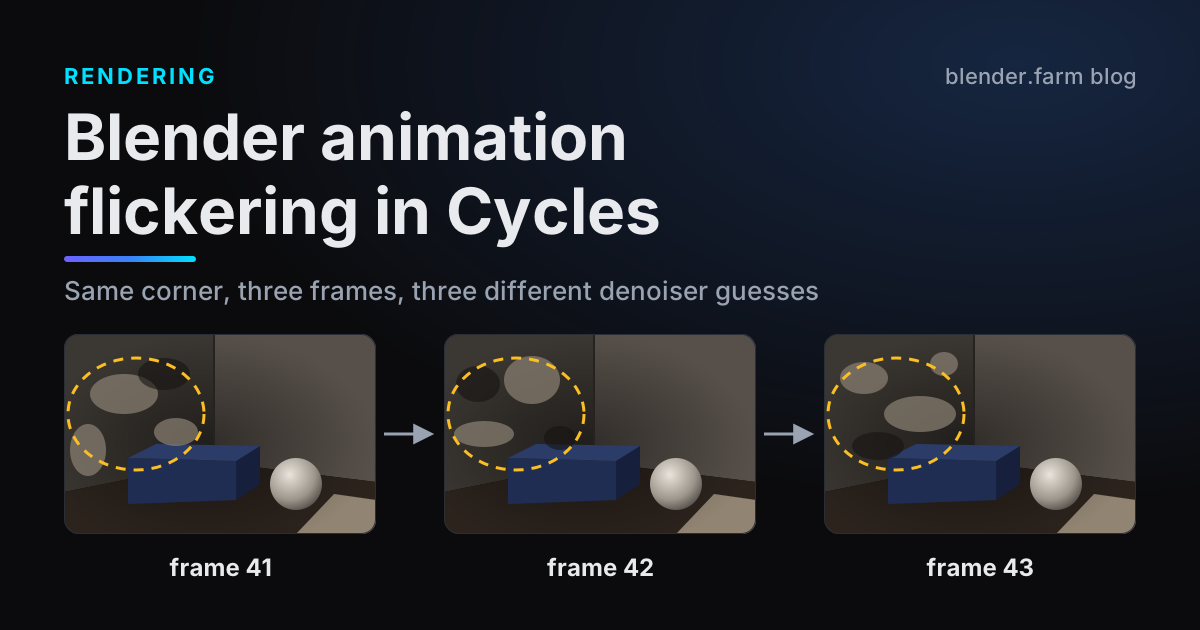
Every frame looks clean on its own. Then you play the animation and the walls crawl: soft blotches in the shadows and across evenly lit surfaces swell, shrink and drift from frame to frame. That is Blender animation flickering in Cycles, and it is usually not a bug. The denoiser makes a slightly different guess on every frame, because every frame hands it a different noise pattern. Here is why, a 20-frame test that shows it, and the five levers that reduce it, with menu paths and defaults from Blender 5.1.1.
What causes Blender animation flickering in Cycles
Cycles renders a frame by tracing a limited number of random light paths, called samples, through every pixel. With too few samples the result is grainy, and the grain is strongest where light arrives indirectly: shadowed corners, rooms lit through a window, the undersides of things.
The denoiser (OpenImageDenoise in a new file) looks at that grainy image, plus albedo and normal passes that show where colours and edges are, and estimates the clean image. It works on one frame at a time. Frame 42 has a different grain pattern from frame 41, so its estimate comes out a little different, and where the denoiser is least sure it turns grain into soft blotches whose shape changes every frame. At playback speed, that is the boiling.
Adaptive sampling adds a second effect. With Noise Threshold on, which is the default, Cycles stops sampling a pixel once its noise estimate drops below the threshold. That estimate is itself based on noisy samples, so the point where sampling stops can land in different places from frame to frame, and the denoiser gets uneven input.
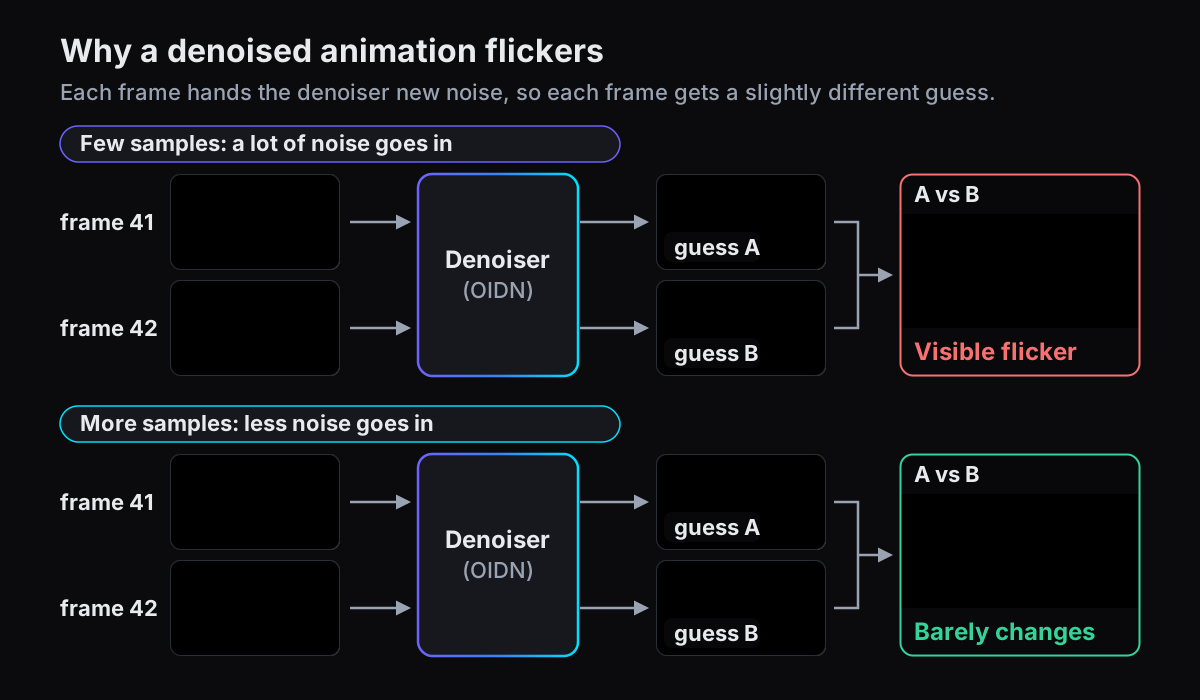
So the cure is mostly about the input: give the denoiser less noise to guess from. First, set up a test that shows the flicker reliably, so you can tell whether each change helps.
Test it on 20 frames before you change anything
Flicker is invisible in a still. You need a short sequence played at full speed, and a way to see where adaptive sampling stopped.
- 1Pick the 20 worst framesFind a stretch where the flicker is obvious, often a slow camera move across a dim or evenly lit wall, and set Output Properties > Frame Range to 20 consecutive frames from it.
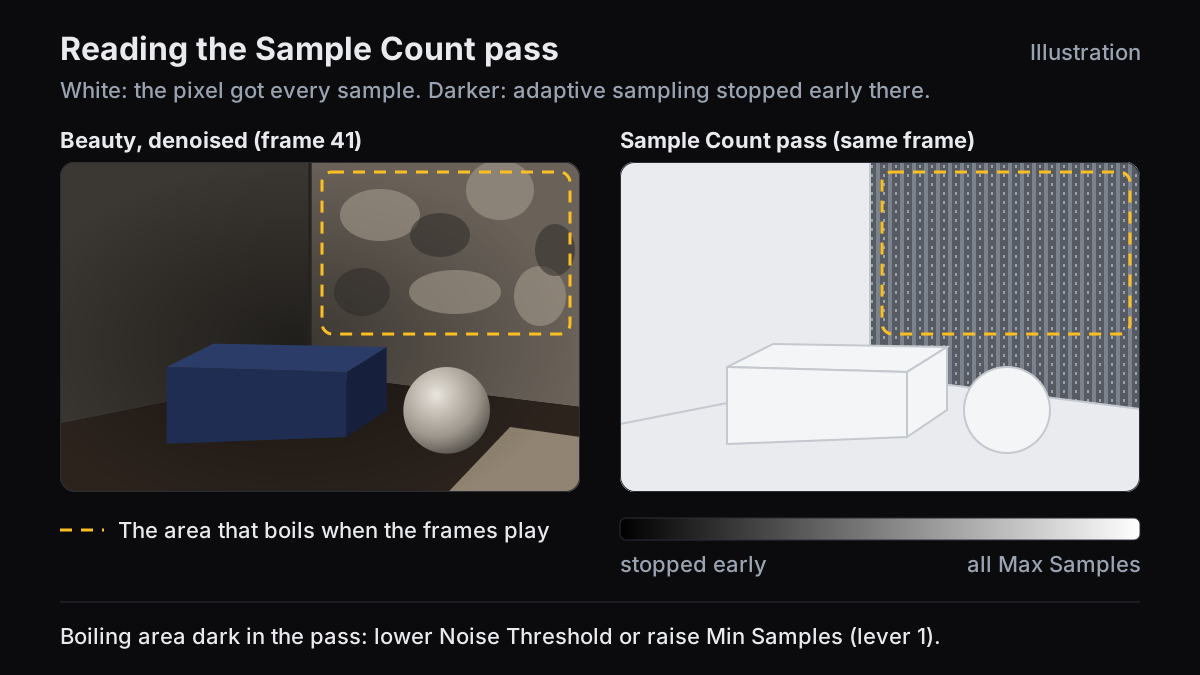
- 2Turn on Sample Count and Denoising DataIn View Layer Properties > Passes > Data, tick Sample Count (under Debug): samples per pixel divided by the maximum, so it shows where adaptive sampling stopped early. Tick Denoising Data too, which saves the Noisy Image beside the denoised one.
- 3Keep every pass in the filesIn Output Properties > Output, set Media Type to Multi-Layer EXR (in Blender 4.x, File Format OpenEXR MultiLayer) so each frame keeps all its passes. Render the 20 frames.
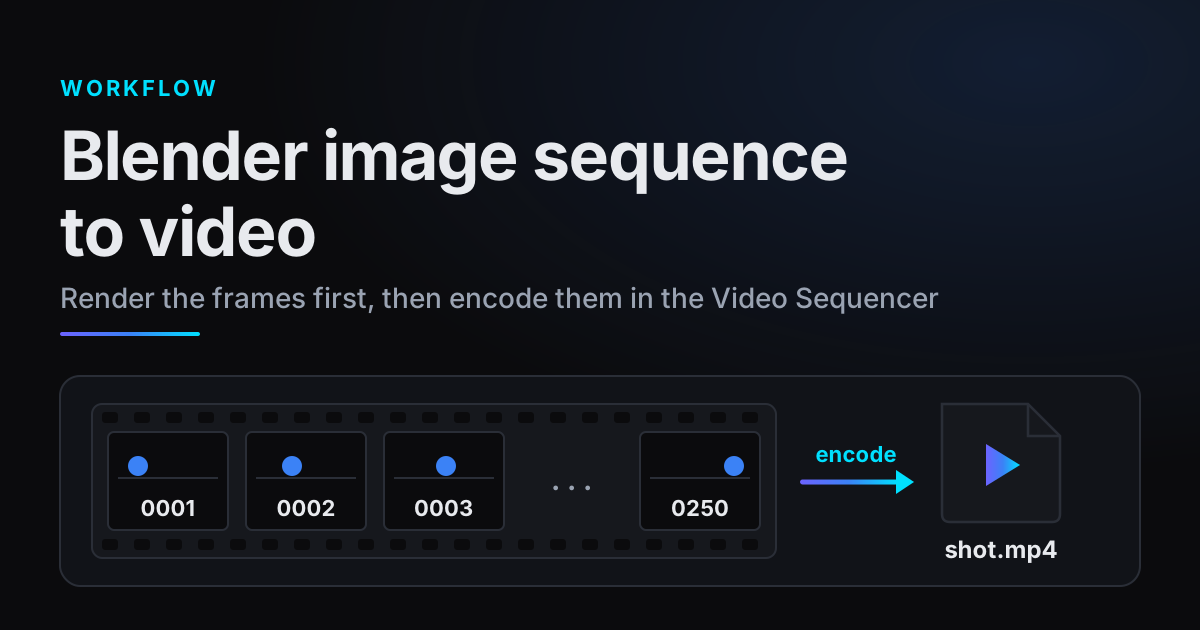
- 4Play them at full speedOpen the frames as an image sequence in the Image Editor or Video Sequencer and play them at the scene frame rate; stepping through by hand hides the problem. Or turn the sequence into a video first.
- 5Compare noisy and denoisedSwitch the Image Editor to the Noisy Image pass and play again. If the denoised version shows soft, slow blotches where the noisy one shows grain, the levers below apply. Sharp single-pixel sparkles or shimmering edges are a different problem (fireflies or aliasing).
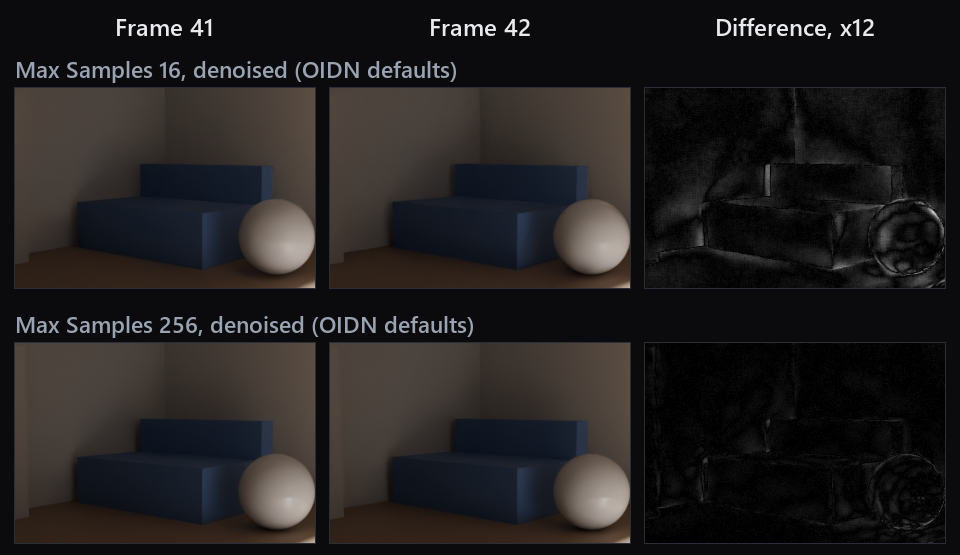
That is the whole problem in one picture. At 16 samples both frames look finished, yet their difference shows blotches across the walls and on the sphere. At 256 samples it is much fainter.
Lever 1: more samples where it flickers
Four of the five levers live in Render Properties > Sampling. Open its Denoise and Advanced sections, which start folded.
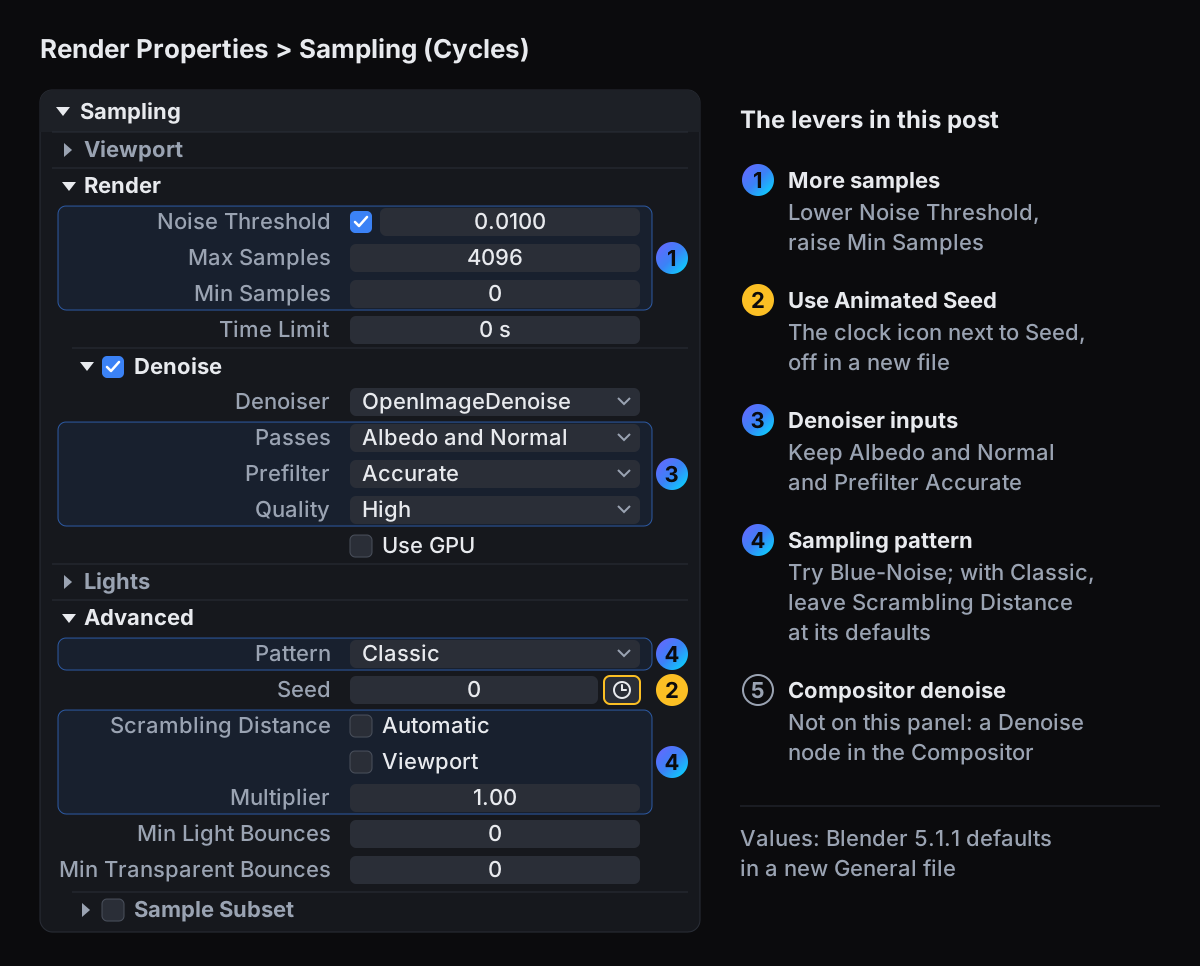
The settings that decide how many samples each pixel gets are under Sampling > Render. In a new 5.1.1 file, Noise Threshold is on at 0.01, Max Samples is 4096 and Min Samples is 0, which tells Cycles to pick a minimum from the threshold.
- Noise Threshold: the noise level at which Cycles stops sampling a pixel. The manual gives 0.1 to 0.001 as the typical range, lower meaning cleaner and slower. Lowering it is the most direct way to give the denoiser cleaner input.
- Min Samples: how many samples every pixel gets before adaptive sampling may stop it. Raising it keeps pixels from quitting after a lucky first few samples.
- Max Samples: the ceiling. It only matters for pixels that actually reach it.
Let the Sample Count pass decide which one to touch. If the areas that boil are grey or dark in the pass, adaptive sampling stopped there well short of Max Samples: lower the Noise Threshold in steps (halving it is a sensible first step) or raise Min Samples, then render the 20 frames again. If the pass is white over the boiling areas, those pixels already ran to Max Samples, and only a higher Max Samples gives them more.
Lever 2: Use Animated Seed
The seed decides which random numbers Cycles uses, and so which noise pattern a frame gets. It sits under Render Properties > Sampling > Advanced: the Seed field, with a small clock icon to its right, Use Animated Seed. In a new 5.1.1 file the seed is 0 and the clock is off, so every frame starts from the same random numbers.
The manual says Use Animated Seed changes the seed for each frame and calls it a good idea for animations, because a varying noise pattern is less noticeable. With the seed fixed, the noise is tied to the screen rather than to the scene: when the camera moves, surfaces slide past a pattern that stays where it is, which reads like a dirty lens.
A fixed seed does help in one case: a locked-off shot. If nothing in the frame changes, every frame gets the same noise and the denoiser the same input; in our test room, with the seed fixed and nothing moving, frames 41 and 42 came out practically identical. Anything that moves still changes the noise in its area.
So turn Use Animated Seed on for anything with camera or object movement, as the manual recommends, and treat the remaining boil as a sample problem. Neither setting removes noise; it only changes how the noise moves.
Lever 3: check the denoiser settings
The denoiser options are under Sampling > Render > Denoise. Their defaults in a new 5.1.1 file are the right starting point for an animation. If yours were lowered for speed during look development, put them back before you render the shot.
| Setting | Default in 5.1.1 | What the manual says |
|---|---|---|
| Passes | Albedo and Normal | Use at least Albedo: with None the denoiser sees only colour and can blur out details, especially at low sample counts |
| Prefilter | Accurate | None assumes the albedo and normal passes are noise free; if they are not, noise is left in the image. Fast is quicker but blurrier |
| Quality | High | Balanced and Fast trade quality for speed; Fast is described as ideal for viewport rendering |
| Denoiser | OpenImageDenoise | OptiX is the alternative on NVIDIA GPUs; OpenImageDenoise typically gives the highest quality |
The albedo and normal passes matter because they tell the denoiser which edges and details are real, so it invents less, and invented detail is what changes between frames. Use GPU, off in a new file, only changes where denoising runs.
Lever 4: sampling pattern and Scrambling Distance
Pattern, at the top of Sampling > Advanced, offers Automatic, Classic and Blue-Noise. Automatic uses Blue-Noise with a tweak for viewport rendering, and Classic is the older pattern based on precomputed Sobol tables. The manual says that when the full number of samples is rendered, Blue-Noise output typically looks smoother than Classic, even though it does not reduce the overall noise.
Check which one your file uses. A new General file in 5.1.1 opens with Classic (we checked), a scene added with New Scene starts on Automatic, and older files are often on Classic as well. Switch to Blue-Noise and run the 20 frames again.
Scrambling Distance only applies to Classic: Blender greys it out otherwise, and the manual says it is not compatible with Blue-Noise. It reduces randomness between pixels to speed up GPU rendering, at the cost of potential artifacts, and the manual warns its Viewport option may cause flickering. At its defaults (Automatic and Viewport unticked, Multiplier 1.00) it reduces nothing. If a speed tip had you change them, put them back while you chase flicker.
Lever 5: denoise later in the compositor
You do not have to commit to one denoise at render time. With Denoising Data ticked (step 2 of the test), Cycles stores the Noisy Image, Denoising Albedo and Denoising Normal passes. Saved as Multi-Layer EXR they travel with every frame, which we confirmed in 5.1.1, so you can denoise again in the compositor without rendering anything twice.
- 1.In the Compositor, load the saved EXR frames as an image sequence in an Image node, and add a Denoise node from the Filter category.
- 2.Connect Noisy Image to its Image input, Denoising Albedo to Albedo and Denoising Normal to Normal, as the manual's Denoise node page describes.
- 3.Set Prefilter and Quality on the node, then Render Animation over the same 20 frames and compare. With no Render Layers node in the compositor, Blender 5.1.1 only runs the compositor, so nothing is path traced again.
This lets you try several denoise settings on a long shot, or mix a little of the Noisy Image back in with a Mix node: fine grain that changes every frame can be less distracting than moving blotches, the same reasoning the manual gives for Animated Seed.
Denoise nodes can run on the GPU. The setting is Render Properties > Performance > Compositor > Denoise Nodes > Denoising Device. Its Auto option uses whatever device the compositor uses, and the compositor's own Device is CPU in a new 5.1.1 file, so choose GPU there if you want it.
What the fix costs, and how to catch flicker early
Almost every lever ends in more samples per frame, and samples are render time multiplied by every frame in the shot. An example, not a measurement: 250 frames at 2 minutes each is 500 minutes, about 8 hours 20 minutes. If a lower Noise Threshold doubles the time per frame, that becomes 1,000 minutes, 16 hours 40 minutes, with your own computer tied up throughout. If renders already crawl, see why Blender renders are slow.
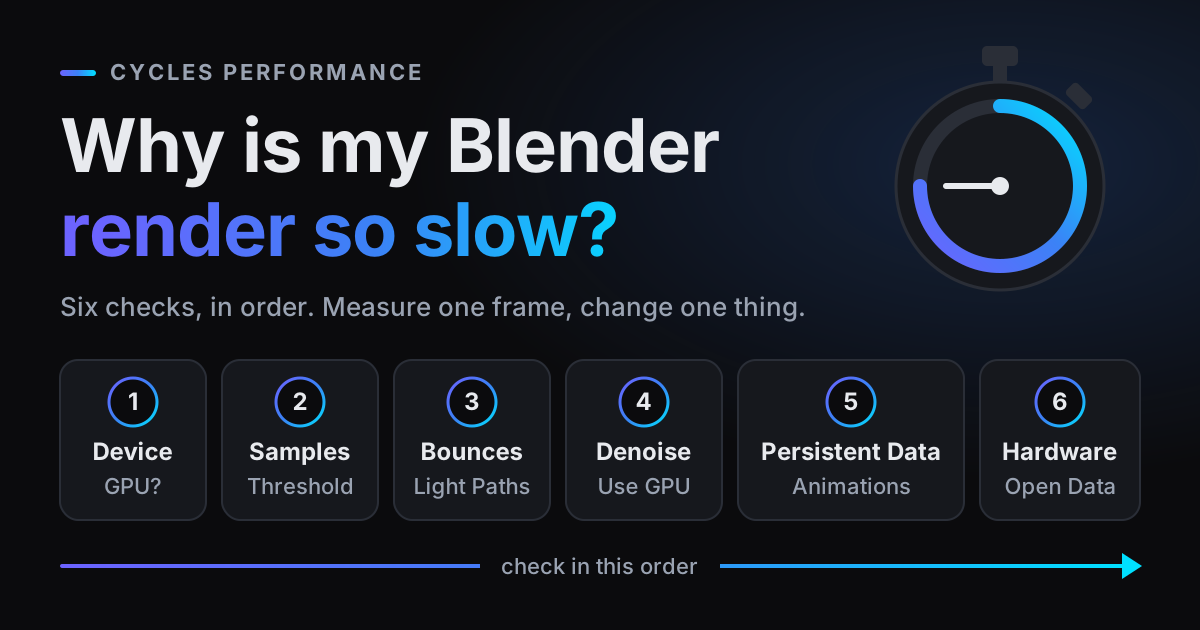
This is where blender.farm helps. Each render runs on its own dedicated NVIDIA RTX 5090 with 32 GB of VRAM, far faster than most artists' own GPUs, at about $3.00 per render hour on the 10-credit pack and about $2.25 on the 200-credit pack (pricing). One credit is 20 minutes, so 1,000 minutes would be 50 credits, the $44.99 pack; only a test render tells you how many minutes your shot needs on an RTX 5090. Denoising runs on the GPU with OIDN, compositor Denoise nodes included.
Just as useful is catching flicker before you have paid for the whole shot. Each finished frame uploads immediately and appears in the live view, and the lightbox steps through frames with next and previous, so flip between the first neighbours that arrive. If the walls already change, Edit files destroys the machine and lets you replace just the .blend with fixed settings before relaunching. For this check, render to PNG, JPEG or WebP, which preview live; OpenEXR frames are download only. See Watching a render.
Questions
- Why does my animation flicker when every single frame looks fine?
- The denoiser works one frame at a time. Each frame has a different noise pattern, so each result is a slightly different guess: invisible in a still, obvious at playback speed.
- Should I turn on Use Animated Seed?
- For anything with camera or object movement, yes: the Blender manual recommends it because a varying noise pattern is less noticeable. In a fully static shot, a fixed seed keeps the frames practically identical.
- How many samples does it take to stop flickering?
- It depends on the lighting, the materials and how much of the frame is lit indirectly. Render 20 consecutive frames, lower the Noise Threshold or raise Min Samples step by step, and stop when playback looks steady.
- Does the denoiser cause the flicker?
- It makes the problem visible rather than causing it. Too much noise goes in and comes out as soft blotches that change every frame; with less noise in, its guesses agree from frame to frame.
Sources
- Blender Manual, Cycles Sampling (Noise Threshold, Min Samples, Denoise, Pattern, Seed, Scrambling Distance), read 29 October 2026
- Blender Manual, Render Passes (Sample Count, Denoising Data), read 29 October 2026
- Blender Manual, Denoise Node, read 29 October 2026
- Blender Manual, Cycles Performance (Compositor, Denoise Nodes, Denoising Device), read 29 October 2026