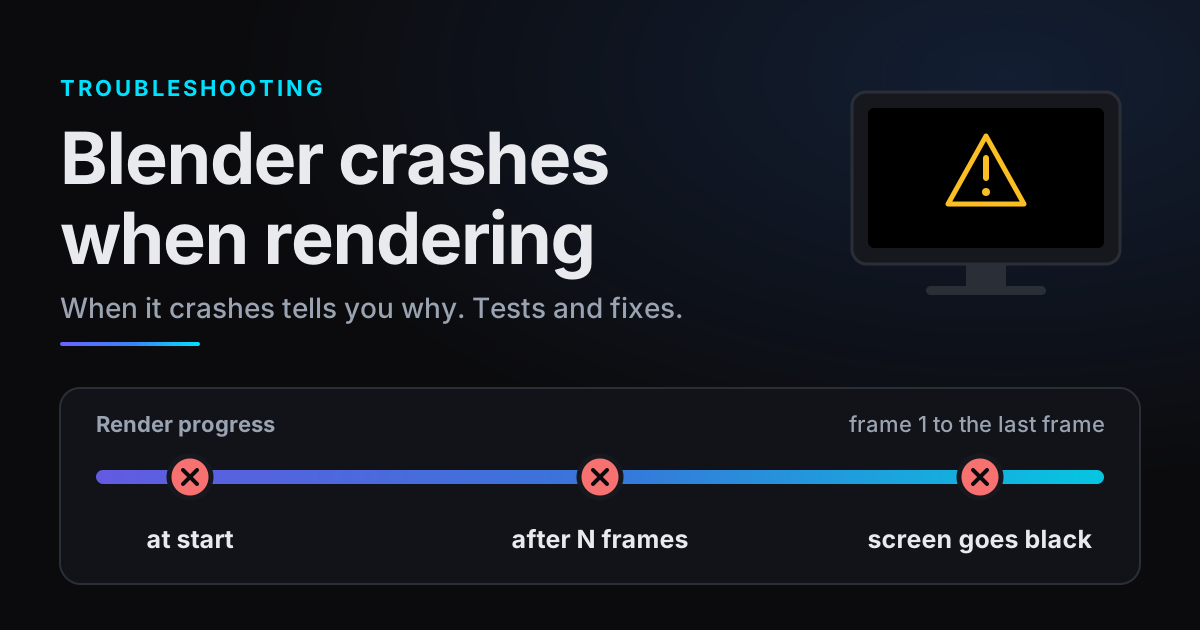
Blender crashes when rendering for a handful of reasons, and the moment it happens is the best clue to which one. A crash the second you press F12 has a different cause from a crash at frame 138, and both differ from a screen that goes black and comes back with a driver message. This guide sorts the causes by when the crash happens, gives each a test and a fix from the Blender manual and Microsoft's documentation, and shows how to make the next crash cost one frame instead of the whole render.
Blender crashes when rendering: match the symptom first
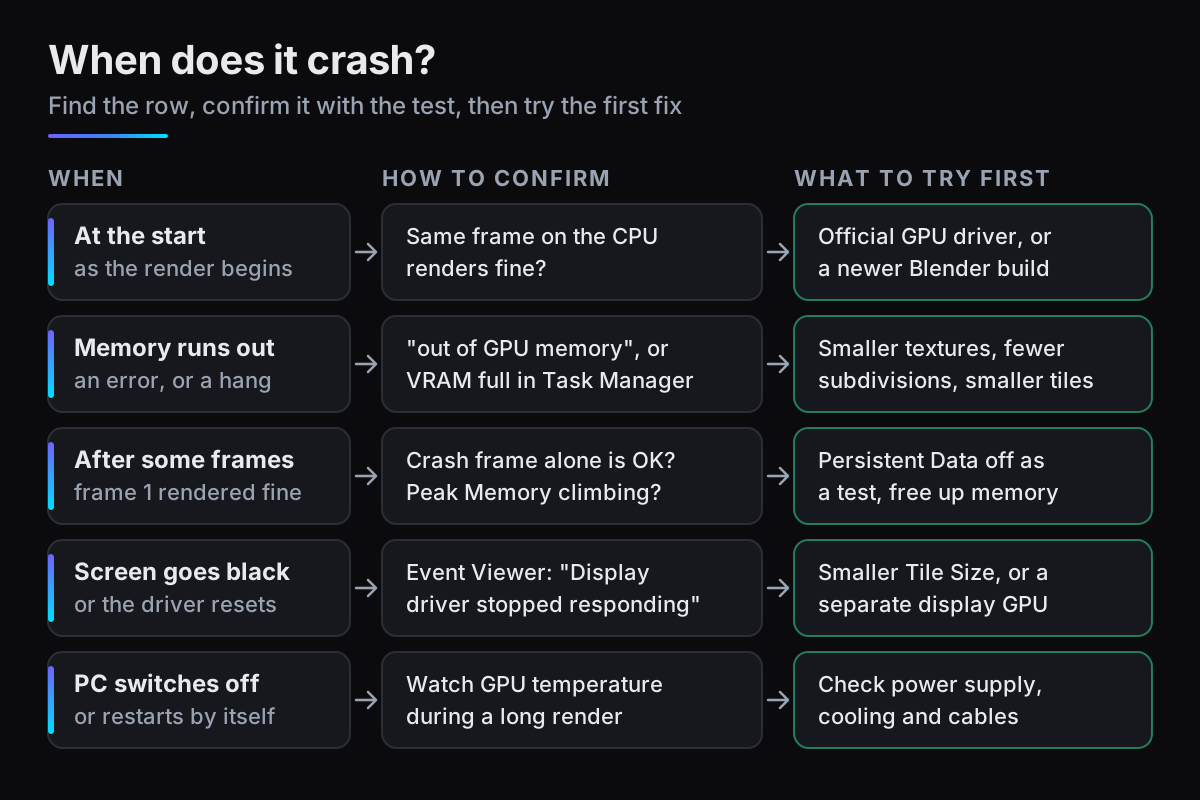
Before changing any setting, note the frame number, whether the screen flickered, and whether Blender showed an error or simply closed. Then find the matching row.
| What you see | Most likely cause | Section |
|---|---|---|
| Blender closes or errors as the render starts | The driver, or a card newer than your Blender | Crashes at the start |
System is out of GPU memory, or a hang on a heavy frame | The scene does not fit in VRAM | Crashes when VRAM runs out |
| Early frames are fine, then Blender crashes | One heavy frame, or memory growing per frame | Crashes after a number of frames |
| The screen goes black, then "Display driver stopped responding" | The display GPU is also rendering and hit the Windows timeout | Black screen (TDR) |
| The whole PC switches off or restarts | Power or cooling, or repeated driver resets | When the whole PC switches off |
Crashes at the start: drivers and new cards
If Blender crashes or stops with an error before the first sample appears, start with the driver and the card, in this order.
- 1Render the same frame on the CPUFor Cycles, set Render Properties > Device to CPU and press F12. If that works, the problem is on the GPU side: driver, card support or memory. If the CPU render crashes too, look at the scene or an add-on instead.
- 2Install the driver from the GPU makerGet the current driver from NVIDIA, AMD or Intel directly. It is the manual's first advice for GPU errors, because a driver supplied by the laptop or PC maker can be outdated or incomplete. The manual's GPU rendering page also lists minimum driver versions for OptiX, HIP and oneAPI.
- 3Check the card is not newer than your Blender
CUDA Error: Kernel compilation failedcan mean the card is newer than your Blender version supports. The manual's fix is to check whether the latest Blender release, or a daily build, supports the card. You do not normally need the CUDA toolkit: Blender ships with precompiled kernels. - 4Check the backend in PreferencesUnder Edit > Preferences > System > Cycles Render Devices, pick your card's backend (OptiX or CUDA for NVIDIA, HIP for AMD, oneAPI for Intel) and tick the right device. On NVIDIA, one render with CUDA instead of OptiX shows whether the problem follows the backend.
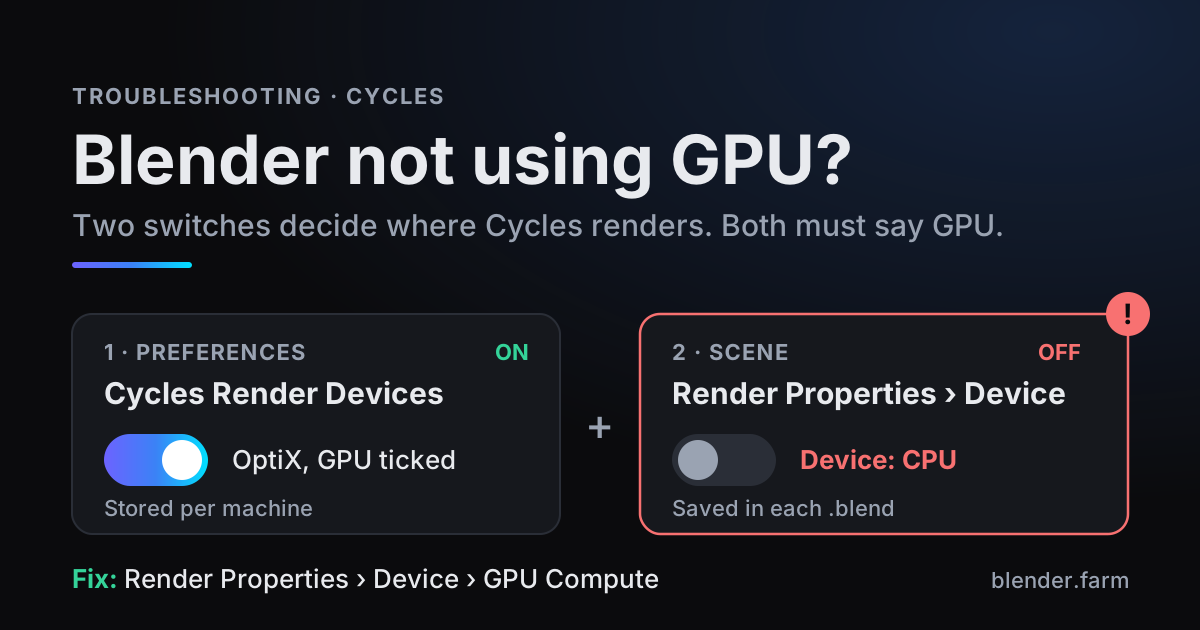
If the render does not crash but quietly runs on the CPU, that is a different problem: see Blender not using the GPU.
Crashes when VRAM runs out
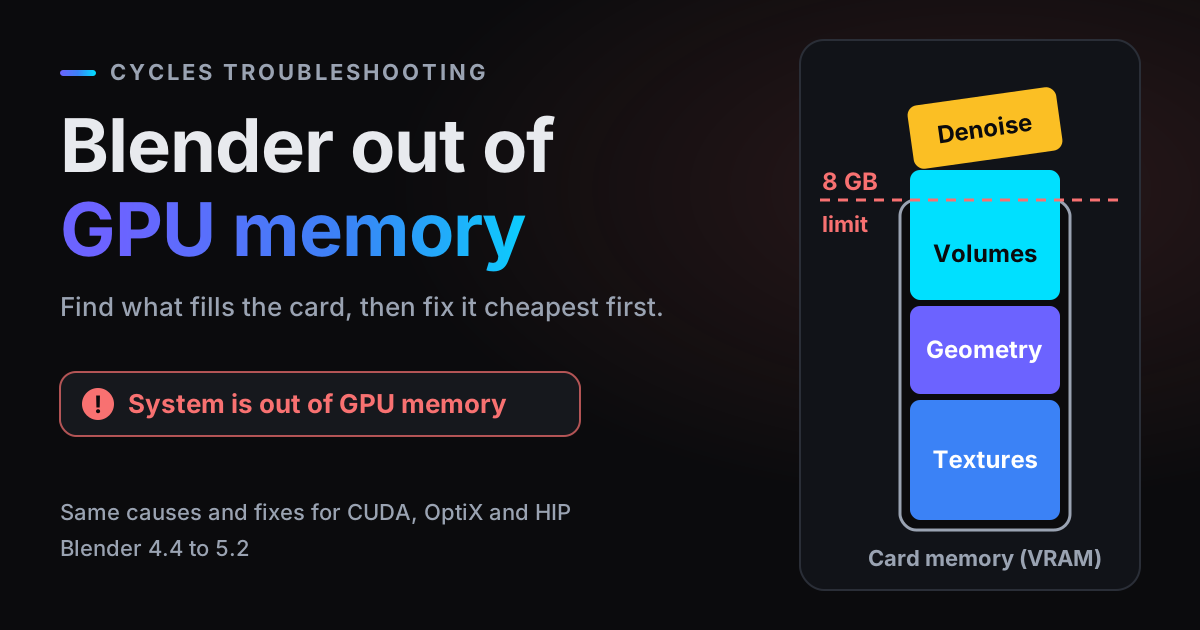
Cycles keeps the scene in the GPU's memory while it renders. When it does not fit, the render stops with System is out of GPU memory or System is out of GPU and shared host memory. With CUDA, OptiX, HIP and Metal, Blender first tries system memory when VRAM is full. That costs some speed, though the manual says it is usually still faster than rendering on the CPU. The second message means system memory ran out as well.
EEVEE is different. The driver manages its GPU memory, and the manual warns that using too much can crash or freeze the driver or kill Blender, with no standard way to estimate whether a scene will fit. A heavy EEVEE scene that dies without a clear error is worth testing for memory first.
On Windows, Task Manager > Performance > GPU shows dedicated GPU memory during the render. Texture size is the quickest lever: the manual puts an 8K image texture at 256 MB against 16 MB for 2K. Fewer subdivision levels and a smaller Tile Size also cut memory. The full list of fixes is in Blender out of GPU memory.
Crashes after a number of frames
An animation that renders 50 good frames and then crashes is telling you something changed along the way. Tell two causes apart: one frame that is heavier than the rest, and memory that grows from frame to frame.
Test 1: render the crash frame on its own
Jump to the frame where it crashed and press F12. If that frame crashes alone, it is simply too heavy: a simulation at its largest, a dense object entering the shot, more hair or particles in view. Treat it as a memory problem. If it renders fine alone, suspect something building up during the animation.
Test 2: stamp peak memory into every frame
In Output Properties > Metadata, tick Memory. Blender writes the peak memory usage into every saved frame, in formats that carry metadata such as PNG, JPEG and OpenEXR. For a test, also tick Burn Into Image to print it on the frame. Render a short range: a figure that climbs frame after frame means something is accumulating.
Test 3: render with Persistent Data off
Render Properties > Performance > Final Render > Persistent Data keeps render data in memory after rendering. That speeds up re-renders and animations, at the cost of extra memory while you do other things in Blender. On a card with little headroom, render the failing range once with it off, and close anything else using the same GPU.
Black screen and "display driver stopped responding" (TDR)
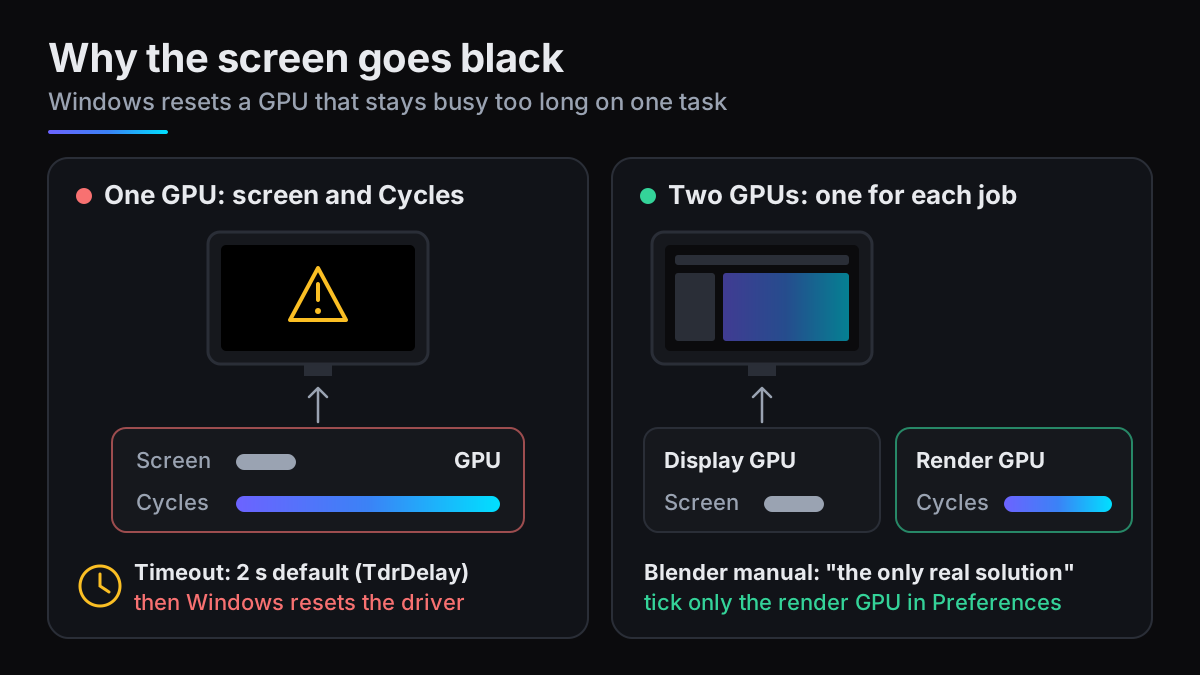
When one GPU drives your monitor and renders Cycles, Windows limits how long it may spend on a single task. The mechanism is TDR, timeout detection and recovery. If the GPU cannot finish or be interrupted within the timeout, two seconds by default, Windows resets the graphics driver so the system does not lock up. The screen flickers or goes black, a message says the display driver stopped responding and has recovered, and the render on that card is lost. The Blender manual covers it under the error The NVIDIA OpenGL driver lost connection with the display driver.
To confirm it, open Event Viewer: Microsoft says the message is logged there. Look under Windows Logs > System for a display driver entry at the time of the crash. Repeated resets escalate: by default, Windows stops with a blue screen on the sixth GPU hang within one minute.
Fixes, in the order to try them
- 1Lower Tile SizeIn Render Properties > Performance > Memory, lower Tile Size from the default 2048 to 1024 or 512 (in Blender 4.4 and 4.5, Use Tiling must also be on). The manual says this may ease the timeout, and it takes seconds to try.
- 2Render on a GPU that does not drive the displayThe manual calls separate cards for display and rendering the only real solution. Connect the monitor to one card, then under Cycles Render Devices in Preferences tick only the other. A desktop can also drive the monitor from the CPU's built-in graphics, if the CPU has them and the motherboard has a video output.
What about raising TdrDelay?
Some guides recommend raising TdrDelay in the Windows registry. The Blender manual lists a longer timeout as an option, warning that the interface becomes less responsive with heavy scenes. Microsoft documents TdrDelay (under HKEY_LOCAL_MACHINE\System\CurrentControlSet\Control\GraphicsDrivers, default 2 seconds) on a page for driver developers, and is explicit:
End users shouldn't manipulate these registry keys. Applications shouldn't manipulate these registry keys outside of targeted testing or debugging during driver development.
Microsoft Learn, Testing and debugging TDR
So there is no registry recipe here. The timeout is also what brings your desktop back when the GPU really is stuck, so a longer one means a longer frozen screen. Fix the cause instead, with the two steps above.
When the whole PC switches off
If the PC powers off or restarts with no error, check the hardware a long, full GPU load stresses: the power supply, the GPU's power cables and connectors, and cooling. Watch the GPU temperature in your GPU maker's tool during a render and clean dust out of fans and filters. If the screen went black several times before a blue screen, start with the TDR section above instead.
Keep the machine usable while it renders
- CPU rendering: in Render Properties > Performance > Threads, set Threads Mode to Fixed with fewer threads than your CPU has logical processors. The manual suggests exactly this for using the computer while it renders.
- GPU rendering: keep other heavy GPU work off the rendering card. Games, video editing, a second Blender or a viewport in Rendered shading all compete for the same memory and GPU time.
Make a crash cost one frame, not the whole render
A long animation can still crash, but you control what it costs. The manual advises against rendering straight to video: if a problem occurs, the file may become unplayable and every frame has to be rendered again. Images let you restart from the frame where the problem happened.
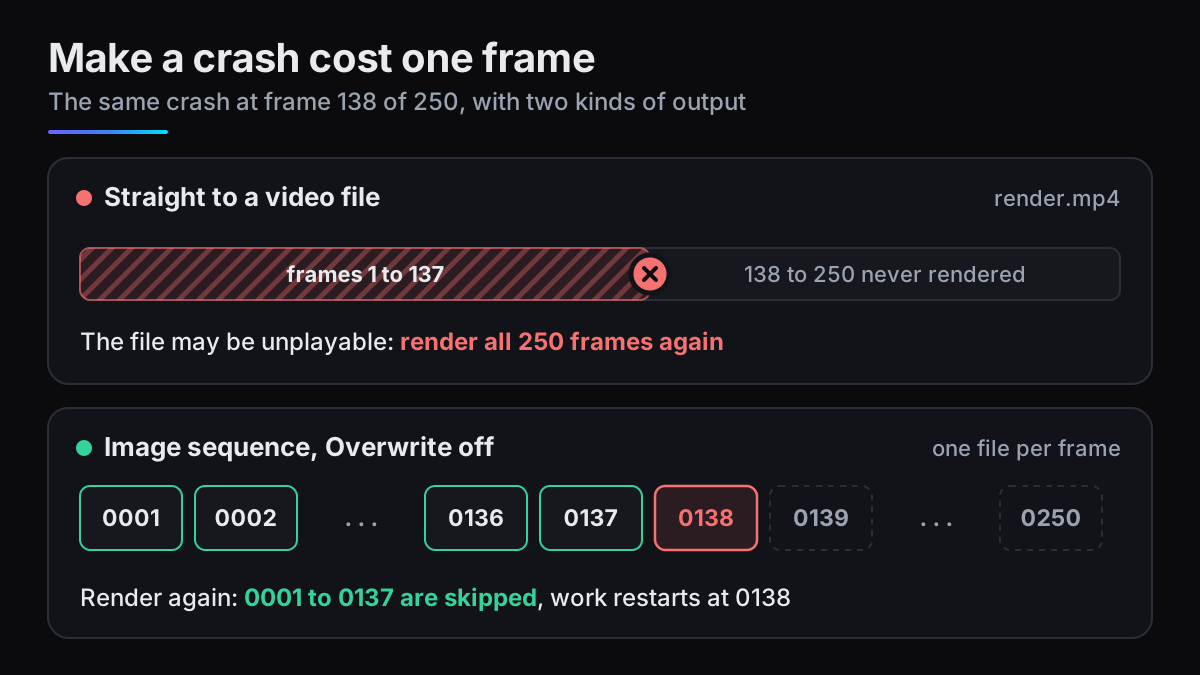
- 1Render images, not videoIn Output Properties > Output, choose PNG, or OpenEXR to keep HDR data. In Blender 4.4 and 4.5 that is the File Format menu; in 5.x set Media Type to Image first.
- 2Turn Overwrite offIn the same panel, under Image Sequence, untick Overwrite. Frames already on disk are then skipped instead of rendered again.
- 3Clean up, then start againIf Placeholders was on, the crashed frame left an empty file that would be skipped: delete it. Delete the newest frame on disk too if it does not open. Then press Ctrl+F12: Blender renders only the frames missing from the folder.
- 4Or restart from the command line
-brenders without the interface. Set the range with-sand-eand put-alast, because arguments run in the order given.
blender -b shot.blend -s 138 -e 250 -a
When the frames are done, join the image sequence into a video as a separate step. Trying another encoding then takes seconds, not a re-render.
Take the render off your own machine
Several causes above come from one GPU doing two jobs: drawing your screen and rendering. blender.farm renders on a dedicated cloud NVIDIA RTX 5090 with 32 GB of VRAM, one GPU per render, Cycles or EEVEE. Your display GPU is no longer the render GPU, your PC stays free, and frames stream back while it renders.
When something does fail: a machine that fails to start costs no render credits, and Relaunch excludes it from the next pick (Troubleshooting). A relaunch renders the whole configured range again (there is no resume from frame N), so narrow the range to the frames you still need first; frames outside it stay available (Editing and relaunching).
Only render time is billed: 1 credit buys 20 minutes, charged in 5-minute blocks, and new accounts get 10 free credits (3 hours 20 minutes), enough to see whether the scene that crashes at home renders on a 32 GB card. Files saved in Blender 4.4 to 5.2 render on the version line they were saved in.
Questions
- Why does Blender crash only when rendering an animation?
- Something changes over the frames: one frame is heavier than the rest, or memory builds up. Render the crash frame alone; if it works, tick Memory under Output Properties > Metadata and check whether the peak climbs frame after frame.
- Is it safe to raise TdrDelay?
- Microsoft says end users shouldn't change the TDR registry keys, which are meant for testing and debugging during driver development. The Blender manual calls separate display and render GPUs the only real solution.
- Why does my screen go black when rendering in Cycles?
- The GPU driving your monitor is busy with Cycles for longer than Windows allows, so Windows resets the display driver and the screen goes black before it recovers. Lower Tile Size, or render on a GPU that is not driving the display.
- How do I continue a render after Blender crashed?
- If you rendered an image sequence with Overwrite off, render the animation again and Blender skips the frames already on disk; delete any empty placeholder for the crashed frame first. A crashed video render has to start again from the first frame.
Sources
- Blender Manual, GPU Rendering (FAQ and error messages), read 29 October 2026
- Blender Manual, Cycles Performance (Threads, Tile Size, Persistent Data), read 29 October 2026
- Blender Manual 4.5, Cycles Performance (Use Tiling), read 29 October 2026
- Blender Manual, Preferences: System (Cycles Render Devices), read 29 October 2026
- Blender Manual, EEVEE Limitations (Memory Management), read 29 October 2026
- Blender Manual, Metadata, read 29 October 2026
- Blender Manual, Image Formats (metadata support), read 29 October 2026
- Blender Manual, Output Properties (Media Type, Overwrite, Placeholders, Tips), read 29 October 2026
- Blender Manual 4.5, Output Properties (File Format), read 29 October 2026
- Blender Manual, Rendering From the Command Line, read 29 October 2026
- Blender source, Cycles device.cpp (out of GPU memory errors), read 29 October 2026
- Microsoft Learn, Testing and debugging TDR (registry keys), read 29 October 2026
- Microsoft Learn, WDDM support for timeout detection and recovery, read 29 October 2026