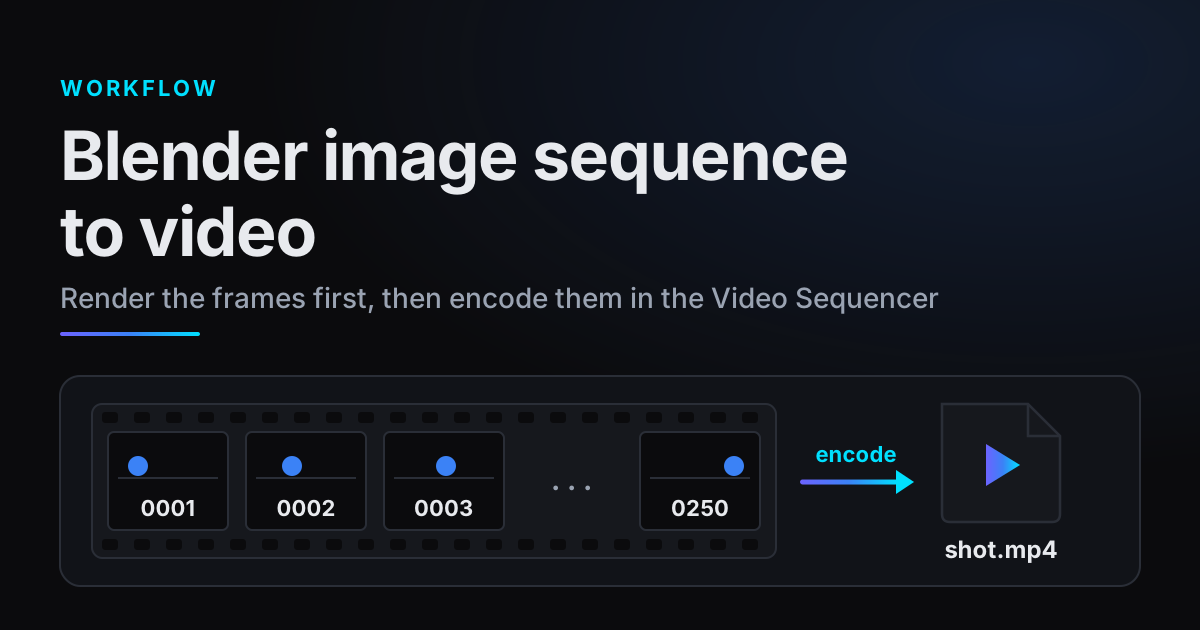
The dependable way to turn a Blender animation into an MP4 takes two steps: render an image sequence, one PNG or EXR file per frame, then encode those frames into a video. This guide covers the whole Blender image sequence to video workflow in Blender 5.x, where a new Media Type menu sits above File Format, and notes where 4.4 and 4.5 differ. It also covers restarting after a crash and what the codec and CRF settings do.
Why render an image sequence instead of a video
Blender can write a video file directly. Its own manual advises against doing that for the first render:
It's not recommended to render directly to a video format in the first instance. If a problem occurs while rendering, the file might become unplayable and you will have to re-render all frames from the beginning.
Blender Manual, Output Properties, Tips
With still images you can restart from the frame where the problem occurred, and try encoding options "in seconds, rather than minutes or hours", because encoding is usually much faster than rendering the 3D scene. You also get the Video Sequencer for sound and other clips.
The manual also warns against post-processing a lossy-compressed file, because its artifacts may become visible. So render PNG or OpenEXR frames, not JPEG, when they will be encoded later.
Set up the output in Blender 5.x, 4.4 and 4.5
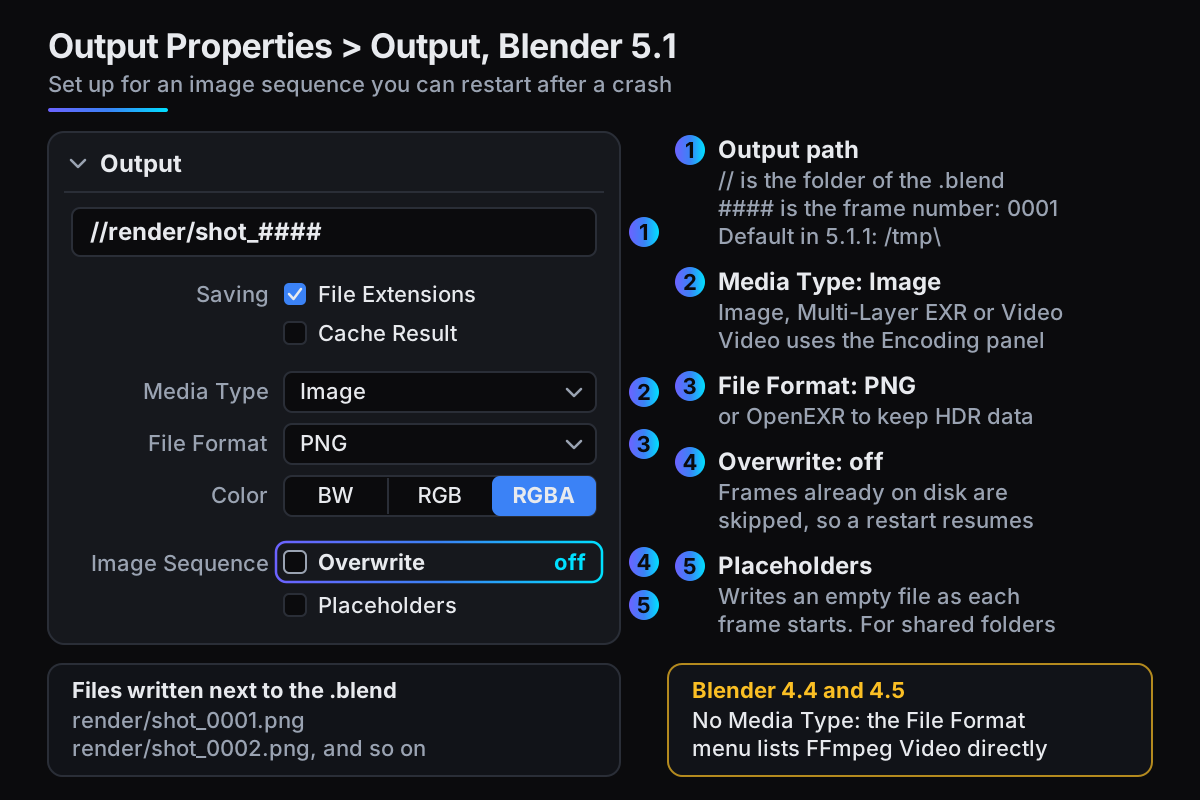
Everything lives in Output Properties (the printer icon) > Output. Since Blender 5.0, a Media Type menu decides whether you get images, multi-layer EXRs or a video, and File Format below it picks the image format. Blender 4.4 and 4.5 have no Media Type: their File Format menu lists the image formats and FFmpeg Video together.
- 1Change the output pathIn a factory-default Blender 5.1.1 the path reads
/tmp\, a temporary folder (on our Windows test machine, frame 1 went toC:\tmp\0001.png). Change it to something like//render/shot_####, where//means the folder the .blend is saved in. - 2Set the frame-number paddingBlender appends the frame number with four digits, padded with zeros:
image0001.png. # characters set the position and padding yourself, soshot_####writesshot_0001.png,shot_0002.pngand so on. - 3Choose Media Type and File FormatIn 5.x, set Media Type to Image and File Format to PNG for frames you will review and encode, or OpenEXR when you will composite or grade them, since EXR can keep HDR pixel data. Multi-Layer EXR saves all layers and passes in one EXR per frame. In 4.4 and 4.5, pick PNG or OpenEXR straight from File Format.
- 4Turn Overwrite offUnder Image Sequence, untick Overwrite. The next section explains why.
- 5Render the animationRender > Render Animation, or Ctrl+F12. Animation renders are saved to the output path automatically; still renders (F12) are not.
Overwrite and Placeholders, and their defaults
Both sit under the Image Sequence heading, which only appears when you render images, not video.
| Setting | What it does | Default in 5.1.1 | When to change it |
|---|---|---|---|
| Overwrite | Overwrites existing files when rendering | On | Turn it off for any long render, so frames already on disk are skipped |
| Placeholders | Creates an empty file for each frame as rendering starts on it | Off | Turn it on when several Blender instances render into one shared folder |
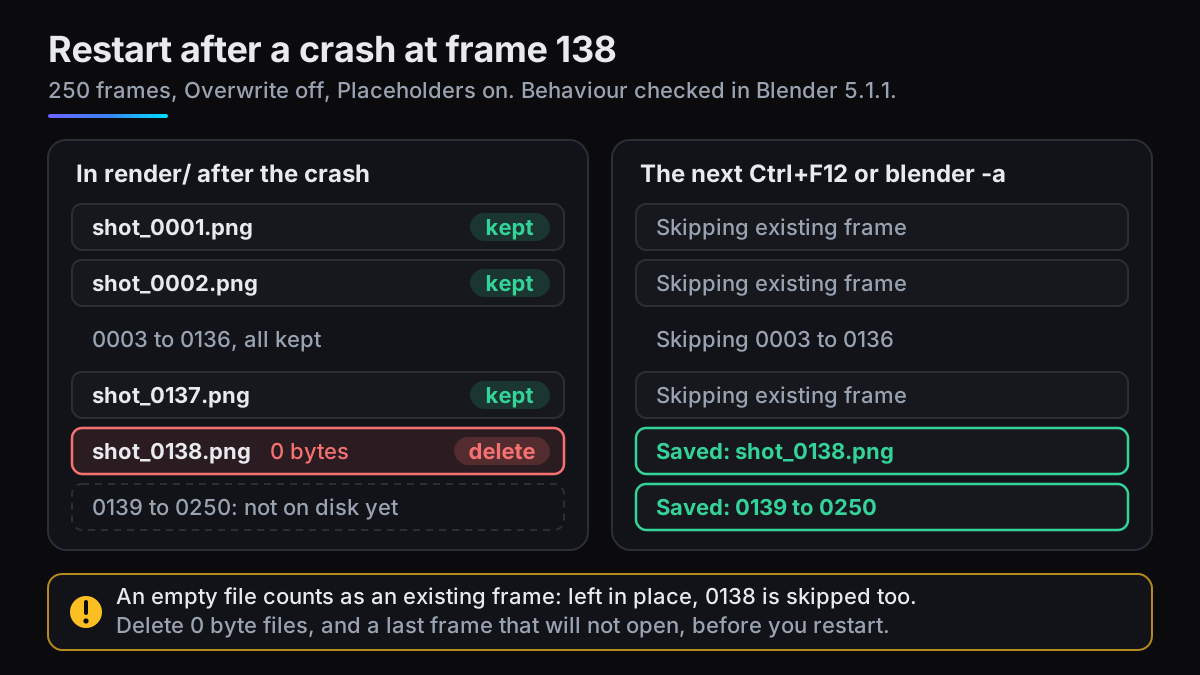
With Overwrite off, Blender looks for each frame's file before rendering it. If the file exists, it prints Skipping existing frame and moves on. That is all a restart needs.
Placeholders matters when several machines render one shot. The manual calls it a Primitive Render Farm: a shared network folder, Overwrite disabled, Placeholders enabled, and as many machines as you like rendering into it. Each skips frames another has already claimed with its empty file.
The catch: an empty placeholder counts as an existing frame too. If Blender crashes partway through a frame, its empty file stays behind and the next run skips it.
Resume a Blender render after a crash
Blender has no resume button. With an image sequence and Overwrite off, it does not need one.
- 1Clean up the last framesSort the output folder by name. Delete any file of 0 bytes, a placeholder for a frame that never finished, and delete the last frame if it does not open.
- 2Check that Overwrite is offOpen the .blend and confirm that Output Properties > Output > Image Sequence > Overwrite is unticked.
- 3Render the animation againPress Ctrl+F12. Blender skips every frame already on disk and renders the missing ones.
From the command line
-b renders in the background without the interface, -s and -e set the start and end frame, and -a renders the animation. The manual warns that arguments are executed in the order given, so put -a last. For a 250-frame shot that crashed at frame 138:
blender -b shot.blend -s 138 -e 250 -a
On Windows, use the full path to blender.exe. Do the same clean-up first; the range applies to that run only. With Overwrite off, plain blender -b shot.blend -a also works: Blender skips whatever is already there.
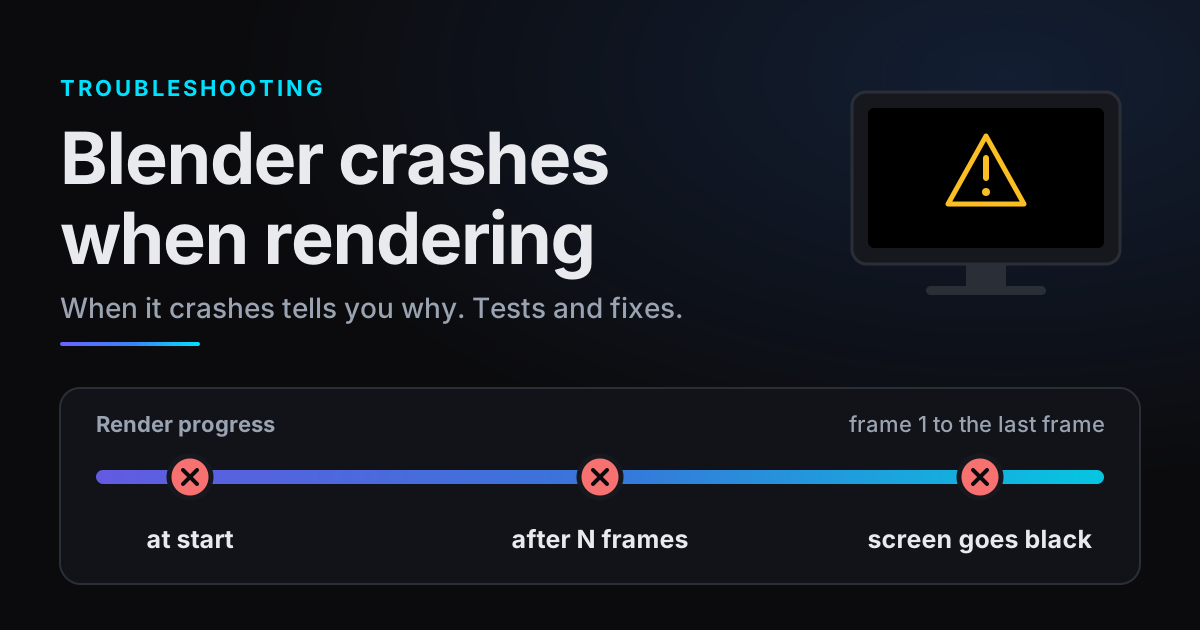
If the crash keeps coming back at the same point, fix the cause instead: Blender crashes when rendering sorts the causes by when they happen.
Blender image sequence to video in the Video Sequencer
Do the assembly in a separate .blend. Output Properties > Post Processing > Sequencer is on by default and renders the Video Sequencer's output instead of the view from the scene's active camera, so strips added to your 3D scene's own sequencer would replace its render.
- 1Start a Video Editing fileFile > New > Video Editing. In Blender 5.1.1 this template starts at 1920 x 1080, 24 fps and frames 1 to 250, already set to Video with an MPEG-4 container and H.264. Its output path still reads
/tmp\, so change it, and save the file in your project folder. - 2Add the framesChoose Add > Image/Sequence, open the folder with your frames, press A to select every file, and confirm. With Import As on Auto Detect, consecutively numbered files become one strip, one image per frame.
- 3Match the frame rateAn image sequence plays at the scene's frame rate, so set Output Properties > Format > Frame Rate to the rate you rendered at. As an example, 250 frames last 250 / 24 = 10.4 seconds at 24 fps, but 250 / 30 = 8.3 seconds at 30 fps.
- 4Match the frame rangeSet the scene's End frame to the strip's last frame, or select the strip and use View > Range > Set Frame Range to Strips (Blender 5.1). Only frames inside the scene range are encoded.
- 5Match the resolutionSet the resolution under Format to the size you rendered. If the sizes differ, the sequencer scales each image to fit, which can add borders or clip it; Fit Method (Scale to Fit by default) decides how.
If a few frames are still missing, tick Use Placeholders when adding the strip. It keeps its correct length, missing frames show pink in the preview, and they fill in when you refresh after rendering them.
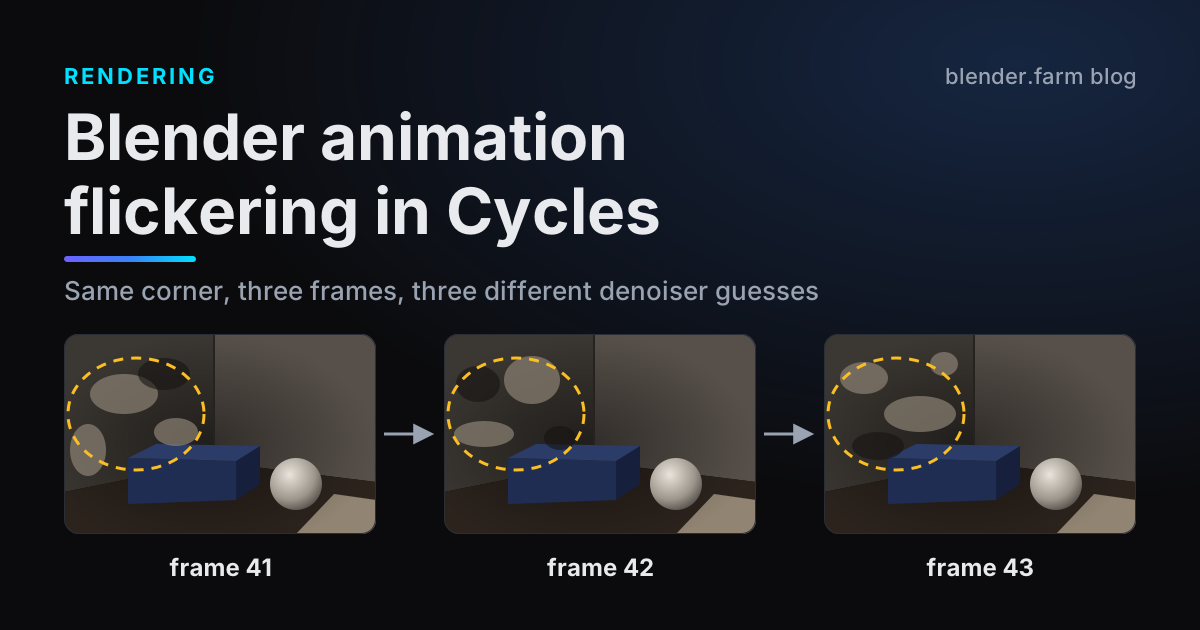
Scrub through the strip once before you encode. Flicker that shows up here is in the frames, not the encoding: see Blender animation flicker.
Encoding settings: container, codec and CRF
In 4.4 and 4.5, choose FFmpeg Video under File Format; in 5.x, Media Type Video. Then open the Encoding panel under Output (closed by default in 5.1). Check the container if you want an .mp4: when we switched an ordinary 5.1.1 scene to Video, it picked Matroska with H.264.
| Setting | Where | What it does |
|---|---|---|
| Container | Encoding | The file type. MPEG-4 writes an .mp4; Matroska, WebM, QuickTime and others are listed too |
| Video Codec | Encoding > Video | H.264 is the template's choice; H.265 / HEVC and AV1 are offered too, and Blender warns that HDR needs one of those two |
| Output Quality | Encoding > Video | Preset levels from Lossless to Lowest, or Constant Bitrate. Blender 5.1 adds Custom Quality, which takes a CRF value |
| Encoding Speed | Encoding > Video | Slowest, Good or Realtime: a faster encode gives a bigger file |
| Keyframe Interval | Encoding > Video | A higher number generally gives a smaller file that needs a more capable device to play |
| Autosplit Output | Encoding | Starts a new file once the first one reaches 2 GiB |
| Audio Codec | Encoding > Audio | AAC in the Video Editing template, No Audio in an ordinary scene. Set one if you added sound |
What CRF means
CRF, Constant Rate Factor, trades quality against file size: a smaller CRF gives better quality and a larger file. The allowed values depend on the codec: 0 to 51 for H.264, H.265 and AV1, 0 to 63 for VP9 and 1 to 31 for MPEG-4 (DivX). Values outside a codec's range are clamped to the nearest allowed one. On every codec except MPEG-4, a CRF of 0 is lossless.
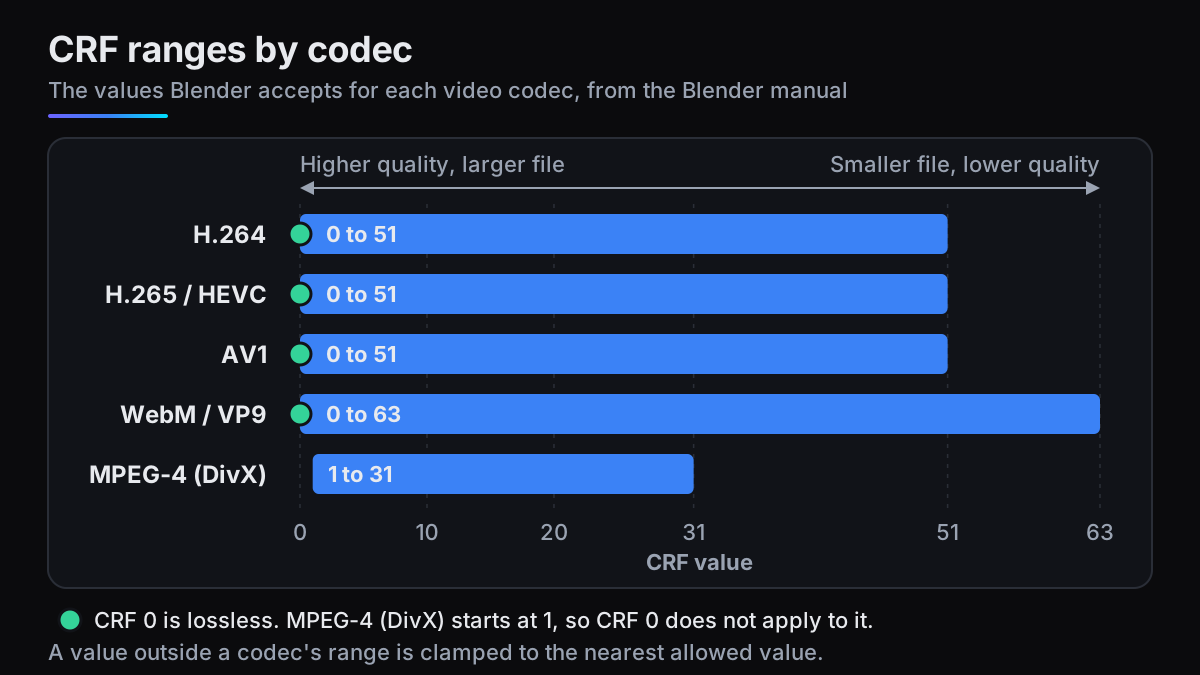
There is no single correct value; it depends on the footage, the resolution and where the video will be watched. Blender 5.0 and earlier offer only the preset levels. In 5.1 the CRF field under Custom Quality starts at 23. Since you are encoding from frames on disk, test cheaply: encode a short range at two or three settings, compare file sizes and the darkest, busiest parts, then encode the shot.
Rendering the frames on blender.farm
A render farm fits the same workflow. On blender.farm each render runs on its own cloud NVIDIA RTX 5090 with 32 GB of VRAM, and image formats come back one file per frame. PNG, JPEG and WebP frames preview in the browser as they finish; OpenEXR is download-only. Download single frames or a zip of all of them (Watching a render); they keep your output path's names, so //render/shot_#### arrives as shot_0001.png, ready for Add > Image/Sequence.
Video output works too: one movie with your file's container and codec, or MP4 / H.264 if it has no video settings. But Blender writes the movie at the end, so there are no live previews. That is why our guide suggests picking an image format, watching it come in, and assembling the video locally.
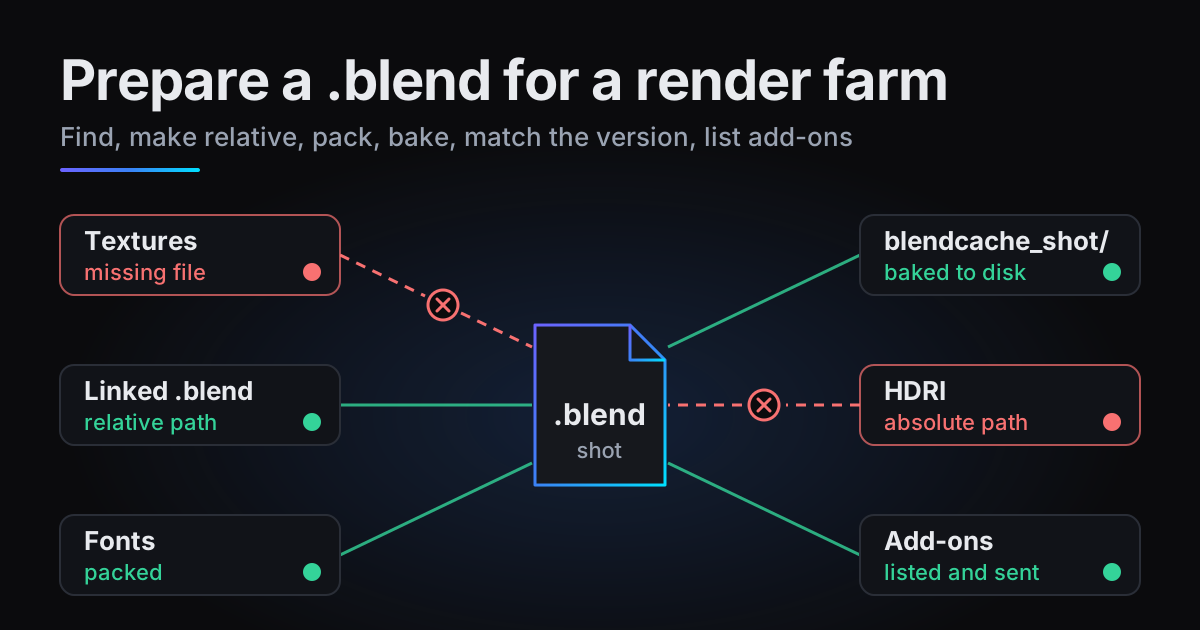
One honest limit: a relaunch renders the whole configured range again. Narrow the range to the frames you still need first; earlier frames stay available (Editing and relaunching). For upload prep, see preparing a .blend for a render farm.
Questions
- Can Blender render straight to MP4?
- Yes. In Blender 5.x set Media Type to Video and the container to MPEG-4 with H.264; in 4.4 and 4.5 choose FFmpeg Video under File Format. The manual still advises rendering an image sequence first, because a crash can leave the video unplayable.
- How do I resume a Blender render after a crash?
- Render to an image sequence with Overwrite off. After a crash, delete any 0-byte placeholder and a last frame that does not open, then render the animation again: Blender skips frames already on disk. On the command line, set the remaining range with -s and -e before -a.
- Why are my rendered frames in a /tmp folder?
- The default output path in a new Blender 5.1.1 scene is /tmp\, a temporary folder; on our Windows test machine it pointed to C:\tmp. Change it in Output Properties > Output to a folder beside your .blend, such as //render/shot_####.
- What does CRF mean in Blender's video settings?
- Constant Rate Factor: lower values mean higher quality and larger files. It runs 0 to 51 for H.264, H.265 and AV1, 0 to 63 for VP9 and 1 to 31 for MPEG-4; CRF 0 is lossless where the range starts at 0. Blender 5.1's Custom Quality level lets you type the value.
Sources
- Blender Manual 5.2, Output Properties (Media Type, Image Sequence, Encoding, Tips), read 29 October 2026
- Blender Manual 5.0, Output Properties (Media Type), read 29 October 2026
- Blender Manual 4.5, Output Properties (File Format), read 29 October 2026
- Blender Manual, Post Processing (Sequencer), read 29 October 2026
- Blender Manual, Image/Sequence Strip, read 29 October 2026
- Blender Manual, Rendering From the Command Line, read 29 October 2026
- Blender 5.1 release notes, Pipeline, Assets and I/O (Custom video quality), read 29 October 2026