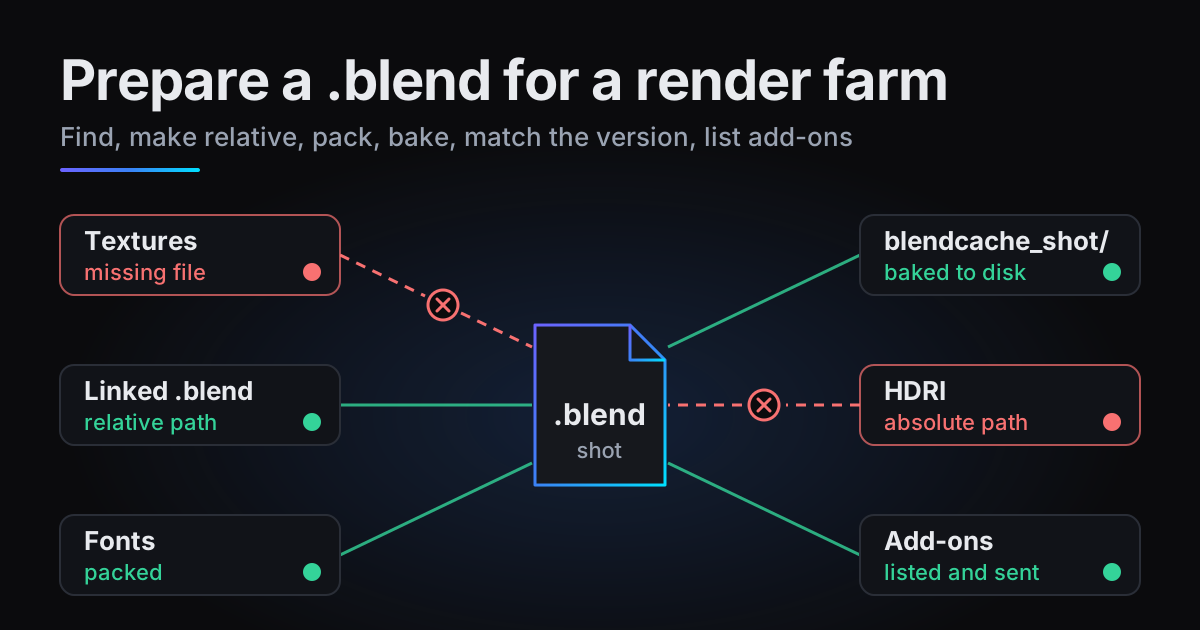
A .blend that renders perfectly on your own machine can come back from a render farm with pink textures, a simulation stuck on its first frame, or text in Blender's built-in font. All three usually have one cause: the file points at something that only exists on your computer. This guide shows how to prepare a .blend file for a render farm in six steps, using the File > External Data menu that Blender 4.4 to 5.x share. It is not tied to any farm's uploader, so it works for a second workstation too.
Why a .blend breaks on another machine
A .blend stores most of a scene inside itself, but images, HDRIs, fonts, sounds, linked .blend files, Alembic and USD caches, VDB volumes and simulation caches are usually separate files it only points to. Five things go wrong when the file lands somewhere else:
- Absolute paths.
C:\Users\you\Downloads\wood.pngnames a folder on your drive that no other machine has. - Files Blender cannot find. A missing image renders magenta, the classic pink texture. A missing font falls back to the built-in one, and geometry from a missing cache is simply absent.
- Linked libraries. Objects linked from another .blend need that file too, plus its textures.
- Caches that are not there. Without its cache a simulation has to be calculated again, frame by frame. A machine that starts at frame 120 has no frames 1 to 119 to build on, so the simulation stays at its start or vanishes.
- A different Blender version. Geometry Nodes bakes from one version are not guaranteed to load in another, and add-ons are built for particular versions.
Prepare a .blend file for a render farm in six steps
- 1.Find what is missing: Report Missing Files, then Find Missing Files.
- 2.Make every path relative: Make Paths Relative.
- 3.Pack what can be packed: Pack Resources, Pack Linked Libraries, then save.
- 4.Bake every simulation and keep its cache with the .blend.
- 5.Save and bake in the Blender version you will render with.
- 6.List the add-ons, fonts, HDRIs and colour config the scene needs.
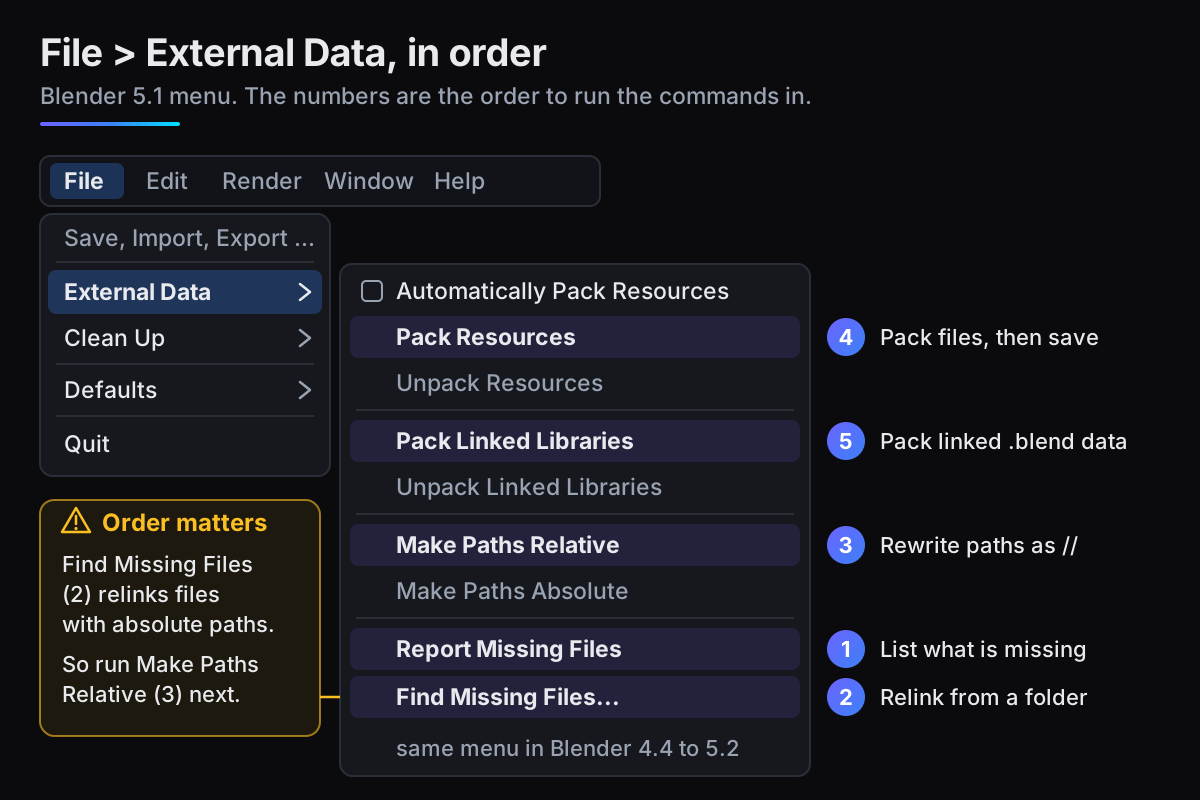
Step 1: find what is missing
Open the file on your own machine and choose File > External Data > Report Missing Files. Blender checks every external path stored in the file and raises one warning per file it cannot find, naming the path and the data-block that uses it. The full list is in the Info editor. If no warning appears, nothing is missing (Blender 5.1 says "No missing files").
To repair broken links, use File > External Data > Find Missing Files. Pick the folder your assets live in: Blender searches it and every folder inside it, and relinks each missing file it finds. Saving and reopening the .blend reloads the recovered files.
Report Missing Files checks paths only. It cannot tell you whether a simulation was ever baked; step 4 covers that.
Step 2: make paths relative
File > External Data > Make Paths Relative rewrites every external path relative to the folder the .blend is saved in. A relative path starts with //, which Blender reads as the folder this .blend is in, so //textures/wood.png is a textures folder next to the file. Copy the whole project folder to any machine and the paths still resolve.
Relative paths are the default for files you load or link (in Blender 5.1: Edit > Preferences > Save & Load > Default To: Relative Paths), but old projects, assets dragged in from a downloads folder and Find Missing Files leave absolute ones behind. One run of Make Paths Relative fixes them all.
A relative path needs a saved file, since // means nothing in an untitled one, so save into the project folder first. When you move the .blend itself, use File > Save As with Remap Relative ticked (the default) so the paths follow it.
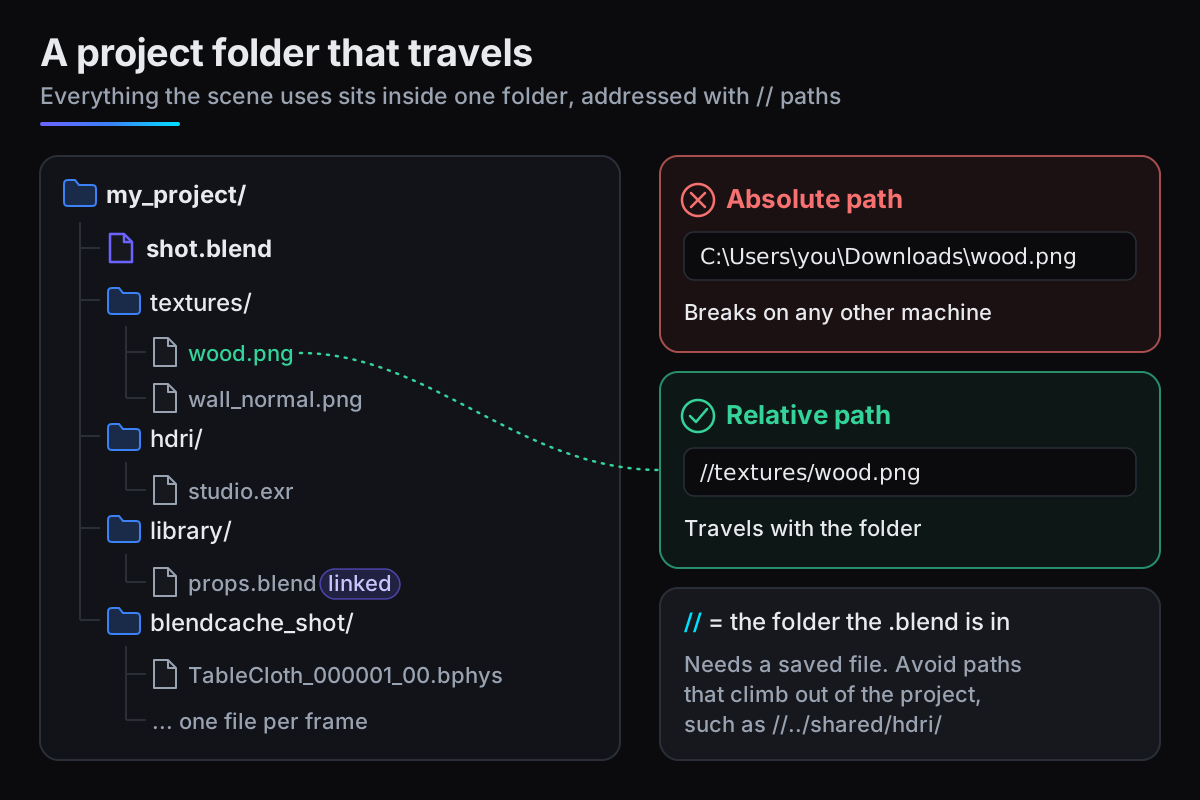
Keep everything inside that folder. //../../shared/hdri/studio.exr is relative too, but it climbs out of the project, so it breaks when you send only the project.
Step 3: pack resources into the .blend
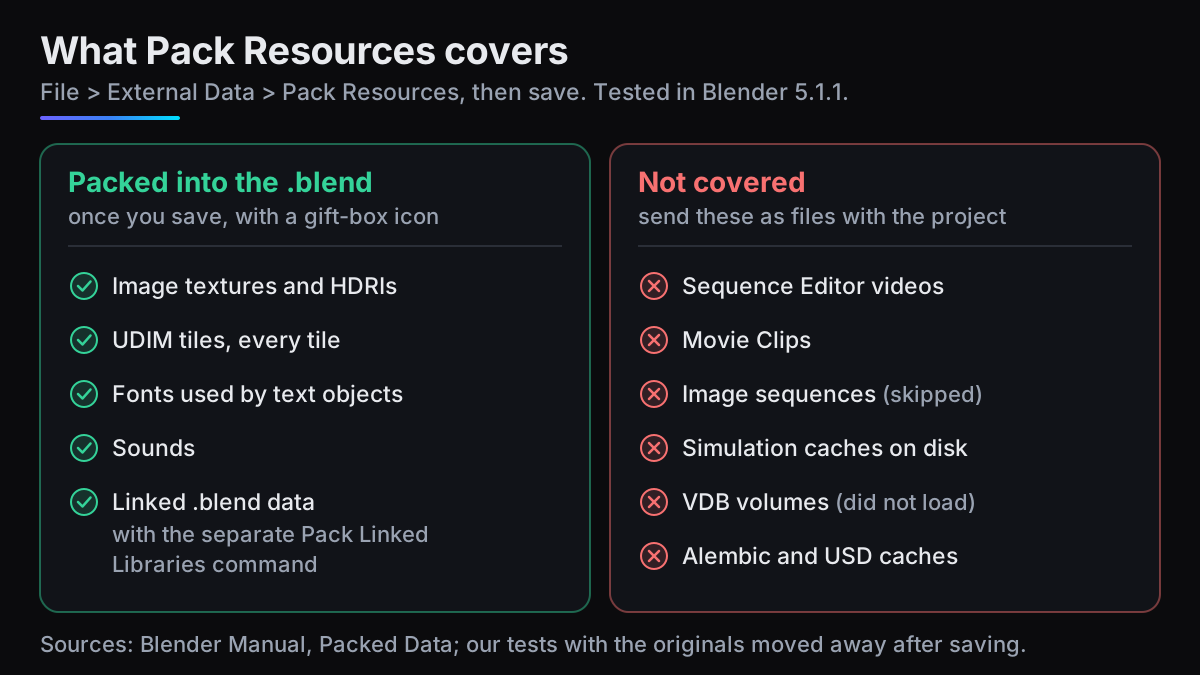
File > External Data > Pack Resources packs every eligible external file into the .blend, and the copies are written into the file when you save. After that the .blend carries its own copies, so you can move or delete the originals. A packed file shows a gift-box icon next to its path. Automatically Pack Resources also packs files you add later.
Pack Linked Libraries in the same menu does this for data-blocks linked from other .blend files, keeping the library references so they can be unpacked later. Save afterwards here too. In our Blender 5.1.1 test, a linked object still loaded after its library file was moved away.
Packing trades size for simplicity: gigabytes of 8K textures make a .blend of gigabytes. For a heavy scene, a tidy folder with relative paths can be the better thing to send.
What Pack Resources does not cover
The manual is clear that some heavy files, such as Sequence Editor videos and Movie Clips, cannot be packed. Our tests in Blender 5.1.1 found more gaps:
- Image sequences were skipped with the warning "packing movies or image sequences not supported". A single image, a font, a sound and both tiles of a two-tile UDIM image packed fine.
- Alembic and USD caches were not packed. Blender has no way to pack them.
- VDB volumes were marked as packed, yet once the .vdb files were moved, neither a single VDB nor a three-frame sequence loaded, and a test render showed no volume. Send volumes as files in the project folder.
- Simulation caches in a
blendcache_or fluid cache folder are left alone. Step 4 covers them.
Step 4: bake simulations before you render
The Blender manual recommends baking physics simulations before rendering: no re-simulating, fewer glitches, and exactly the same result every time. Each kind of simulation keeps its bake somewhere different.
Cloth, soft body, particles and rigid bodies
These share one cache system, set in each system's Cache panel: Physics properties for cloth and soft body, Particle properties for particles, Scene properties for a rigid body world. Bake All Dynamics in that panel bakes all of them in the scene at once.
- Decide where the bake lives. Without Disk Cache, baked frames are saved inside the .blend. With it, they go to a
blendcache_[filename]folder next to the .blend (save first), and that folder must travel too. Library overrides support only Disk Cache. - Name every cache. An unnamed cache is named after its object: our cloth test on an object called Plane wrote
506C616E65_000001_00.bphys. Several unnamed caches on one object can conflict and lose files. - Check Start and End. Simulations are only calculated between the cache's Start and End frames. A new cloth cache in Blender 5.1.1 ran from frame 1 to 250, so raise End first for a longer shot.
Fluid simulations
Mantaflow smoke, fire and liquid bake into the Cache Directory in the domain's Physics > Fluid > Cache panel. Check it before baking: in Blender 5.1.1, a domain added to a never-saved file got a directory in the system temp folder, and saving later did not move it. In a file saved first, it defaulted to a //cache_fluid_ folder (plus a short code) next to the .blend. If yours points anywhere else, set a // path inside the project and bake again.
Geometry Nodes simulations and Bake nodes
Simulation zones cache while you play the animation (the purple line in the Timeline), but that cache is not a bake. The manual is explicit about farms:
When the result is ready to be sent to a render-farm, it can be baked to disk. This allows for the simulation to be rendered in a non-sequential order.
Blender Manual, Simulation Zone
Save, select the objects and press Bake (Bake Selected for several objects) in Physics > Simulation Nodes to bake their simulations and Bake nodes. The Geometry Nodes modifier's Bake panel sets the Bake Target: Packed stores the bake inside the .blend, Disk writes it to the Bake Path. A Bake node can inherit that or use its own target and Custom Path. A new modifier defaulted to Packed in our 5.1.1 test; with Disk, keep the path inside the project.
Step 5: match the Blender version
The manual warns that Geometry Nodes bake data written by one Blender version is not guaranteed to be readable by another, and add-ons are built for particular versions. Render in the version line the file was saved and baked in.
- Check your version under the Blender menu (the logo, top left) > About Blender, or show it with Edit > Preferences > Interface > Editors > Status Bar > Blender Version.
- Save the final file and bake in the version you will render with, and re-bake after upgrading.
- Ask the farm which versions it runs, and whether it reads yours from the file or asks you to pick.
Step 6: add-ons, fonts, HDRIs and colour
The last group never shows up as a missing file, which is why it gets forgotten.
- Add-ons that run at render time. A modelling helper does nothing during a render. An add-on that adds shader nodes, drives values through Python or runs its own simulation does, and without it the render fails or looks wrong. Note which ones the scene needs, with their versions.
- Fonts. Pack Resources packs them. Otherwise send the font with the project, or the text falls back to Blender's built-in font.
- HDRIs. An HDRI is an image like any other: pack it, or keep it in the project with a
//path. - Colour management. View transform, look and exposure are saved in the scene. A custom OCIO config (ACES, an AgX variant, a camera log space) is not: Blender loads it through the OCIO environment variable, so the render machine needs the same config or the colours will not match.
A last check before you upload
- 1Copy the project folderCopy it to another drive or machine, then rename the original for a moment so nothing can quietly resolve to it.
- 2Open the copy and reportOpen the copied .blend and run File > External Data > Report Missing Files. Every warning is a file the farm would not have.
- 3Jump to the middle of the shotA baked simulation shows the right state at once; an unbaked one shows its first state or nothing.
- 4Render one framePress F12 and compare it with your original. Pink surfaces, a default font or a missing effect point at what is left to fix. Then rename the original folder back.
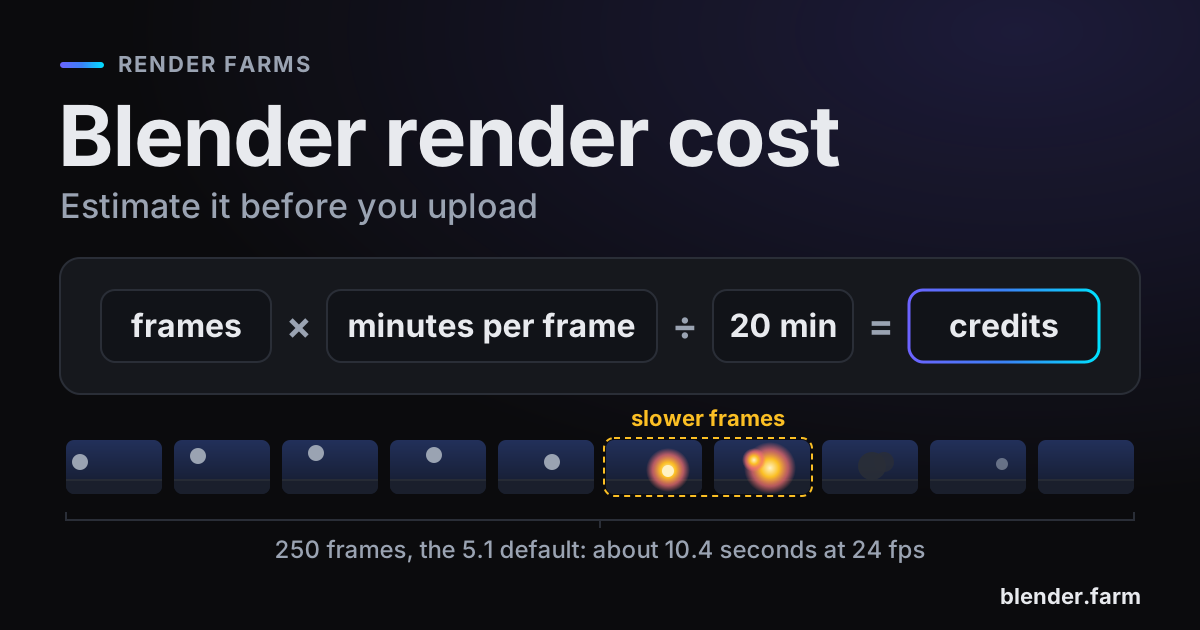
That frame also tells you how long one frame takes, which is the number you need to work out what a render will cost.
How the blender.farm add-on handles this
On blender.farm, the free Blender add-on does most of this list for you. It asks Blender what the scene references, so textures, HDRIs, fonts, linked .blend files, Alembic and USD caches, VDB sequences and simulation caches are found rather than guessed, along with the add-ons the render needs and a custom OCIO config (how those are handled). Anything missing is shown before launch, large files upload in parts, unchanged files are not sent twice, and each render runs on an RTX 5090 in the Blender line the file was saved in: 4.4, 4.5 LTS, 5.0, 5.1 or 5.2, with older files refused before upload. Baking is still yours to do, and UDIM tiles are not uploaded automatically, so test a frame if your scene uses them. Step 2: Files it needs explains each status in the file list.
Questions
- Why are my textures pink on the render farm?
- Pink (magenta) means Blender could not find an image when it rendered, usually because of an absolute path to your own drive or a texture that was never sent. Run Report Missing Files, make paths relative, then pack or send the textures.
- Does Pack Resources include simulation caches?
- No. Caches in a blendcache_ or fluid cache folder stay on disk and must travel with the .blend. A physics bake without Disk Cache is saved inside the .blend, and a Geometry Nodes bake can use the Packed target.
- Do I need to bake Geometry Nodes simulations before rendering on a farm?
- Yes. Playback caching is not a bake, so the farm would have to simulate again. The Blender manual names baking as the step before a simulation is sent to a render farm, so the frames can render in any order.
- Can a farm render my file in a different Blender version?
- It may open, but the result is not guaranteed: the manual warns that Geometry Nodes bake data from one version may not be readable by another, and add-ons target specific versions. Render in the version line you saved and baked in.
- Should I pack everything or send a project folder?
- Packing gives one self-contained file, which is easiest for small scenes. For heavy scenes a folder with relative paths avoids a huge .blend, and caches, VDB volumes, image sequences and videos travel as files anyway.
Sources
- Blender Manual, Topbar: File > External Data, read 29 October 2026
- Blender 4.4 Manual, Topbar: File > External Data (same menu items), read 29 October 2026
- Blender Manual, Packed Data, read 29 October 2026
- Blender Manual, Opening and Saving: Relative Paths, read 29 October 2026
- Blender Manual, Baking Physics Simulations, read 29 October 2026
- Blender Manual, Fluid Domain Cache, read 29 October 2026
- Blender Manual, Simulation Zone, read 29 October 2026
- Blender Manual, Geometry Nodes Baking, read 29 October 2026
- Blender Manual, Bake Node, read 29 October 2026
- Blender Manual, Geometry Nodes Modifier: Bake, read 29 October 2026
- blender.farm guide, Step 2: Files it needs, read 29 October 2026